Clearing the Microsoft Teams cache fixes a specific and recognisable set of problems: a client stuck loading, messages that will not send, a status that never updates, missing chats, or a sign-in loop.
It is safe — nothing is deleted from the server, because Teams stores everything in the cloud. What you clear is a local copy, which Teams rebuilds on the next launch.
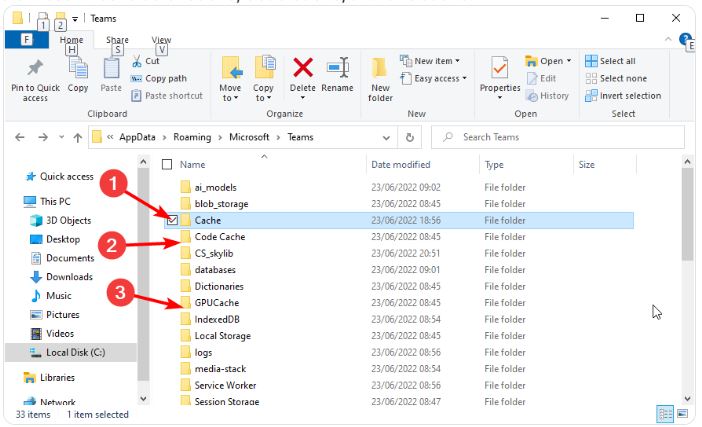
Checked August 2026. Note that Microsoft has moved everyone to the rebuilt Teams client; the old client’s %AppData%\Microsoft\Teams folder no longer applies. The paths below are for the current app.
Before clearing the cache
Two faster things fix a good share of Teams problems:
- Quit properly and reopen. Closing the window leaves Teams running. Right-click its icon in the notification area and choose Quit, then reopen.
- Sign out and back in. Profile picture → Sign out.
If neither helps, clear the cache.
Windows
1. Quit Teams completely
- Right-click the Teams icon in the notification area → Quit.
- Open Task Manager (Ctrl + Shift + Esc) and end any remaining Microsoft Teams processes.
This step is not optional — files in use cannot be deleted, and skipping it is why the process appears not to work.
2. Clear the cache folder
For the current Teams client:
- Press Win + R.
- Paste this and press Enter:
%LOCALAPPDATA%\Packages\MSTeams_8wekyb3d8bbwe\LocalCache- Delete the contents of that folder. Skip anything that refuses — it is still in use.
- Reopen Teams.
The first launch afterwards is slower while it rebuilds.
The complete reset
If clearing the cache is not enough, reset the app itself — this is cleaner than deleting folders by hand:
- Settings → Apps → Installed apps.
- Find Microsoft Teams, three-dot menu → Advanced options.
- Try Repair first, which keeps your data.
- If that fails, use Reset. You will sign in again.
macOS
- Quit Teams entirely: Cmd + Q, then check it is gone from the Dock.
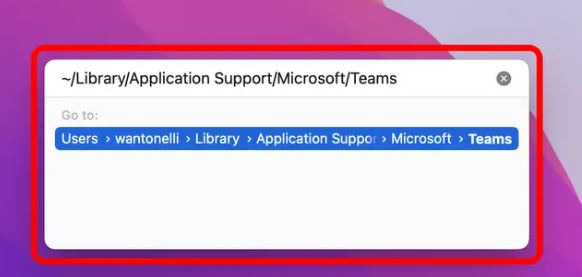
- In Finder, press Cmd + Shift + G.
- Go to:
~/Library/Group Containers/UBF8T346G9.com.microsoft.teams- Move the contents to the Bin.
- Also check
~/Library/Containers/com.microsoft.teams2for the current client. - Reopen Teams.
If you are still signed in with old credentials afterwards, open Keychain Access, search for Microsoft Teams, and delete the entries.
Teams on the web
The browser version has its own cache. Clear it for that site only:
- With Teams open, select the padlock or tune icon in the address bar.
- Cookies and site data → Manage on-device site data → delete.
- Reload and sign in.
Clearing only that site keeps you signed in everywhere else — see managing browser data.
What clearing the cache does and does not do
| Cleared | Kept |
|---|---|
| Cached messages and images | All chats and channel history (stored in the cloud) |
| Stored profile pictures | Files in SharePoint and OneDrive |
| Local settings and sign-in state | Teams, channels and memberships |
| Temporary files | Meeting recordings |
The one genuine loss is anything not yet synced — a message typed while offline that never sent. Rare, but worth knowing before you clear.
When the cache is not the problem
- Nobody in your organisation can use Teams: check the Microsoft 365 service status. A service incident is not fixable locally.
- Camera or microphone not working: that is Windows permissions. Settings → Privacy & security → Camera and Microphone. See resetting sound settings.
- Poor call quality: a network problem, not a cache one. Try a wired connection.
- Sign-in fails repeatedly: may be conditional access policy on a work account — contact IT.
Frequently asked questions
Will I lose my chat history?
No. Chats, channels and files are stored on Microsoft’s servers. The cache is a local copy that Teams rebuilds.
How often should I do this?
Only when something is wrong. It is a troubleshooting step, not maintenance — and the first launch afterwards is noticeably slower.
The folder will not delete.
Teams is still running. Quit it from the notification area and end any remaining processes in Task Manager, then try again.
Why does Teams use so much disk space?
The cache holds images, avatars and message data for fast loading, and it grows steadily. Clearing it reclaims that space, at the cost of a slower first launch.
Does this apply to the old Teams client?
The old client’s folder — %AppData%\Microsoft\Teams — is what most older guides describe, and it no longer applies. Use the path above for the current app.


