Merging cells in Excel takes two clicks: select the cells, then Merge & Center on the Home tab.
The more useful thing to know is that merged cells break sorting, filtering, formulas and pivot tables — and that there is an alternative giving the same visual result without any of that damage. It is covered below, and on any spreadsheet that holds data rather than a printed layout, it is the one to use.

Checked August 2026 against current Excel for Microsoft 365, on Windows and Mac. The same options exist in Excel for the web with a slightly different ribbon.
How to merge
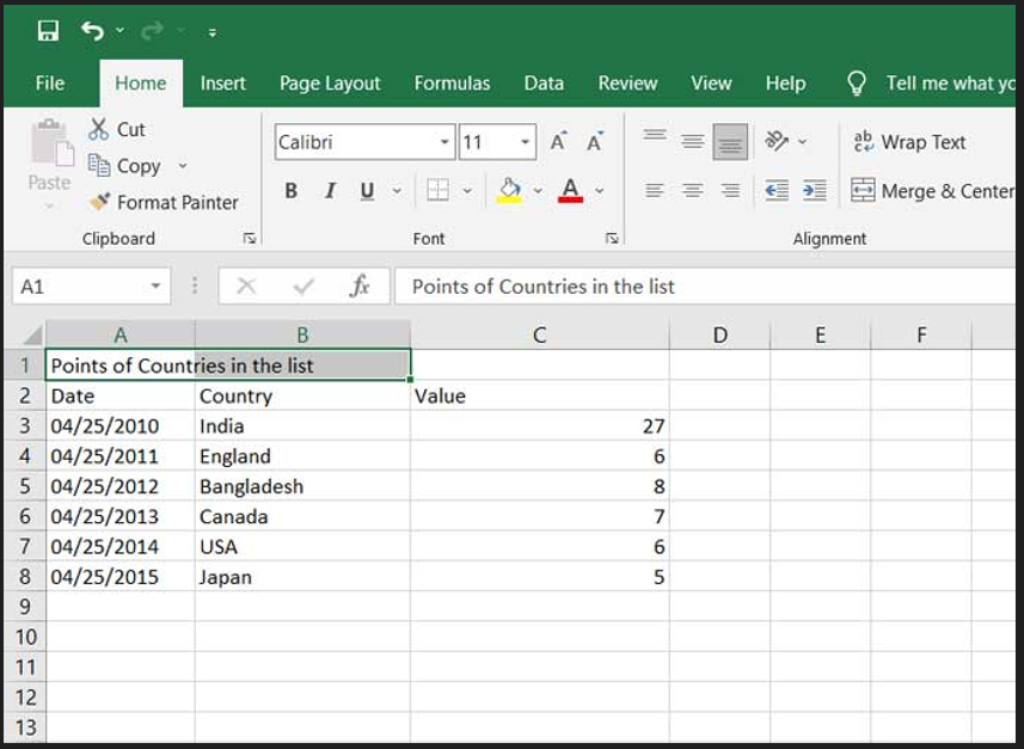
- Select the cells you want to merge — they must be adjacent.
- On the Home tab, find the Alignment group.
- Select Merge & Center.
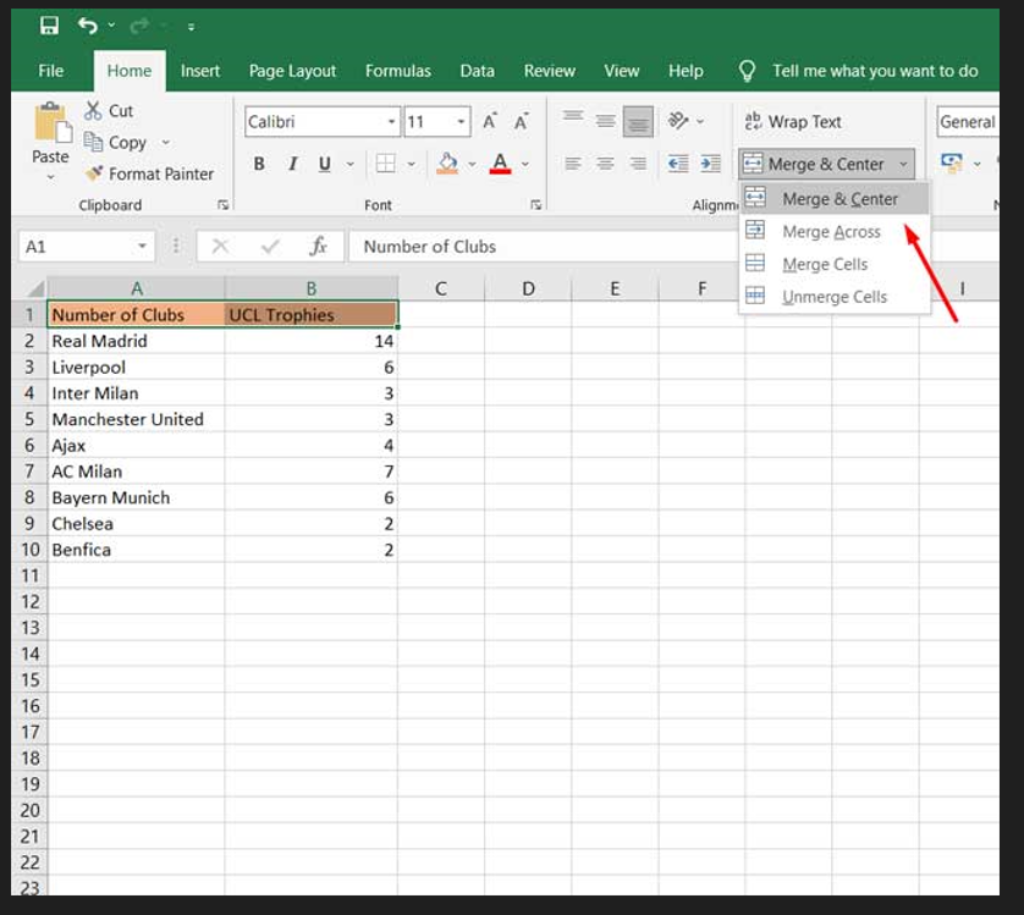
The four merge options
Select the dropdown arrow beside the button:
| Option | What it does |
|---|---|
| Merge & Center | One cell, contents centred |
| Merge Across | Merges each row separately — keeps rows distinct |
| Merge Cells | One cell, alignment unchanged |
| Unmerge Cells | Splits back, content returning to the top-left cell |
Merging keeps only the top-left value. Everything else in the selection is discarded. Excel warns you once; people click through it. If the other cells held data you needed, undo with Ctrl + Z immediately — unmerging afterwards does not bring the values back.
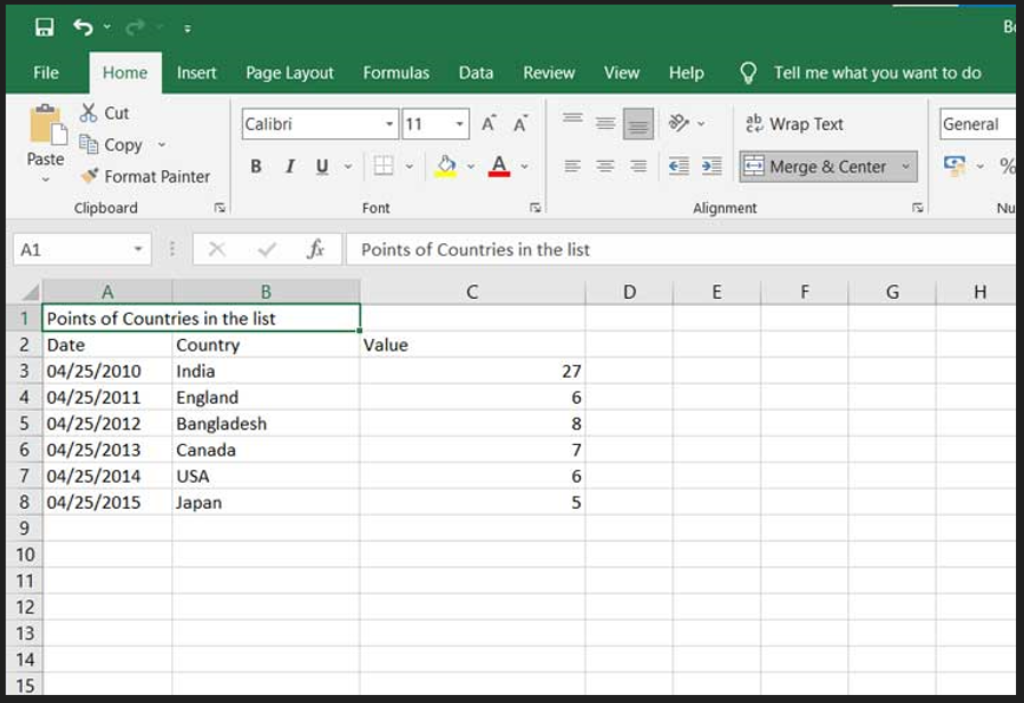
Use this instead: Center Across Selection
This produces the same centred heading across several columns, and does not merge anything. Every cell stays independent, so sorting, filtering, copying and formulas all keep working.
- Select the cells.
- Press Ctrl + 1 to open Format Cells.
- Go to the Alignment tab.
- Under Horizontal, choose Center Across Selection.
- Select OK.
Visually identical. None of the consequences. If you take one thing from this page, take this.
What merged cells actually break
Worth knowing before using them in a data table:
- Sorting fails with “This operation requires the merged cells to be identically sized”.
- Filtering behaves unpredictably — a filter treats the merged block as a single row.
- Pivot tables reject merged cells in the source range.
- Copy and paste into a differently shaped area fails.
- Formulas referencing the range often return unexpected results, since only the top-left cell holds the value.
- Tables (Ctrl + T) cannot be created over merged cells.
- Keyboard navigation jumps awkwardly, and selecting a column with Ctrl + Space behaves oddly.
Reasonable rule: merge in a printed report or a form layout. Never in a table that anyone will sort, filter or analyse.
Finding merged cells in a workbook
Useful when inheriting someone else’s spreadsheet and sorting will not work:
- Press Ctrl + F.
- Select Options → Format → Alignment tab.
- Tick Merge cells, select OK.
- Choose Find All.
To unmerge everything at once: select all with Ctrl + A, then Merge & Center twice — once to merge, once to unmerge.
Filling the blanks left behind
Unmerging leaves empty cells where the merged block was. To fill them with the value above:
- Select the range.
- Press F5 → Special → Blanks → OK.
- Type
=then press the up arrow. - Press Ctrl + Enter.
Every blank now references the cell above. Copy the range and paste as values to make it permanent. This turns a merged mess into a proper data table in about twenty seconds.
Combining text instead
If what you actually want is the contents of several cells in one — a first and last name, for instance — merging is the wrong tool. It discards everything but the first value. Use a formula:
=TEXTJOIN(" ", TRUE, A2, B2)TEXTJOIN takes a separator, whether to ignore empty cells, and the cells to combine. For a simple case:
=A2 & " " & B2Merging in Google Sheets
Select the cells, then Format → Merge cells. The same options and the same drawbacks apply. Sheets has no direct equivalent of Center Across Selection, which is one of the few places Excel is genuinely ahead.
Frequently asked questions
Why can I not sort my data?
Merged cells. Find them with the Find and Format method above, unmerge, fill the blanks, then sort.
Does unmerging bring my data back?
No. The other values were discarded at the moment of merging. Only an immediate undo recovers them.
What is the shortcut for merging?
There is no single key, but the ribbon sequence works: Alt, H, M, then C for Merge & Center on Windows.
Can I merge cells in an Excel table?
No. Tables created with Ctrl + T do not allow merged cells, by design — the same reason merging causes problems elsewhere.
Is Center Across Selection really the same visually?
Yes, for horizontal centring across columns. The difference is only that nothing is merged, so everything else keeps working. It does not span rows — for that you would still need a merge, or a redesigned layout.


