A Chromecast that will not connect to wi-fi usually has one of four causes, and the first two account for most cases:
- It is on the wrong band, or your bands share one name
- It is powered from the TV’s USB port instead of the mains
- The router is blocking the traffic Chromecast needs
- The wi-fi password or network changed
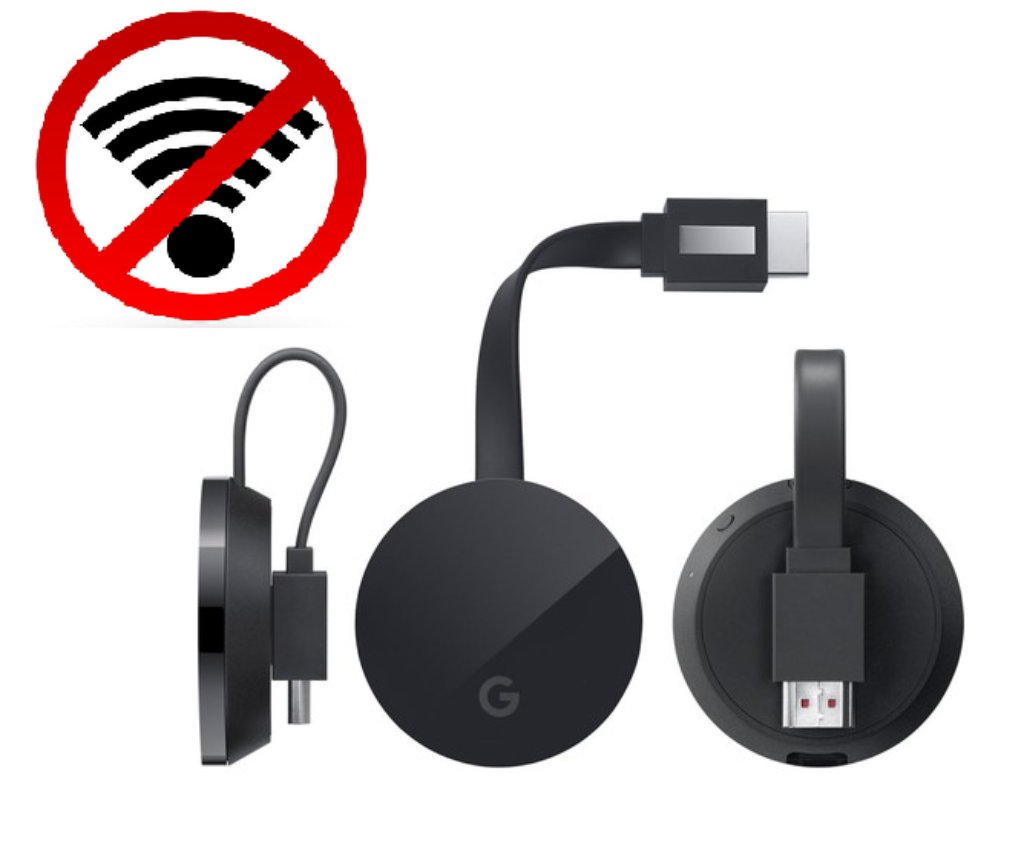
Checked August 2026. Covers Chromecast dongles, Chromecast with Google TV and Google TV Streamer.
1. Use the mains power adapter
Plug the Chromecast into a wall socket using the supplied adapter, not into a USB port on the television. TV USB ports frequently cannot supply enough current, and the first thing to fail under an inadequate supply is the wi-fi radio — producing a device that boots, shows a picture, and will not connect. It also loses power whenever the TV is off, which breaks updates and voice control.
If it currently runs from the TV, change that before troubleshooting anything else. It resolves a large share of these cases on its own.
2. Sort out the wi-fi band
Most Chromecast connection failures are here.
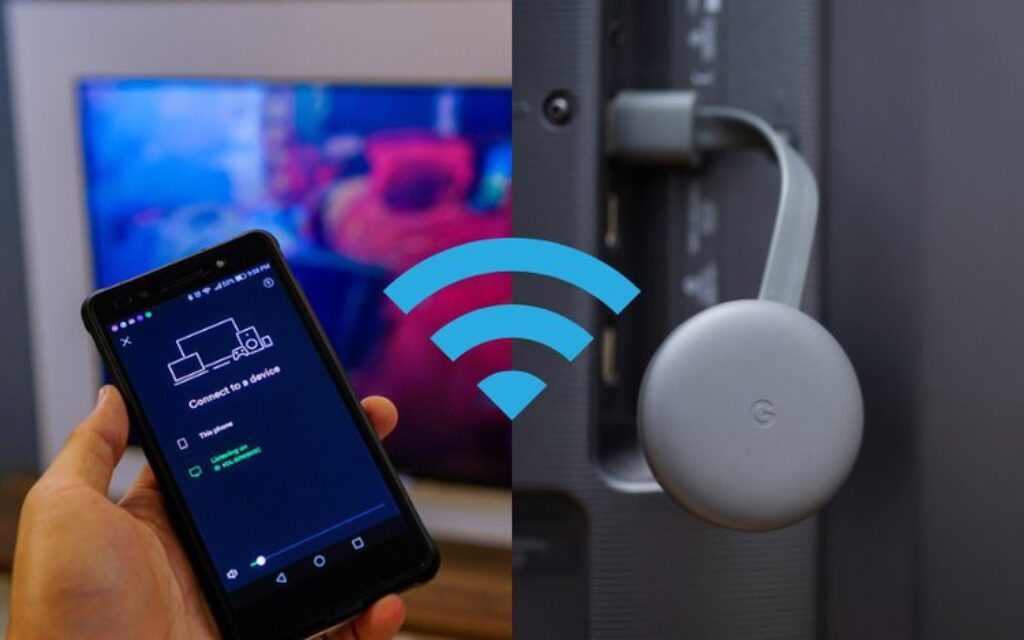
Phone and Chromecast must be on the same network
During setup your phone finds the Chromecast over the local network. If the phone is on the 5 GHz band and the Chromecast is looking at 2.4 GHz — or the phone is on a guest network — they cannot see each other.
Prefer 2.4 GHz
Older Chromecast models support only 2.4 GHz. Even on models that support both, 2.4 GHz reaches further and passes through walls better, which matters for a device wedged behind a television.
If both bands share one name
Many modern routers advertise 2.4 GHz and 5 GHz under a single name and steer devices between them. This causes real problems for Chromecast setup.
Two ways round it:
- Split the bands temporarily in the router settings — give the 2.4 GHz network its own name — complete the setup, then recombine them if you prefer.
- Move the phone onto 2.4 GHz for the duration of setup by connecting it to the 2.4 GHz network explicitly.
Guest and IoT networks
A guest network usually isolates clients from each other, which prevents your phone finding the Chromecast entirely. Use the main network.
3. Check the router settings that break casting
Chromecast relies on local network discovery, and several common router settings block it:
| Setting | Required |
|---|---|
| AP isolation / client isolation | Off — this is the most common blocker |
| Multicast / IGMP snooping | On — discovery depends on it |
| UPnP | On |
| MAC filtering | Off, or add the Chromecast’s address |
| WPA3-only security | Set to WPA2/WPA3 mixed — older models cannot use WPA3 |
That last row catches people out after buying a new router. Mixed mode keeps older devices working.
4. Restart everything, in order
Order matters, because each device needs the one below it to be ready:
- Unplug the router. Wait a minute. Plug it in and wait until it is fully up.
- Unplug the Chromecast. Wait a minute. Plug it back in.
- Restart your phone.
5. Check the device’s software
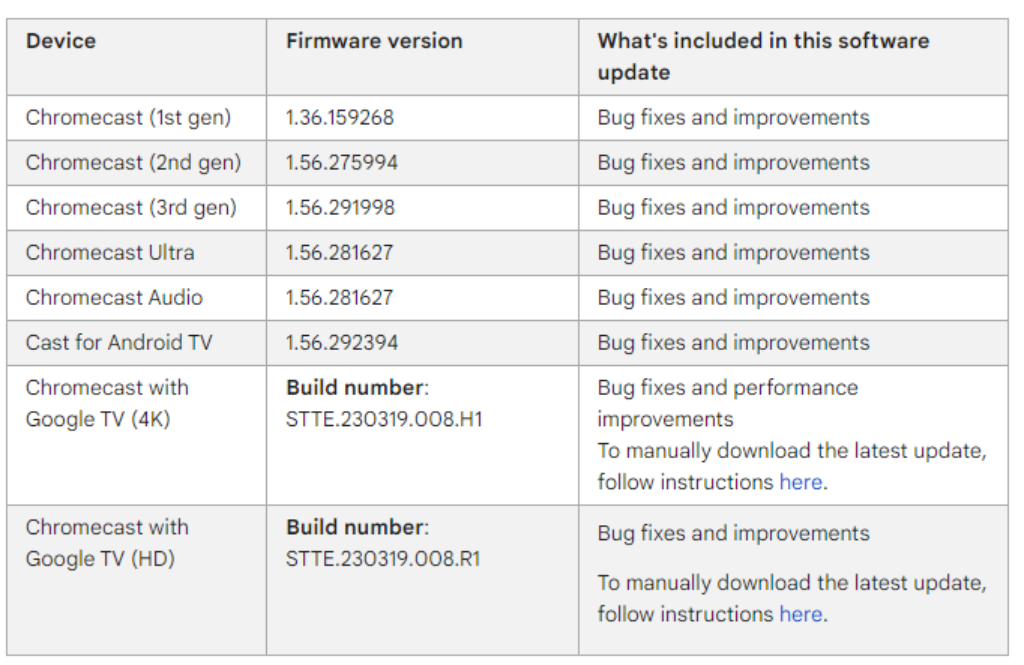
If it connects intermittently, check for an update: Google Home → the device → settings → device information.
A device that has been unpowered for months may need to be left connected for a while to download and apply an update before it behaves normally.
6. If the wi-fi password or network changed
Try updating it in Google Home → device → settings → Wi-Fi.
If the device can no longer reach the network at all, that setting is unreachable and you need a factory reset — see how to reset your Chromecast.
7. Improve the signal
A Chromecast sits behind a television, which is one of the worst places in a room for wi-fi: the screen and its metal chassis block the signal, and other electronics add interference.
- Use the HDMI extender supplied in the box. It exists precisely to move the device out from behind the TV, and it makes a measurable difference.
- Move the router, or add a mesh node in that room.
- Change the wi-fi channel if you are in a crowded area — 1, 6 or 11 on 2.4 GHz.
- Use Ethernet. Chromecast Ultra and Google TV Streamer support it directly; other models can use a powered Ethernet adapter. This removes wi-fi from the equation entirely and is the most reliable fix available.
8. Phone settings that interfere
- Bluetooth must be on. Setup uses it, and this is easy to overlook.
- Location permission for the Google Home app is required on Android for network discovery.
- Turn off any VPN on the phone during setup.
- Private DNS on Android can block discovery — set it to Automatic while setting up.
In order, what to try
- Move to the mains power adapter.
- Put phone and Chromecast on the same 2.4 GHz network.
- Restart router, then Chromecast, then phone.
- Turn off AP isolation; set security to WPA2/WPA3 mixed.
- Fit the HDMI extender.
- Turn on Bluetooth and grant location permission on the phone.
- Factory reset and set up again.
Frequently asked questions
Does Chromecast work on 5 GHz?
Newer models do. Older ones are 2.4 GHz only. When in doubt, use 2.4 GHz — the extra range matters more than the extra speed for streaming.
Why does it keep dropping off the network?
Usually power or signal. Check the mains adapter first, then fit the HDMI extender. Router band steering can also bounce the device between bands.
Can it connect to a hotel or campus wi-fi?
Generally not. Those networks require sign-in through a web page, which Chromecast cannot display, and usually isolate clients from each other. A travel router that presents its own private network is the usual workaround.
Do I need to reset it after changing my wi-fi password?
Only if the device can no longer reach the network to receive the new setting. Try updating it in Google Home first.
Does a VPN on my router break Chromecast?
It can. Some VPN configurations break local discovery. Test with the VPN off, and exclude the Chromecast from it if that is the cause.


