Two different questions get mixed up here. Speed is how fast the drive reads and writes today. Health is how much life it has left. A drive can be fast and dying, or slow and perfectly healthy.
Check health first — it is the one that matters — then benchmark if you still want a number.
Checked August 2026. Applies to Windows 11 and Windows 10, and to SATA and NVMe drives alike.
Health: what to look at
Every modern drive keeps its own diagnostics, called SMART. The two figures worth reading:
- Percentage Used (or Health Status) — how much of the drive’s rated write endurance has been consumed. 5% after two years is normal. 80% means plan a replacement.
- Total Host Writes — the total data ever written. Compare against the manufacturer’s TBW rating for your model.
Windows’ own check
For NVMe drives, Windows 11 has this built in — no download required:
Settings → System → Storage → Advanced storage settings → Disks & volumes → select the drive → Properties → Drive health.
It reports estimated remaining life, available spare and temperature. It only covers NVMe; SATA SSDs need a tool.
CrystalDiskInfo
Free and the standard tool for this. Download from crystalmark.info — take the standard edition, and decline any bundled extras during install.
The header shows an overall verdict:
- Good — nothing to do.
- Caution — an attribute has crossed its threshold. Back up today. The drive may keep working for months, or not.
- Bad — replace it now, and copy your data off before anything else.
The manufacturer’s tool
Usually the most accurate for your specific drive, since it understands that model’s own attributes: Samsung Magician, Crucial Storage Executive, WD Dashboard, Kingston SSD Manager, SanDisk Dashboard. These also install firmware updates, which do occasionally fix real performance and reliability faults.
Quick check from PowerShell
Get-PhysicalDisk | Select-Object FriendlyName, MediaType, HealthStatus, OperationalStatusCoarse, but it needs nothing installed and is useful over a remote session.
Speed: benchmarking
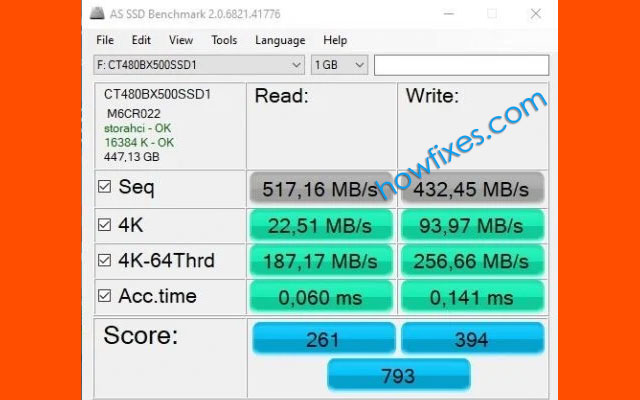
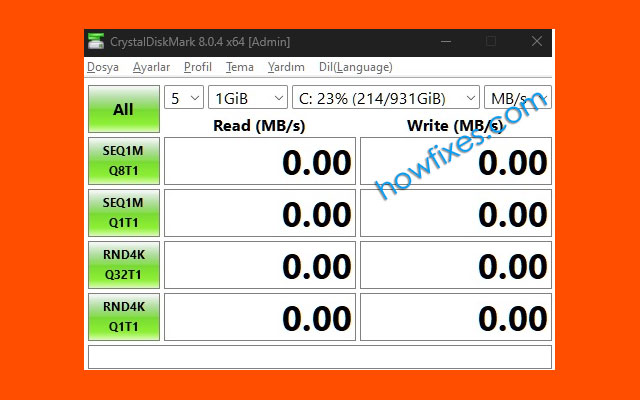
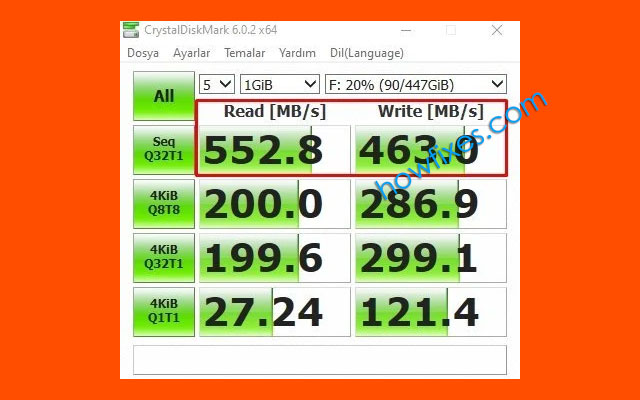
CrystalDiskMark is the usual choice. Run it with the drive otherwise idle, and read the results in this order:
| Row | What it measures | Matters for |
|---|---|---|
| SEQ1M Q8T1 | Large sequential transfers | Copying big files, the number on the box |
| RND4K Q32T1 | Small random reads with queue depth | Loading applications, multitasking |
| RND4K Q1T1 | Small random reads, one at a time | How responsive the system feels day to day |
That last row is the one that determines whether a machine feels quick. A drive with huge sequential figures and poor random 4K performance will still feel sluggish.
Rough expectations
| Drive type | Sequential read |
|---|---|
| Mechanical hard disk | 80–160 MB/s |
| SATA SSD | ~550 MB/s (the interface limit) |
| NVMe PCIe 3.0 | 2,000–3,500 MB/s |
| NVMe PCIe 4.0 | 5,000–7,400 MB/s |
| NVMe PCIe 5.0 | 10,000–14,000 MB/s |
A SATA SSD reporting 550 MB/s is not underperforming — that is the maximum SATA can carry.
Why your SSD is slower than advertised
In order of how often it turns out to be the cause:
- The drive is nearly full. SSDs slow down markedly above about 90% capacity, because there is less free space to write into. Keeping 10–15% free is the single most effective fix.
- The SLC cache is exhausted. Consumer SSDs write quickly into a fast cache, then drop to their real speed. A 60 GB copy that starts at 3,000 MB/s and settles at 400 MB/s is behaving normally.
- Wrong slot. On many motherboards, one M.2 slot runs at full PCIe speed and the others are reduced, or share bandwidth with SATA ports. Check the manual.
- Thermal throttling. NVMe drives throttle above roughly 70 °C. A heatsink is not optional on fast PCIe 4.0 and 5.0 drives.
- TRIM disabled. Check with
fsutil behavior query DisableDeleteNotify—0means TRIM is on, which is what you want. - Old firmware. Check with the manufacturer’s tool.
Things not to do
Never defragment an SSD. It provides no benefit — there is no head to move — and it consumes write endurance for nothing. Windows already handles SSDs correctly: its scheduled “Optimise Drives” task sends TRIM commands to an SSD rather than defragmenting it. Leave that task enabled and do not run third-party defragmenters.
Also skip “SSD optimiser” and “RAM booster” utilities. Modern Windows manages alignment, TRIM and caching correctly on its own.
When to replace a drive
Back up immediately and plan a replacement if you see any of these:
- SMART status reporting Caution or Bad
- Reallocated or pending sector counts climbing
- Files becoming corrupted or disappearing
- The drive vanishing from the BIOS intermittently
- Freezes lasting several seconds during disk activity
SSDs often fail abruptly and completely, unlike mechanical drives which usually make noise first. SMART warnings are frequently the only notice you get.
Frequently asked questions
How often should I check SSD health?
Every few months is plenty for normal use. Check sooner if the machine starts freezing, or if you are buying a used drive.
How long does an SSD last?
For typical desktop use, longer than you will keep the machine. Endurance ratings usually mean years of normal writing. The controller or its power circuitry tends to fail before the flash wears out.
Is CrystalDiskMark safe to run?
Yes. It writes a test file and deletes it. Running it constantly wastes a little endurance; running it occasionally is harmless.
Why is my new NVMe not faster than my old SATA SSD?
Because everyday use is dominated by small random reads, where the gap is far narrower than the sequential figures suggest. The difference is obvious when copying large files and much less so when opening applications.
Does Windows have a built-in benchmark?
Yes, though it is basic: winsat disk -drive c from an elevated prompt. CrystalDiskMark gives more useful and comparable numbers.