A Windows shutdown that takes a minute or more is usually waiting for something specific — a service that will not stop, or a page file being wiped. Both are fixable, and neither requires a “PC optimiser”.
This guide covers what is actually happening, the two registry values that control it, and how to find out which service is holding things up.
Checked August 2026. Applies to Windows 11 and Windows 10. Note that Windows 10 left support on 14 October 2025, with consumer Extended Security Updates ending 12 October 2027.
What happens when Windows shuts down
Understanding the sequence tells you where the delay is:
- Windows asks each open application to close. Any with unsaved work can refuse, and you get the “these apps are preventing shutdown” screen.
- It asks each running service to stop, and waits for each one.
- Optionally, it overwrites the page file.
- It flushes disk caches and powers off.
Step 2 is the usual culprit. Step 3 is the dramatic one — if it is enabled, it can add minutes on its own.
Both changes below edit the registry. Take a restore point first. The values are safe and reversible, but the habit matters.
1. Turn off page file clearing
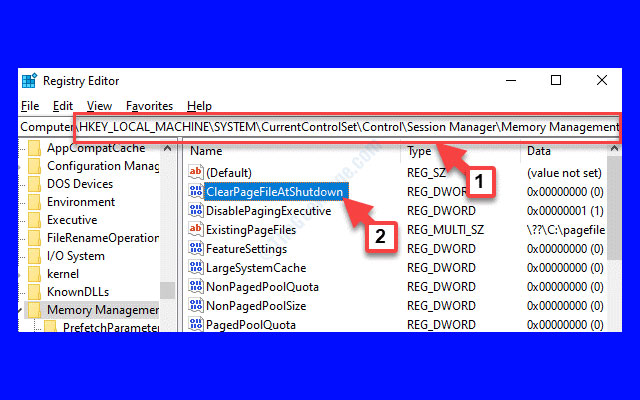
The page file is disk space Windows uses as overflow memory. ClearPageFileAtShutdown makes Windows overwrite the whole thing with zeroes on every shutdown — a security measure against someone recovering memory contents from the disk.
It is off by default, but security-hardening scripts and some corporate policies turn it on. With a page file of several gigabytes, especially on a mechanical drive, that alone can add minutes.
Check and disable it from an elevated PowerShell:
Get-ItemProperty -Path 'HKLM:\SYSTEM\CurrentControlSet\Control\Session Manager\Memory Management' -Name ClearPageFileAtShutdown

Set-ItemProperty -Path 'HKLM:\SYSTEM\CurrentControlSet\Control\Session Manager\Memory Management' -Name ClearPageFileAtShutdown -Value 0
0 means do not clear. Leave it at 1 if you are working under a policy that requires it, or the machine holds data where memory remnants genuinely matter — this is a real security setting, not merely bloat.
2. Shorten the service kill timeout
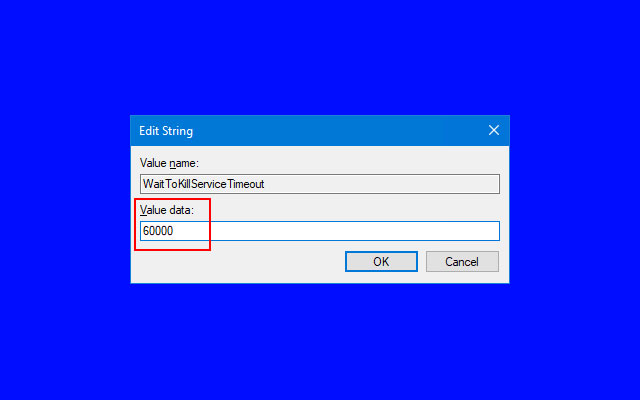
WaitToKillServiceTimeout is how long Windows waits for a service to stop before terminating it. The default on current Windows is 5000 milliseconds.
Set-ItemProperty -Path 'HKLM:\SYSTEM\CurrentControlSet\Control' -Name WaitToKillServiceTimeout -Value '3000'Note it is stored as a string, not a number.
Do not set this below about 2000. Guides recommending 1000 or less are trading a few seconds of shutdown for the risk of a service being killed mid-write — database services and backup agents in particular. A corrupted service database costs far more than the seconds saved.
3. Find out which service is actually slow
This is the step that gets skipped, and it is the one that identifies the real cause instead of masking it.
- Press Win + X, choose Event Viewer.
- Go to Applications and Services Logs → Microsoft → Windows → Diagnostics-Performance → Operational.
- Filter for Event ID 203 (shutdown degradation) and 200 (shutdown duration).
The event text names the service or driver responsible and how long it took. Nine times out of ten it is one thing: an antivirus agent, a VPN client, a backup service, a vendor updater.
Once you know what it is, you have real options — update it, reconfigure it, or remove it — rather than shortening a timeout so Windows kills it faster.
4. Reduce what is running in the first place
Fewer services and startup programs means fewer things to stop. See disabling startup programs on Windows 11 and 10.
Pay particular attention to:
- Vendor updater services (Adobe, NVIDIA, Java, printer suites)
- Cloud sync clients you no longer use
- Second and third security products — one is enough, and overlapping ones fight each other at shutdown
5. Check the obvious hardware causes
- A mechanical hard disk. Flushing caches and closing files is far slower on an HDD. This is the single biggest factor on older machines.
- A failing drive. If shutdown got slow recently and nothing else changed, run
chkdsk C: /scanand check the drive’s health with the manufacturer’s utility. - Pending Windows updates. “Update and shut down” is genuinely slow, and there is nothing to fix — it is installing.
What not to do
Two pieces of advice circulate widely and are worth ignoring:
- Registry “cleaners” and shutdown optimisers. They do not know which of your services is slow either. Most set the same two values above, bundle advertising, and charge for it.
- Holding the power button. Cutting power mid-shutdown skips the cache flush. Do it often enough and you will corrupt a file — usually at the worst possible moment.
Frequently asked questions
Why is my shutdown suddenly slow?
Something changed: a newly installed service, an updated security product, or a drive beginning to fail. Event Viewer’s Diagnostics-Performance log will usually name it directly.
Is lowering WaitToKillServiceTimeout safe?
Down to around 2000–3000 ms, yes. Below that you risk terminating services mid-operation. The value exists to give well-behaved services time to finish writing.
Should I enable ClearPageFileAtShutdown for privacy?
Only if you have a specific threat model where someone could obtain the drive and recover memory contents from it. Full-disk encryption with BitLocker addresses that far more effectively and costs nothing at shutdown.
Does Fast Startup make shutdown faster?
It makes the next boot faster, by saving the kernel session rather than fully powering off. It does not speed up the shutdown itself, and it means “shut down” does not fully clear system state — which is why some problems only go away after a restart rather than a shutdown.
Windows says an app is preventing shutdown. Should I force it?
Read the name first. Usually it is an application with unsaved work, and forcing it loses that work. If it is a service that regularly hangs, find out why rather than forcing it every time.


