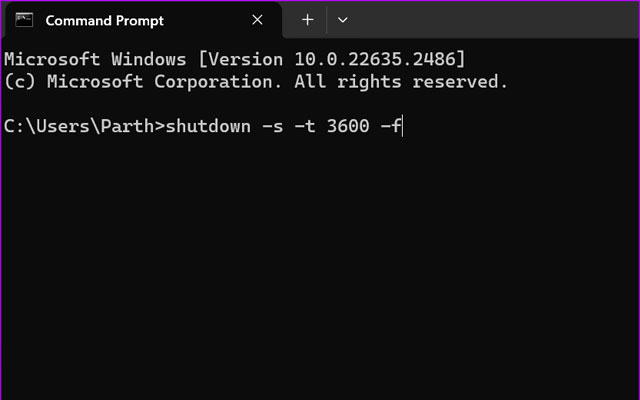
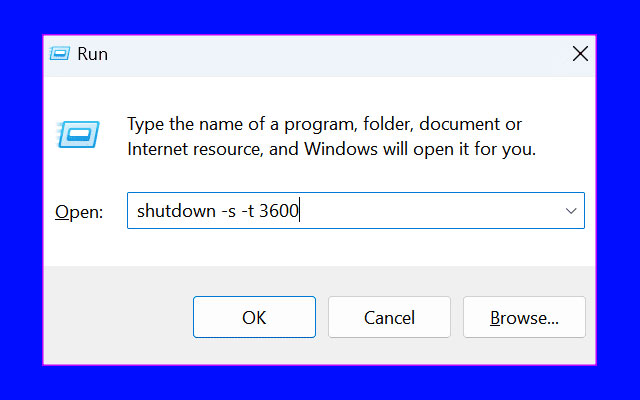
To shut Windows down in one hour, open Run with Win + R and enter:
shutdown -s -t 3600The number is seconds. To cancel a timer you have already set:
shutdown -aThat covers most needs. The rest of this guide is about making it repeatable, and about the one thing that will silently defeat it.
Checked August 2026. Works on Windows 11 and Windows 10. The shutdown command has been unchanged for many years.
The shutdown command
Useful times, so you do not have to do the arithmetic:
| Delay | Command |
|---|---|
| 10 minutes | shutdown -s -t 600 |
| 30 minutes | shutdown -s -t 1800 |
| 1 hour | shutdown -s -t 3600 |
| 2 hours | shutdown -s -t 7200 |
| Cancel | shutdown -a |
The switches worth knowing:
-s— shut down-r— restart instead-h— hibernate (cannot be combined with-t)-t n— wait n seconds, up to 315,360,000-f— force applications closed-a— abort a pending shutdown-c "text"— a message shown in the warning
Windows shows a notification when the timer starts, and a full-screen warning shortly before it fires — so you get a chance to run shutdown -a.
Do not add -f casually. It force-closes everything without letting applications save. Without it, an unsaved document blocks the shutdown — which is annoying but is also the behaviour that prevents you losing work. Use -f only when you know nothing is unsaved.
A desktop shortcut
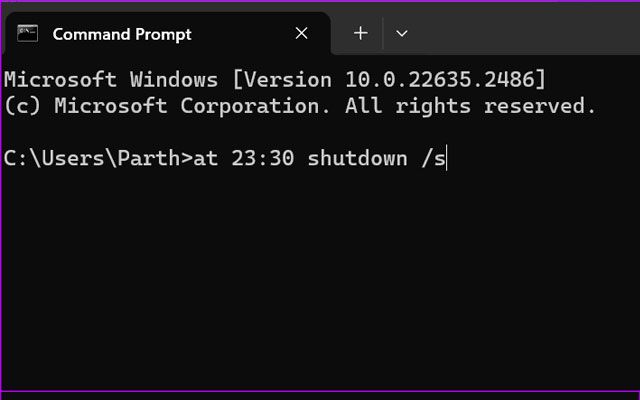
For a timer you use often:
- Right-click the desktop → New → Shortcut.
- Enter
shutdown.exe -s -t 3600. - Name it something like Shut down in 1 hour.
- Make a second one with
shutdown.exe -acalled Cancel shutdown.
Right-click either shortcut → Properties → Change Icon to give them recognisable icons; shell32.dll holds the standard power symbols.
A recurring schedule with Task Scheduler
A one-off timer is fine for tonight. For every night, use Task Scheduler:
- Press Win + R, type
taskschd.msc, press Enter. - Select Create Basic Task in the right-hand panel.
- Name it, choose Daily, and set the time.
- For the action, choose Start a program.
- Program:
shutdown.exeArguments:-s -t 60 - Finish, then open the task’s Properties and tick Run with highest privileges.
The -t 60 gives you a minute’s warning to cancel if you are still working.
Make it fire on a laptop
In the task’s Conditions tab, clear Start the task only if the computer is on AC power, or the task will be skipped whenever the machine is on battery.
The thing that defeats all of this
A shutdown timer does nothing if the machine goes to sleep before it fires. This is the most common reason people conclude the command “does not work”.
Check Settings → System → Power & battery → Screen and sleep. If sleep is set to 30 minutes and your timer is an hour, the machine sleeps first and the shutdown waits until it wakes.
Either set sleep to Never for the duration, or use Task Scheduler and tick Wake the computer to run this task in the task’s Conditions tab.
Fast Startup
Windows does not fully power off by default — Fast Startup saves the kernel session to disk so the next boot is quicker. It is usually harmless, but it means “shut down” and “actually off” are not the same thing. If you need a genuine cold shutdown, use:
shutdown -s -t 0 -fullOr hold Shift while clicking Shut down in the Start menu.
Frequently asked questions
How do I cancel a shutdown timer?
shutdown -a from Run or a command prompt. It works right up until the shutdown actually begins.
What is the maximum delay?
315,360,000 seconds — ten years. Anything beyond a day is better handled by Task Scheduler, which survives restarts; a -t timer does not.
Will it close my programs?
It asks them to close, and applications with unsaved work will block the shutdown and prompt you. Adding -f removes that protection and closes them regardless.
Do I need administrator rights?
Not to shut down your own machine. You do need them to shut down a remote machine with -m \\computername, and to create a scheduled task that runs with highest privileges.
Can I make it hibernate or restart instead?
Yes: -r restarts. -h hibernates, but cannot be combined with -t — schedule it with Task Scheduler if you need a delay.
Do I need a third-party shutdown timer app?
No. Everything these apps do is a wrapper around this command. Given that the category is full of ad-supported downloads, a shortcut on your desktop is the better trade.