Android and macOS do not talk to each other natively — there is no equivalent of AirDrop between them. What works instead depends on how many photos you are moving and whether you want the originals or a compressed copy.
For a handful of pictures, use Quick Share or a cloud app. For your entire library, use a USB cable and Android File Transfer, which is the only method that reliably preserves original quality and metadata.
Checked August 2026. Applies to current Android and macOS versions.
Which method to use
| Situation | Use | Original quality |
|---|---|---|
| A few photos, right now | Quick Share or Google Photos | Depends on settings |
| Whole library | USB cable | Yes |
| Regular ongoing sync | Google Photos or Dropbox | Only on original-quality settings |
| No cable, no cloud account | Local network transfer app | Yes |
Method 1: USB cable — best for the whole library
macOS cannot browse an Android phone without help, so you need one free tool.
Set up
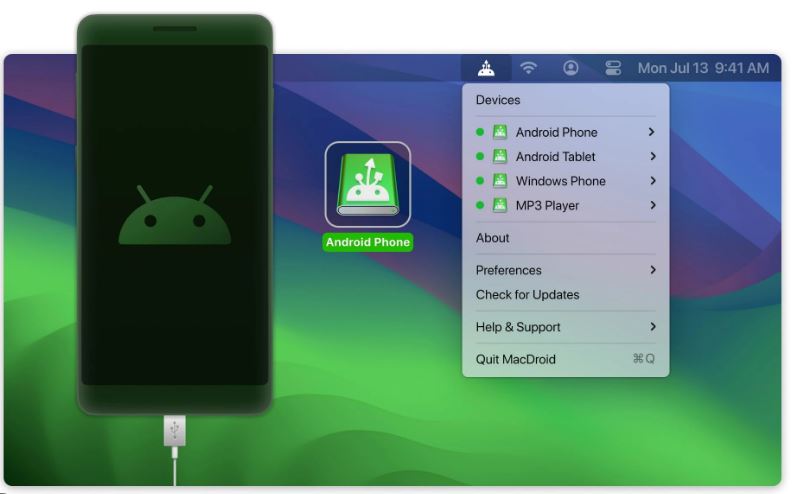
- Install Android File Transfer, OpenMTP or MacDroid. OpenMTP is open source and handles large transfers better than Google’s own tool, which has been neglected for years.
- Connect the phone with a data cable — many charging cables carry power only, and this is the single most common reason nothing appears.
- Unlock the phone.
- Pull down the notification shade, tap the USB notification, and choose File Transfer or MTP. It defaults to charging only.
Copy the photos
Open the tool and navigate to:
Internal storage → DCIM → CameraThat is where camera photos live. Also worth checking:
Pictures— screenshots, downloads, edited imagesPictures/ScreenshotsWhatsApp/Media/WhatsApp Images, if you use itDCIMon the SD card, if the phone has one
Drag the folders to your Mac. Verify the copy completed before deleting anything from the phone.
Method 2: Google Photos
The easiest ongoing arrangement, with one setting that matters.
- Install Google Photos on the phone and turn on backup.
- Under backup settings, choose the Original quality option if you want unmodified files. The alternative compresses, which is fine for viewing and not for archiving.
- On the Mac, open photos.google.com and download what you need.
For a bulk download, use Google Takeout — select Google Photos, request the export, and download the archive when it is ready. It arrives as several large zip files.
Original quality counts against your Google storage; compressed backups may not, depending on your account and when it was set up. Check which mode you are on before assuming your photos are being kept unmodified.
Method 3: Quick Share
Google’s AirDrop equivalent. It works to Windows natively, and to macOS through third-party clients such as NearDrop.
Good for a handful of photos over local wi-fi with no cable and no cloud account. Less suitable for hundreds.
Method 4: A local network transfer app
Apps such as LocalSend — open source, cross-platform — transfer files directly between devices on the same wi-fi network. Nothing goes to a cloud service, and originals are preserved.
Install it on both the phone and the Mac, put them on the same network, and send.
Method 5: Email or messaging
Fine for two or three photos. Beyond that, size limits and compression make it impractical — and most messaging apps compress heavily by default, which is exactly what you do not want for photos you are archiving.
The HEIC problem
Some Android phones save photos as HEIC. macOS opens these, but older software may not.
To convert on the Mac: open in Preview → File → Export → choose JPEG. For a batch, select several in Finder, right-click → Quick Actions → Convert Image.
Alternatively, change the phone’s camera setting to save JPEG instead — usually under Camera settings → picture format.
If the Mac does not see the phone
- Use a data cable. Try a different one — charge-only cables are extremely common.
- Unlock the phone and keep it unlocked during the transfer.
- Set USB mode to File Transfer from the notification shade. It reverts to charging on reconnect.
- Try a different port, and avoid hubs and dongles for the first attempt.
- Restart both devices.
- Try OpenMTP if Android File Transfer fails — it is more reliable with large libraries.
Frequently asked questions
Does AirDrop work with Android?
No. AirDrop is Apple-only. Quick Share is Android’s equivalent, and reaches macOS only through a third-party client.
Where are photos stored on Android?
DCIM/Camera for camera photos. Screenshots and downloaded images are usually under Pictures.
Will transferring reduce quality?
A USB copy does not — it is a file copy. Cloud services and messaging apps may compress depending on settings, which is the main reason to check the backup quality setting.
How do I transfer without a cable?
Google Photos for a full library, or LocalSend and Quick Share for smaller batches over wi-fi.
Can I transfer photos to iPhone instead?
Apple’s Move to iOS app handles that during initial iPhone setup. After setup, Google Photos is the simplest bridge.
Why does Android File Transfer keep failing?
It has not been meaningfully updated in years and struggles with large libraries. OpenMTP is free, actively maintained, and handles the same job far better.


