Getting AI writing help inside Microsoft Word no longer means copying text back and forth to a browser tab. There are now three genuine routes, and which one is right for you depends mostly on whether you have a Microsoft 365 subscription, a ChatGPT account, or neither.
Rewritten August 2026. This guide previously recommended third-party add-ins that were the only practical option in 2023. Both Microsoft and OpenAI now ship first-party integrations, which changes the answer entirely.
The three options, compared
| Microsoft 365 Copilot | ChatGPT app for Office | Third-party add-in | |
|---|---|---|---|
| Made by | Microsoft | OpenAI | Independent developers |
| Where it lives | Built into Word | A pane inside Word | A pane inside Word |
| Cost | Paid add-on to Microsoft 365 | Needs a ChatGPT Business or Enterprise account | Subscription, or your own API key |
| Sees your other files | Yes — email, files, meetings via Microsoft Graph | No | No |
| Best for | Work documents that draw on your own material | Teams already standardised on ChatGPT | Personal use, pay-per-use |
Option 1: Microsoft 365 Copilot
Copilot is Microsoft’s assistant, built directly into Word rather than bolted on. As of 2026 it runs on OpenAI’s GPT-5.6 as its preferred model, so the underlying capability is close to what you get from ChatGPT — the difference is the plumbing around it.
What makes Copilot different from any add-in is grounding. Because it can reach your own documents, email and meetings through Microsoft Graph, you can ask it to draft from material it can actually see:
- “Draft a project update from the notes in last Tuesday’s meeting.”
- “Rewrite this section to match the tone of the proposal I sent to Acme.”
- “Summarise this 40-page report into a one-page brief.”
No add-in can do that, because none of them can see anything except the text you paste in.
Using it
- Open a document in Word (desktop or web).
- Select the Copilot button on the Home tab, or press Alt + I on a blank line to draft in place.
- Describe what you want. Be specific about audience, length and tone — “rewrite this paragraph for a non-technical reader, about half the length” beats “improve this”.
- Review, then Keep it, Regenerate or discard.
Copilot is a paid add-on to a Microsoft 365 subscription, not part of the base plan. If the button is not there, it has not been licensed for your account.
Option 2: OpenAI’s ChatGPT app for Office
OpenAI ships an official app that adds a ChatGPT pane to Word. It works on the text you select or where the cursor sits, and inserts the result into the document — no copying to a browser and back.
It is available for ChatGPT Business and Enterprise accounts. It does not have access to your other files, so it cannot draft from your email or previous documents the way Copilot can; it works on what is in front of it, prompt by prompt.
This is the sensible choice for a team that has already standardised on ChatGPT and does not want to pay for a second assistant.
Option 3: A third-party add-in
Independent add-ins put a similar pane in Word using your own OpenAI API key. The appeal is cost: you pay for the tokens you actually use rather than a monthly seat, which for occasional use is far cheaper than either option above.
Installing one
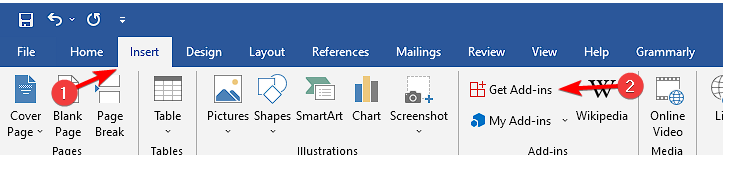
- In Word, go to Insert → Add-ins → Get Add-ins.
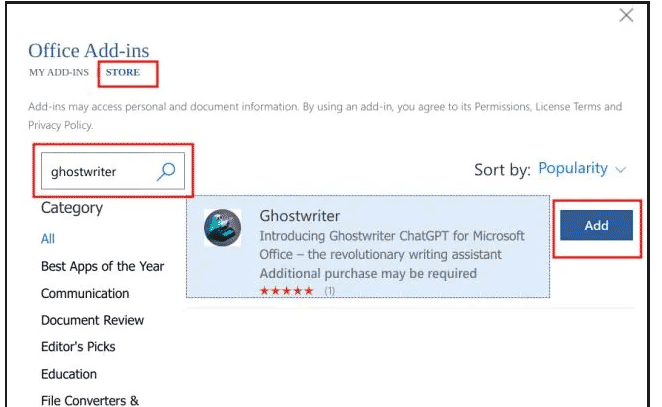
- Search the store for the add-in you want.
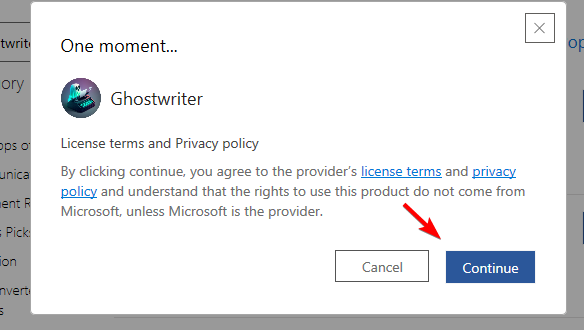
- Select Add and accept the permissions prompt.
- Open the add-in from the ribbon and paste in your OpenAI API key if it asks for one.
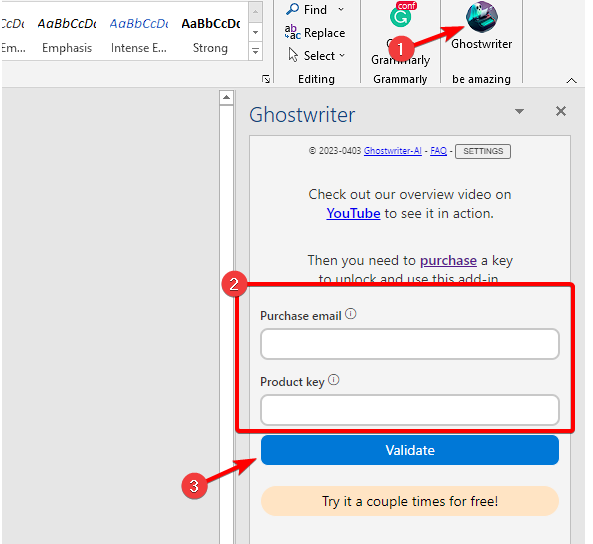
Two things to check before installing any add-in. First, an API key is a credential that can spend money — set a usage limit in your OpenAI account, and never paste a key into an add-in you cannot identify the publisher of. Second, an add-in with document access can read everything you have open. For work documents, check whether your organisation permits it; many block third-party add-ins for exactly this reason.
Option 4: no add-in at all
Copy and paste still works, costs nothing, and installs nothing. Open chatgpt.com in a browser, paste the text you want help with, paste the result back.
It is clumsier, but for occasional use the friction is smaller than setting up billing and permissions — and it keeps your documents out of a third party’s add-in entirely.
What this is good at, and what it is not
Used well, AI writing help in Word is genuinely useful for:
- First drafts when the blank page is the obstacle
- Tightening — cutting length while keeping meaning
- Changing register — the same content for a technical or a general reader
- Summarising a long document into something someone will actually read
- Structure — turning notes into an outline
Where it goes wrong:
- Facts, names, figures and citations. Language models produce confident, plausible, wrong specifics. Anything checkable must be checked.
- Anything confidential. Know where the text is going before you paste it. Consumer ChatGPT, a business tier and a third-party add-in have three different answers about who can see it and whether it trains a model.
- Voice. Unedited output reads like unedited output — recognisably so, and increasingly to readers who see it all day.
Frequently asked questions
Is there an official ChatGPT add-in for Word?
Yes. OpenAI’s ChatGPT app for Office adds a ChatGPT pane to Word for Business and Enterprise accounts. Microsoft’s own equivalent is Microsoft 365 Copilot, which is built in rather than added on.
Does Microsoft own ChatGPT?
No. ChatGPT is OpenAI’s product. Microsoft is a major investor and partner, and Microsoft 365 Copilot runs on OpenAI models — GPT-5.6 is its preferred model as of 2026 — but Copilot and ChatGPT are separate products from separate companies.
Can I use ChatGPT in Word for free?
Not through a first-party integration — both Copilot and OpenAI’s Office app are paid. The free routes are copy and paste from the ChatGPT website, or a third-party add-in billed against your own API key, where you pay only for what you use.
Will it replace human editors?
It has not, and the reason is specific rather than sentimental: it cannot tell you which facts are wrong, what the reader already knows, or what the document is actually for. It is a fast, tireless first-drafter and a reasonable line editor. Everything that requires judgement about the reader still needs a person.
Can I use it for academic writing?
Check your institution’s policy first — they vary from outright prohibition to permitted with disclosure. Where it is allowed, it is safest for structuring and tightening your own work. It is not safe for citations: models routinely invent plausible references that do not exist, and a fabricated citation in submitted work is a serious problem regardless of who typed it.
Does the add-in work in Word on the web and on Mac?
Office add-ins are designed to work across Word for Windows, Mac and the web, but individual add-ins vary. The listing in the add-in store states which platforms it supports.