Chromecast has two different resets, and choosing the wrong one either does not fix the problem or loses your setup unnecessarily:
- Restart — power cycle. Fixes most freezing, casting and playback problems. Nothing is lost.
- Factory reset — erases everything and returns the device to out-of-the-box state. Needed when it will not connect at all, or before selling it.
Always try the restart first.
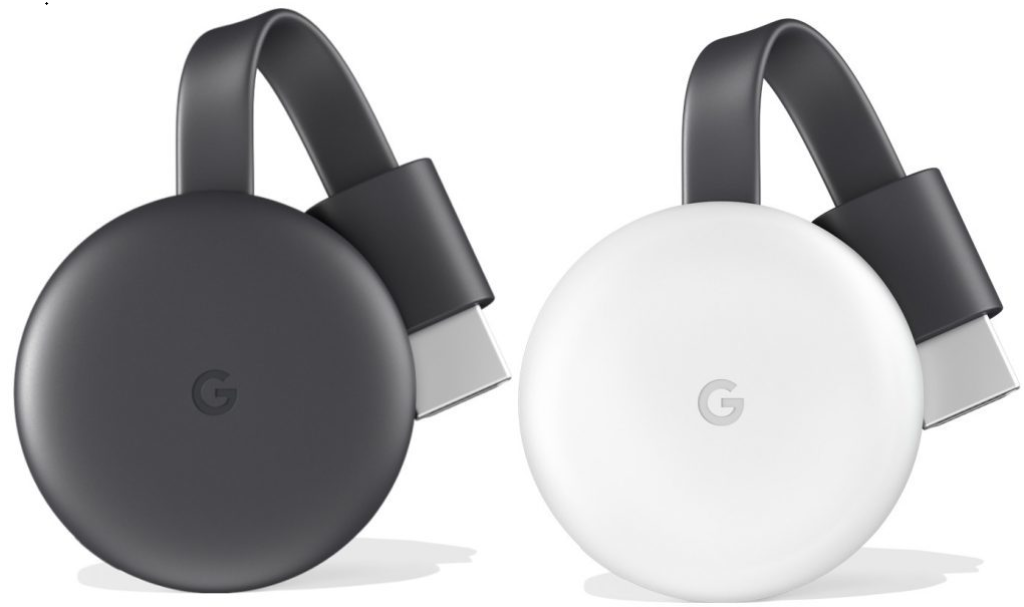
Checked August 2026. Covers the original Chromecast dongles, Chromecast with Google TV, and Google TV Streamer. The physical button method varies by model — see below.
Restart — try this first
The simplest way
Unplug the power for one minute, then plug it back in.
One minute matters. A quick off-and-on does not fully discharge the device, and this is the reason a “restart” sometimes appears not to help.
From the Google Home app
- Open Google Home.
- Select your device.
- Open settings, then the three-dot menu → Reboot.
Power supply note
Use the power adapter that came with the device, plugged into a mains socket. Running a Chromecast from a television’s USB port is a common cause of random restarts, dropped wi-fi and devices that will not boot — TV USB ports frequently cannot supply enough current, and cut power entirely when the TV is off.
Factory reset
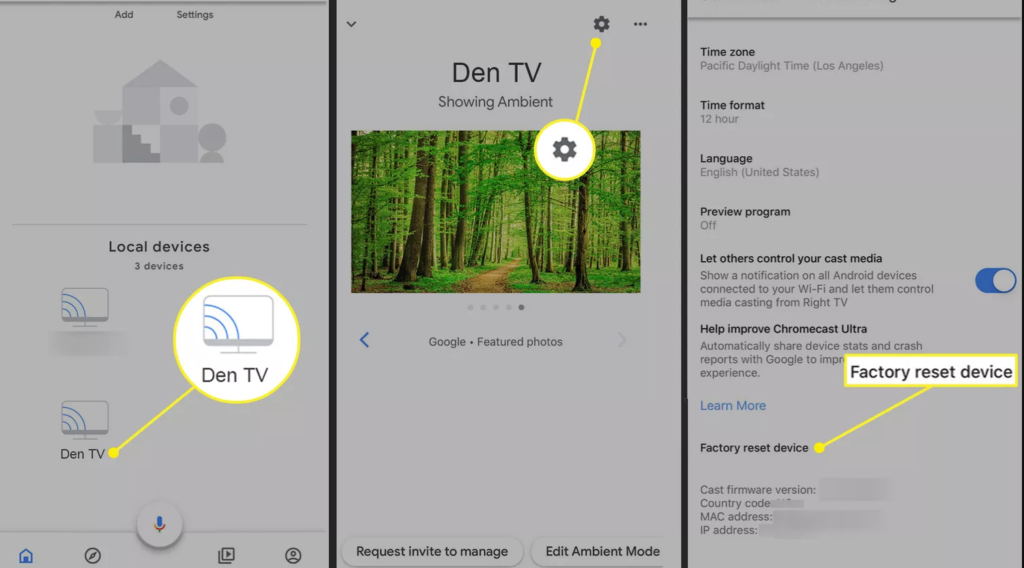
What is erased: the wi-fi configuration, linked accounts, device name, installed apps and all settings. The device returns to the setup screen.
Method 1: the physical button — always works
The reliable route, and the only one available when the device will not connect.
Chromecast dongles (original, Ultra):
- Leave it plugged into the TV and powered.
- Hold the button on the device.
- The LED flashes orange; keep holding.
- When it turns solid white, release.
Chromecast with Google TV:
- Hold the button on the back of the device.
- The LED flashes orange, then turns solid white.
- Release. Reset begins.
With the remote, on Google TV models: hold Back and Home together until the light flashes.
Method 2: from settings on the device
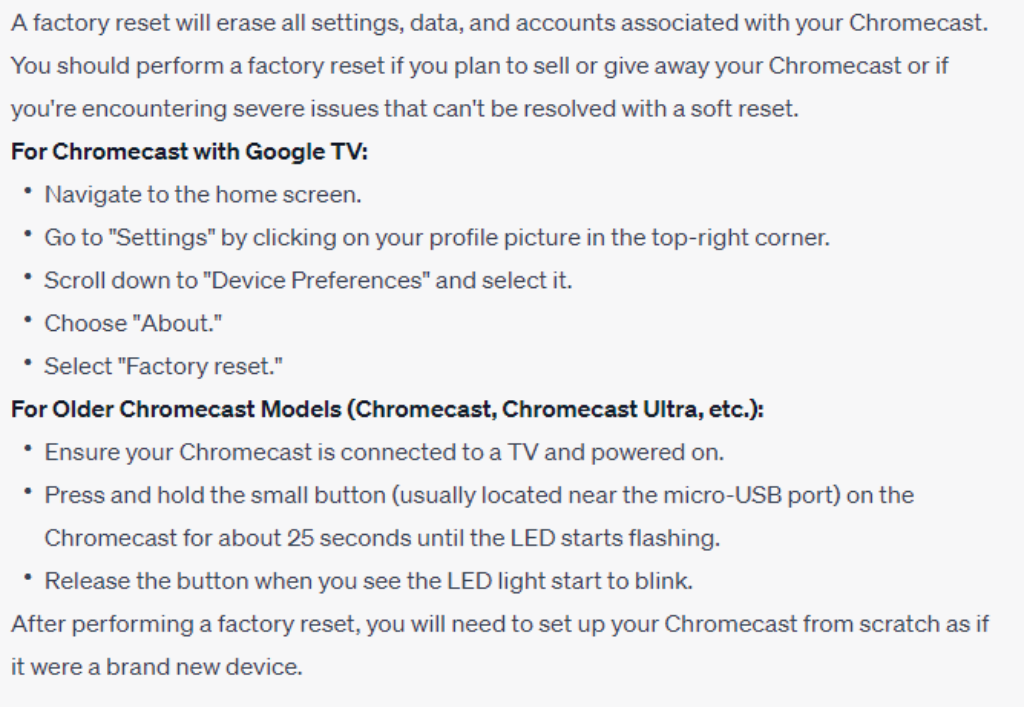
On Chromecast with Google TV: Settings → System → About → Factory reset.
Method 3: from the Google Home app
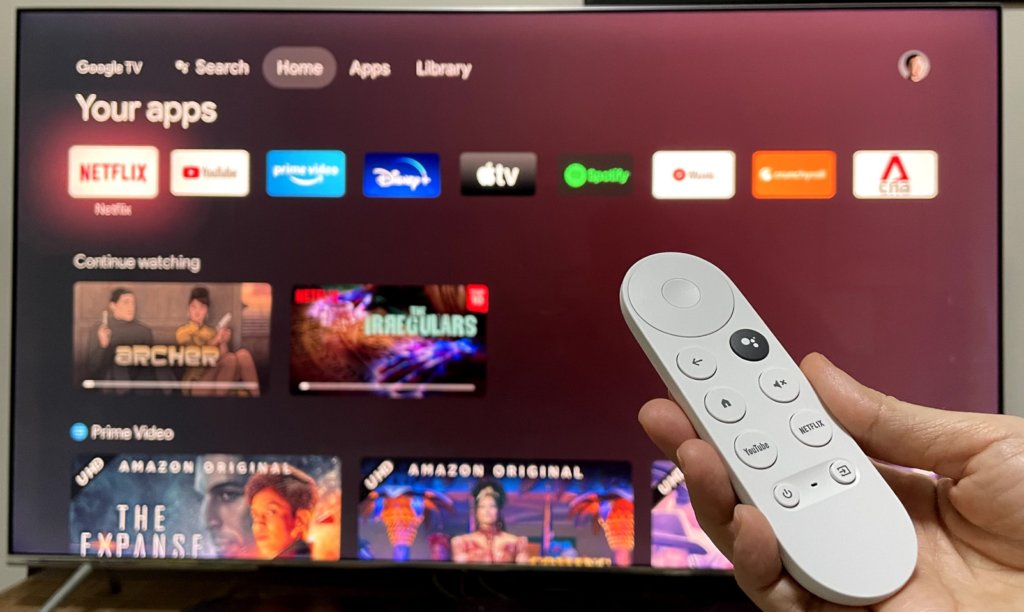
- Open Google Home and select the device.
- Open settings → three-dot menu → Factory reset.
This one needs the device to still be reachable — which is often exactly what is broken. Use the button in that case.
After a factory reset
- The device restarts to the setup screen — this takes a few minutes.
- Open Google Home on your phone.
- Add the device and follow the setup.
- Sign in to your streaming apps again.
Set it up on a 2.4 GHz network if you have separate names for your bands. Chromecast and phone must be on the same network to be found, and 2.4 GHz reaches further.
Before you factory reset, check these
Most problems are not the device:
- Update it. Google Home → device → settings → check for a software update.
- Restart the router. Unplug for a minute.
- Same network? Phone and Chromecast must be on the same one — easy to get wrong when a guest network or a mesh system is involved.
- Update the app you are casting from.
- Try a different HDMI port, and the HDMI extender if one came in the box.
For connection problems specifically, see Chromecast not connecting to wi-fi, which covers the network side in more detail.
Before selling or giving it away
Always factory reset — it removes your accounts and wi-fi password from the device. Then remove it from your Google Home app so it no longer appears in your list.
Frequently asked questions
Will a factory reset delete my Netflix or Disney+ account?
It signs the device out. Your accounts are unaffected; you simply sign in again after setup.
How long does it take?
The reset itself takes a few minutes. Setting up again, including signing back in to apps, usually takes ten to fifteen.
My Chromecast is not detected during setup.
Phone and Chromecast must be on the same network — 2.4 GHz is the safest choice. Turn Bluetooth on, which the setup process uses. Restart the router if it still does not appear.
The LED does not change colour when I hold the button.
Check the power supply first — the mains adapter, not a TV USB port. If the LED does not light at all, it is not receiving power.
Does a reset fix buffering?
Rarely. Buffering is a network problem: signal strength, congestion, or bandwidth. Moving the router closer, or using an Ethernet adapter, does more.
Do I need to reset when changing my wi-fi password?
Try updating the network in the Google Home app first. A reset is only needed if the device cannot reconnect to reach that setting.


