Error 0x8024A206 is Windows Update rejecting a file it downloaded because the integrity check failed. The package arrived damaged, or something modified it on the way in.
Because the fault is in the downloaded copy rather than in your system, the fix is nearly always the same: clear the update cache so Windows fetches it again.
Checked August 2026. Applies to Windows 11 and Windows 10 22H2. Note that Windows 10 left support on 14 October 2025, with consumer Extended Security Updates ending 12 October 2027.
What causes it
- An interrupted or corrupted download. The most common cause by far — an unstable connection, or a session cut short.
- Security software inspecting the download and altering it enough to break the signature check.
- A proxy or filtering appliance doing the same thing on a managed network.
- A damaged component store, so Windows cannot verify anything correctly.
- Failing storage, where the file is written incorrectly.
1. Run the Windows Update troubleshooter
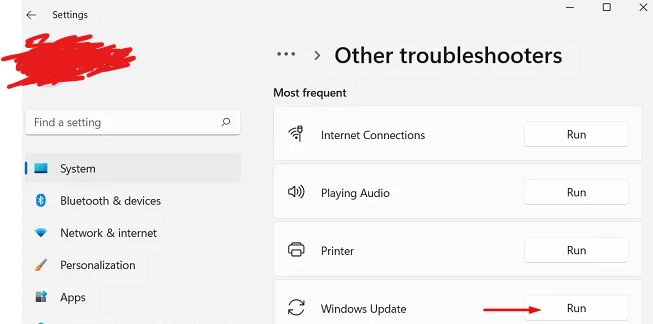
Windows 11: Win + I → System → Troubleshoot → Other troubleshooters → Run next to Windows Update.
Windows 10: Win + I → Update & Security → Troubleshoot → Additional troubleshooters → Windows Update.
Restart afterwards and check for updates again.
2. Clear the update cache
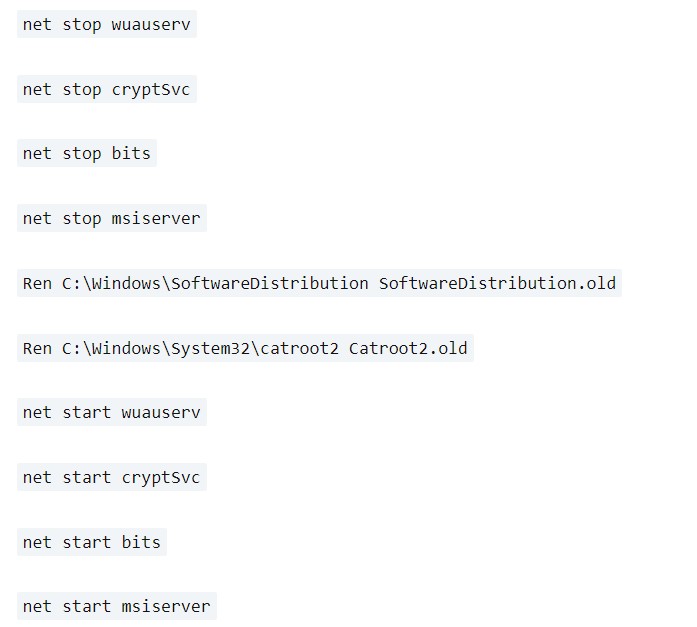
The targeted fix. Renaming the cache folders forces Windows to download the package fresh.
From an elevated Command Prompt or Terminal:
net stop wuauserv
net stop cryptSvc
net stop bits
net stop msiserver

ren C:\Windows\SoftwareDistribution SoftwareDistribution.old
ren C:\Windows\System32\catroot2 catroot2.old

net start wuauserv
net start cryptSvc
net start bits
net start msiserver
Start every service you stopped. A widely copied version of these instructions stops four and starts one. The result is a machine where Windows Update quietly never runs again. If you lose track, restart — that starts them all.
Renaming rather than deleting means the originals are still there if you need them. Windows rebuilds both folders on the next update check, and you can delete the .old folders after a few successful updates.
3. Repair the component store
If the cache reset does not help, verification itself may be broken. From an elevated prompt:
DISM /Online /Cleanup-Image /RestoreHealth
sfc /scannow
DISM first, then SFC — SFC repairs system files using the component store, so repairing the store first is what makes SFC useful.
Reboot afterwards, then retry.
4. Turn off interference temporarily
Anything inspecting HTTPS traffic can break the signature check:
- Third-party antivirus — disable real-time protection, retry, turn it back on.
- VPN — disconnect fully rather than pausing.
- Custom DNS or filtered resolvers — test on the network’s default DNS.
Check the proxy Windows itself is using, from an elevated prompt:
netsh winhttp show proxyIf something unexpected is set:
netsh winhttp reset proxy5. Install the update manually
If one specific update keeps failing, sidestep Windows Update entirely:
- Note the KB number from Update history.
- Search for it in the Microsoft Update Catalog.
- Download the package matching your Windows version and architecture.
- Run the
.msuand restart.
If the manual package installs cleanly, the download path was the problem, not the system.
6. Check disk space and drive health
- Free space: updates need several gigabytes of working room. Check Settings → System → Storage.
- Drive health: a failing drive writes files incorrectly, which produces integrity failures that look exactly like this. Run
chkdsk C: /scan, and see how to check SSD health.
7. Check the connection
Update packages are large. A connection that drops part-way produces a truncated file and this error.
- Use a wired connection if one is available.
- Turn off Metered connection for your network — it throttles and pauses update downloads.
- Avoid downloading updates over a mobile hotspot.
Frequently asked questions
What does 0x8024A206 mean?
Windows Update downloaded a package and its integrity check failed — the file does not match what it should be. It is a download problem, not a licensing or permissions one.
Is it a virus?
Very unlikely. Interrupted downloads and interfering security software account for almost every case. Run a scan if you want to be sure, but do not start there.
Will clearing SoftwareDistribution lose anything?
Only your Windows Update history list. No installed updates are removed and no files are lost. The folder is a cache.
The same update fails repeatedly.
Download it directly from the Microsoft Update Catalog and install it by hand. That skips the pipeline that keeps failing.
Can my antivirus really cause this?
Yes. Products that inspect HTTPS traffic sit between Windows and Microsoft’s servers, and if they alter the stream at all the signature no longer verifies. It is one of the more common causes on machines running third-party security suites.