hiberfil.sys is a hidden file at the root of your system drive that can be many gigabytes. It exists so Windows can hibernate — writing the contents of memory to disk so the machine can be powered off and resumed exactly where it was.
You cannot delete it directly. You turn hibernation off, and Windows removes it for you:
powercfg -h offRun that from an elevated Command Prompt or Terminal. The file disappears immediately, freeing space equal to a large fraction of your installed memory.
Checked August 2026. Applies to Windows 11 and Windows 10. Note that Windows 10 left support on 14 October 2025.
Why it is so large
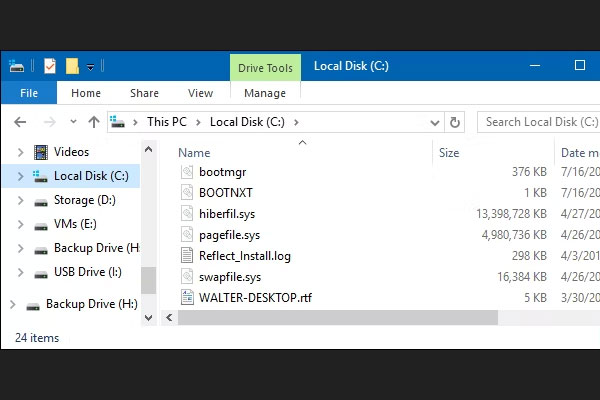
The size is a percentage of installed memory — by default around 40% for the standard hibernation file, higher on some configurations.
| Installed RAM | Typical hiberfil.sys |
|---|---|
| 8 GB | ~3 GB |
| 16 GB | ~6 GB |
| 32 GB | ~13 GB |
| 64 GB | ~26 GB |
Adding memory makes it bigger. This is why a machine that was fine suddenly seems short of space after a RAM upgrade.
What you lose by turning it off
Be clear about this before you run the command, because two of these catch people out:
- Hibernate disappears from the shutdown menu. Sleep still works.
- Fast Startup stops working. This is the one nobody expects. Fast Startup uses the same file — it hibernates the kernel session on shutdown so the next boot is quicker. Turn hibernation off and boot times get longer, noticeably so on a mechanical hard disk.
- A laptop on battery cannot save its state when the battery runs critically low. With hibernation on, it writes memory to disk and powers off cleanly. Without it, it sleeps until the battery dies and then loses everything open.
So who should turn it off?
Reasonable: a desktop with a small SSD, always on mains power, where you shut down or sleep rather than hibernate. Reclaiming 13 GB on a 240 GB drive is a real gain.
Think twice: a laptop. The battery protection alone is usually worth the space, and losing Fast Startup is felt every morning.
Turning hibernation off
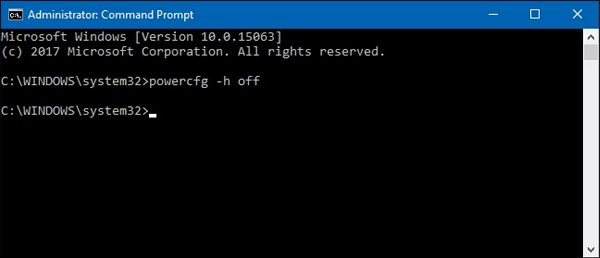
- Press Win + X and choose Terminal (Admin).
- Run
powercfg -h off.
There is no confirmation message. Check the drive: the file is gone and the free space has increased.
To turn it back on:
powercfg -h onThe middle option: shrink it instead
This is the answer most people actually want, and almost nobody knows about it.
You can keep Fast Startup and battery protection while cutting the file roughly in half:
powercfg -h -type reducedReduced mode stores only what Fast Startup needs, not a full memory image. Full hibernate is no longer available, but Fast Startup keeps working and the file shrinks substantially.
To go back to a full hibernation file:
powercfg -h -type fullYou can also set the size directly as a percentage of RAM — the minimum Windows accepts is 40:
powercfg -h -size 40Seeing the file
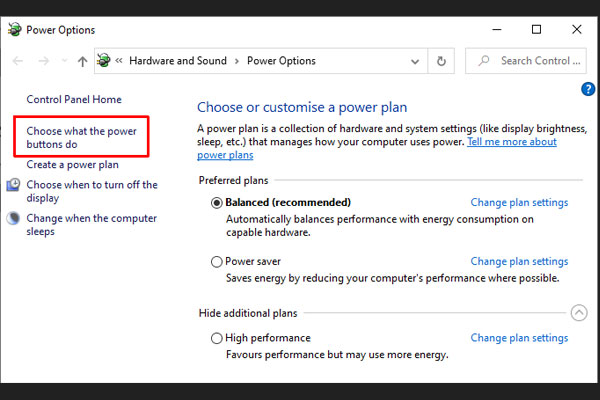
It is hidden as a protected system file. To view it:
- In File Explorer, select View → Show → Hidden items.
- Then … → Options → View tab → clear Hide protected operating system files.
Do not try to delete the file by hand. Windows holds it open, so deletion is refused; and taking ownership to force it — which some guides suggest — can leave the power subsystem in a broken state. powercfg is the supported way, and it is one command.
Other large files at the root of C:
While you are reclaiming space, these two often appear alongside it:
pagefile.sys— virtual memory. Leave it alone. Disabling it causes out-of-memory crashes in applications that rely on it, and some crash dumps need it.swapfile.sys— a small companion used by Store apps. Managed automatically.
For safe space recovery, use Settings → System → Storage → Cleanup recommendations, which includes Windows Update leftovers and previous installations — often far more than hibernation was using.
Frequently asked questions
Can I delete hiberfil.sys?
Not directly. Run powercfg -h off from an elevated prompt and Windows deletes it.
Will deleting it break anything?
Hibernate and Fast Startup stop working, and a laptop can no longer save its state at critical battery. Nothing else is affected, and it is reversible with powercfg -h on.
Why did the command do nothing?
Almost always because the prompt was not elevated. powercfg fails quietly without administrator rights. It can also be disabled by Group Policy on a managed machine.
What is the difference between sleep and hibernate?
Sleep keeps memory powered — resume is instant, but it draws a little power and loses everything if the battery dies. Hibernate writes memory to disk and fully powers off — slower to resume, but it survives a complete power loss.
Is hibernation bad for an SSD?
This concern is outdated. Modern SSDs are rated for hundreds of terabytes written; hibernating daily adds a few gigabytes a day, which is nothing against that budget. Reclaim the space if you need it, not to protect the drive.
How much space will I actually get back?
Roughly 40% of your installed RAM. Check the file’s size in File Explorer first if you want the exact figure before deciding.


