Changing your DNS server is one of the few network tweaks that reliably makes a difference. It can speed up how quickly pages start loading, get you past a provider’s DNS-level blocking, and — with the right provider — filter malware and ads before your browser ever sees them.
It takes about a minute in Settings.
Checked August 2026 on Windows 11 25H2. The command-line method also works on Windows 10 22H2.
What DNS actually does
DNS translates a name like howfixes.com into the IP address your computer connects to. Every page load starts with at least one of these lookups, often several.
By default you use your internet provider’s DNS servers, handed out automatically by your router. That is fine until it is not: provider resolvers are sometimes slow, sometimes log everything, and are the mechanism used for most country-level site blocking.
Two honest caveats about the “make your internet faster” claim:
- DNS affects how quickly a connection starts, not your bandwidth. A faster resolver will not speed up a download that is already running.
- The gain is measured in tens of milliseconds per new domain. Noticeable when a page pulls resources from a dozen domains; invisible on a video stream.
Which DNS to use
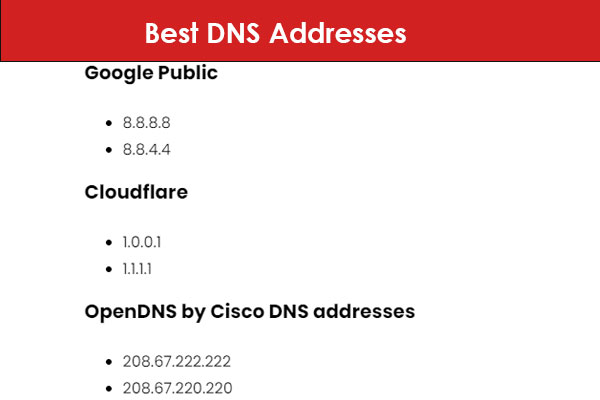
| Provider | Primary | Secondary | Why |
|---|---|---|---|
| Cloudflare | 1.1.1.1 | 1.0.0.1 | Fast; states it does not sell data or log identifying queries |
| Cloudflare (malware filter) | 1.1.1.2 | 1.0.0.2 | Blocks known malware domains |
| 8.8.8.8 | 8.8.4.4 | Reliable, very widely used, no filtering | |
| Quad9 | 9.9.9.9 | 149.112.112.112 | Blocks malicious domains using threat intelligence |
| OpenDNS Family | 208.67.222.123 | 208.67.220.123 | Adult content filtering |
Always set both a primary and a secondary. If the first stops answering and there is no second, nothing on the machine resolves and it looks like the internet has gone down.
Method 1: Settings
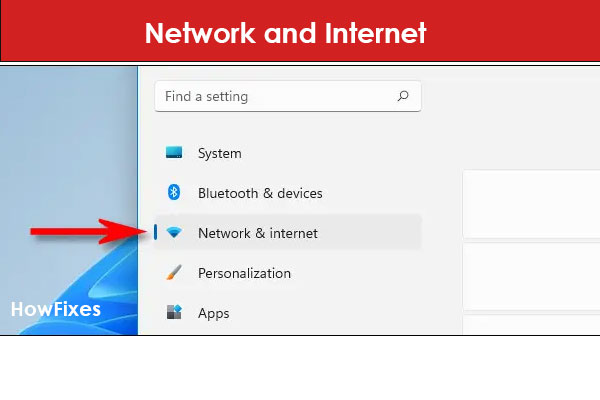
- Press Win + I to open Settings.
- Select Network & internet.
- Select Wi-Fi or Ethernet, whichever you are using.
- Select the connection name.
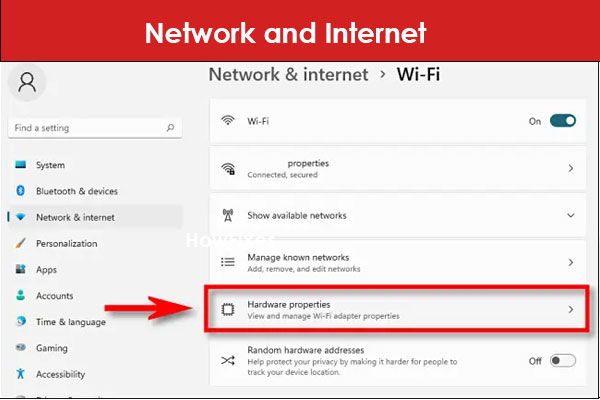
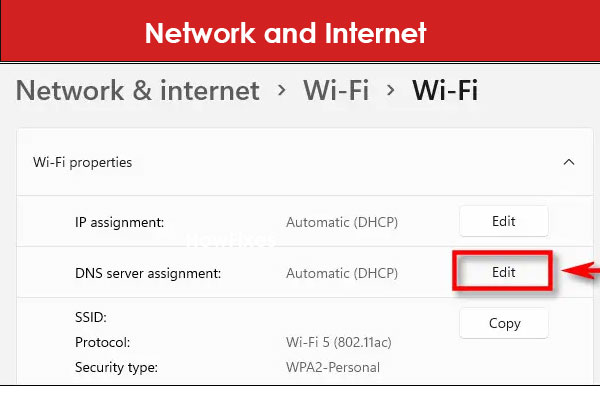
- Next to DNS server assignment, select Edit.
- Change Automatic (DHCP) to Manual.
- Turn IPv4 on.
- Enter your Preferred DNS and Alternate DNS.
- Set DNS over HTTPS to On (automatic template) if it is offered — see below.
- Select Save.
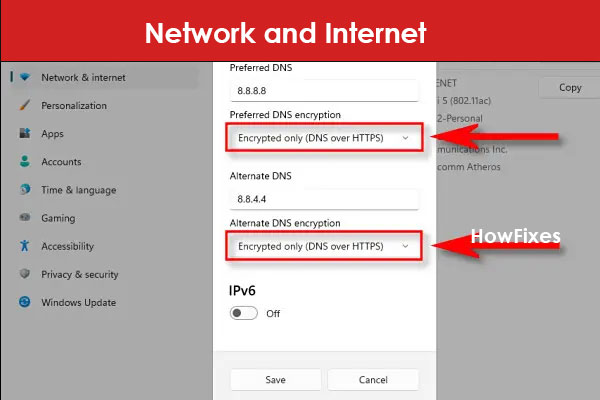
Turn on DNS over HTTPS
Worth doing while you are there. Ordinary DNS queries travel in plain text, so anyone between you and the resolver can read — and modify — them. DNS over HTTPS encrypts them.
Windows 11 recognises the well-known resolvers above and offers the option automatically once you enter one of their addresses.
Method 2: Command line
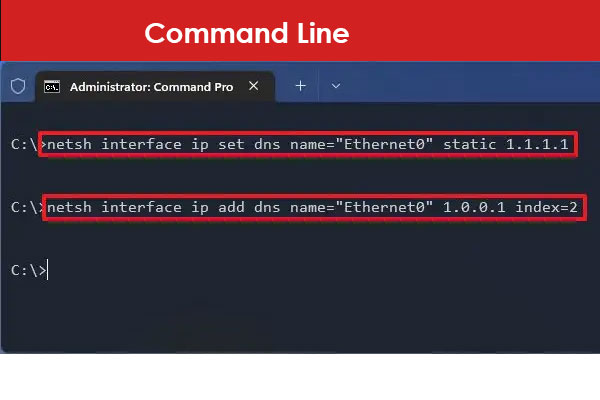
From an elevated Command Prompt. First list your adapters:
netsh interface show interfaceThen, substituting the adapter name exactly as shown:
netsh interface ip set dns name="Wi-Fi" static 1.1.1.1
netsh interface ip add dns name="Wi-Fi" 1.0.0.1 index=2
To hand control back to the router:
netsh interface ip set dns name="Wi-Fi" dhcpIn PowerShell the equivalent is often tidier:
Set-DnsClientServerAddress -InterfaceAlias "Wi-Fi" -ServerAddresses 1.1.1.1,1.0.0.1Flush the cache afterwards
Windows remembers previous lookups, so a change may appear to do nothing until the cache clears. From an elevated prompt:
ipconfig /flushdnsCheck it worked
nslookup howfixes.comThe Server line at the top of the output is the resolver actually answering. If it still shows your router’s address (typically 192.168.x.1), the change did not take — check you edited the adapter you are actually connected through.
Set it on the router instead
Changing it on the router applies to every device on the network — phones, consoles, smart TVs — instead of one PC. Look for DNS under WAN or Internet settings in your router’s admin page.
One caveat: some devices ignore the router and use hardcoded DNS. Chromecast and several smart TVs are known for this.
If something breaks
- A work intranet site stops resolving. Internal names only exist on your employer’s DNS. Set the adapter back to Automatic while on the VPN or the office network.
- A captive portal will not appear in a hotel or café. Switch back to Automatic, sign in, then switch back.
- Everything stops resolving. Check for a typo in the address, and confirm you set a secondary.
Frequently asked questions
Does changing DNS make my internet faster?
It can shorten the delay before a page starts loading, by tens of milliseconds per domain. It does not change your bandwidth, and it will not help a slow download or a buffering video.
Is a public DNS provider safe?
The major ones are run by organisations with published privacy policies — read the one for whichever you choose. It is a genuine trade: you move your query history from your ISP to them. Avoid obscure “free fast DNS” servers found in forum posts entirely; a resolver you do not trust can send you anywhere it likes.
Can changing DNS bypass site blocking?
It bypasses blocking implemented at the DNS level, which is common. It does nothing against blocking done by IP address or by deep packet inspection. Whether that is appropriate depends on what is being blocked and why.
Should I set IPv6 DNS too?
If your connection uses IPv6 and you leave IPv6 DNS automatic, some lookups still go to your provider. Cloudflare’s are 2606:4700:4700::1111 and 2606:4700:4700::1001; Google’s are 2001:4860:4860::8888 and ::8844.
How do I undo the change?
Set DNS server assignment back to Automatic (DHCP), or run the dhcp command above, then flush the cache.


