Both Chrome and Edge can clear your browsing data every time you close the browser. This is closer to what most people want from private browsing than incognito is: you browse normally — signed in, extensions working, autofill available — and nothing persists after you quit.
The two browsers set it up differently, and Chrome’s route is not where you would expect.
Checked August 2026 against current Chrome and Edge on Windows and macOS.
Microsoft Edge — the built-in setting
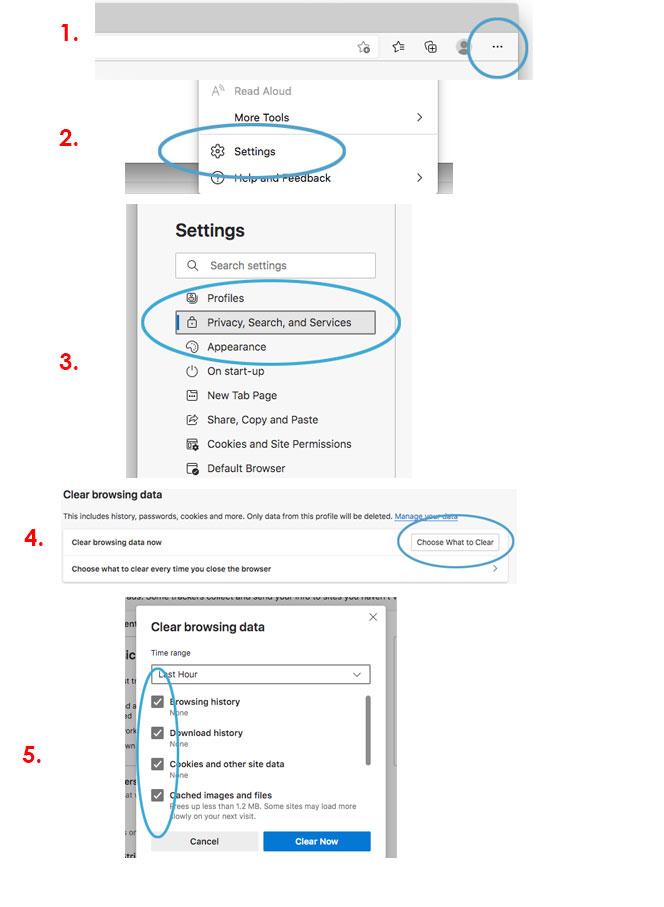
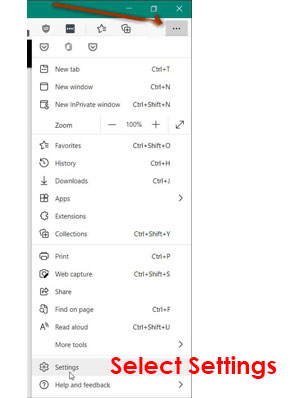
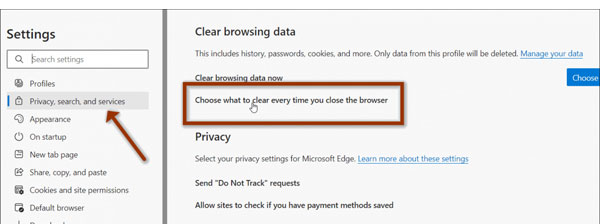
- Open Settings → Privacy, search, and services.
- Under Clear browsing data, select Choose what to clear every time you close the browser.
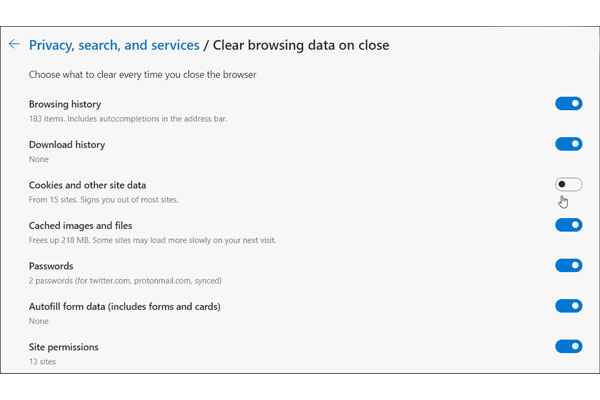
- Turn on what you want cleared.
Or paste this directly into the address bar:
edge://settings/clearBrowsingDataOnCloseWhat to select
| Item | Recommendation |
|---|---|
| Browsing history | On |
| Download history | On — the files stay |
| Cookies and other site data | On, but see the exceptions note below |
| Cached images and files | Optional; pages reload more slowly |
| Passwords | Off |
| Autofill form data | Your choice |
| Site permissions | Off — you will be re-asked constantly |
Keep the sites you want to stay signed in to
Clearing cookies signs you out of everything. Edge lets you exempt specific sites: on the same page, under Cookies and other site data, use Do not clear → Add.
Add your email, your bank if you prefer, and anything with two-factor authentication you would rather not repeat daily.
Google Chrome — not where you expect
Chrome does not offer a clear-everything-on-exit option. What it has is a cookie setting that achieves most of the same result:
- Go to Settings → Privacy and security → Third-party cookies.
- Open Site data settings.
- Choose Delete data sites have saved to your device when you close all windows.
Note what this does and does not do: cookies and site data are cleared; browsing history is not. Chrome keeps the history list.
Keeping specific sites signed in
On the same page, under Customised behaviours, use Sites that can always use cookies → Add. Those keep their cookies when the rest are cleared.
If you also want history cleared
Chrome’s options are limited. Realistically:
- Use incognito for sessions you do not want recorded — though extensions are disabled by default there. See what incognito actually does.
- Clear manually with Ctrl + Shift + Delete.
- Turn off sync for history so at least it does not reach your Google account: Settings → You and Google → Sync and Google services.
- Use Edge for browsing you want cleared automatically. It is the same engine, and this feature is one of its genuine advantages.
Avoid extensions that promise to clear history on exit. They need permission to read and change your entire browsing history — the exact permission you would least want to hand to an unknown developer, for a feature the browser nearly provides itself.
Firefox, for comparison
Firefox has the most complete version of this feature:
- Settings → Privacy & Security.
- Under History, choose Use custom settings for history.
- Tick Clear history when Firefox closes, and use Settings… to choose exactly what.
It clears history, cookies, cache and form data, with per-site exceptions.
What none of this hides
Clearing local data is about the device, not the network. Still visible:
- Your employer or school, on their network
- Your internet provider
- Websites you signed in to — and your Google account, if sync is on. See deleting your Google search history, which is a separate thing entirely.
Frequently asked questions
Does this delete my downloaded files?
No. Only the list of downloads. The files stay where you saved them.
Will I be signed out of everything?
Yes, if you clear cookies — that is what a session is. Use the per-site exception lists for the handful you want kept.
Does clearing on exit slow browsing down?
Only if you also clear the cache. Pages then have to re-download resources on first visit each session. Clearing cookies alone has no meaningful speed cost.
Why does Chrome not have this properly?
Chrome has never offered a full clear-on-exit option; the cookie setting is as close as it gets. Edge and Firefox both do more.
Is this better than incognito?
For everyday use, usually — you keep extensions, autofill and your existing sign-ins during the session, and nothing persists afterwards. Incognito is better when you specifically want a session that starts with no existing cookies at all.
Does it work on mobile?
Not as an automatic setting. On Android and iOS, clear manually in the browser’s settings, or use a private tab.


