Error 0x80070005 means “Access Denied”. Windows tried to read, write or replace something and was refused. It is one of the most common Windows Update failures, but the same code turns up when installing software, restoring a backup, running a scheduled task or joining a domain — because it is a permissions code, not an update code.
This guide works through the causes in the order that actually resolves them, from the least invasive to the most.
Checked August 2026. The steps below apply to Windows 11 (all supported versions) and to Windows 10 22H2. Note that Windows 10 reached end of support on 14 October 2025. Consumer Extended Security Updates run only to 12 October 2027, so if you are fixing update errors on Windows 10, plan the move to Windows 11 as well.
What causes error 0x80070005
Four things produce this code, and they need different fixes:
- The account lacks permission for a file, folder or registry key the operation needs. This is the literal meaning of the code.
- Security software is blocking the write. Antivirus real-time protection, ransomware protection and endpoint agents all intercept writes to system locations, and a false positive looks exactly like a permissions failure.
- System files or the update component store are damaged, so Windows cannot replace a file it is supposed to own.
- The drive is failing. A bad sector means the write genuinely cannot complete. This is the least common cause, but the one worth ruling out before you spend an evening on permissions.
Before you change any permissions: back up anything you cannot lose, and take a restore point — see how to create a system restore point. Permission changes are easy to make and hard to undo from memory.
1. Check you are actually an administrator
Start here, because it costs nothing and explains a surprising number of cases.
- Press Win + I to open Settings.
- Go to Accounts → Your info.
- Under your name it will say Administrator or it will not.
If it does not, either sign in with an administrator account or have one promote yours: Settings → Accounts → Other users, select the account, Change account type → Administrator.
To confirm from a command line, open Command Prompt and run:
whoami /groups | findstr /i "S-1-5-32-544"A line returned means the account is in the local Administrators group.
2. Turn off security software temporarily
Third-party antivirus is the most frequent cause of 0x80070005 during an update, and the easiest to test. Disable real-time protection, retry the operation, and turn it straight back on afterwards.
If you use Microsoft Defender, check Controlled folder access specifically — it blocks writes to Documents, Pictures and similar folders and reports access denied when it does:
- Open Windows Security.
- Go to Virus & threat protection → Manage ransomware protection.
- Turn Controlled folder access off, retry, then turn it back on.
3. Run the Windows Update troubleshooter
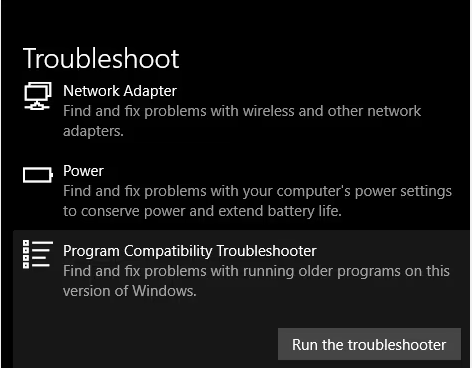
Windows 11: Win + I → System → Troubleshoot → Other troubleshooters → Run next to Windows Update.
Windows 10: Win + I → Update & Security → Troubleshoot → Additional troubleshooters → Windows Update → Run the troubleshooter.
Grant it elevation if it asks. It is unglamorous, but it fixes this specific error often enough to be worth the two minutes.
4. Repair system files
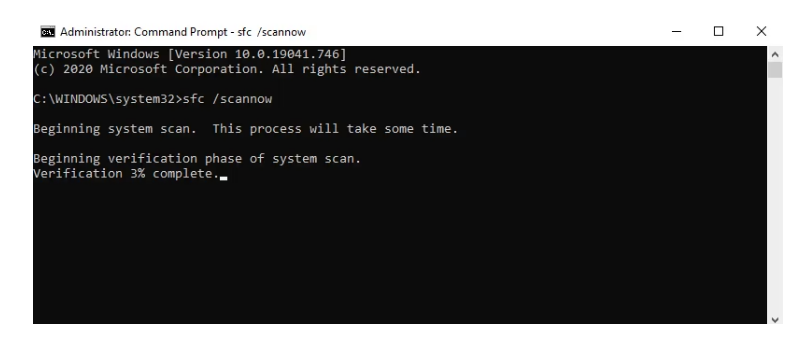
Open Command Prompt or Terminal as administrator and run these in sequence:
DISM /Online /Cleanup-Image /RestoreHealth
sfc /scannow
The order matters. SFC repairs system files using the local component store; DISM repairs the component store itself. Running SFC first against a damaged store means it has nothing good to copy from.
Both take several minutes. Reboot when they finish, then retry whatever failed.
5. Reset the Windows Update components
If the error only happens during updates, the update cache is the next suspect. In an elevated Command Prompt:
net stop wuauserv
net stop cryptSvc
net stop bits
net stop msiserver

ren C:\Windows\SoftwareDistribution SoftwareDistribution.old
ren C:\Windows\System32\catroot2 catroot2.old

net start wuauserv
net start cryptSvc
net start bits
net start msiserver
Renaming rather than deleting is deliberate: Windows rebuilds both folders on the next update check, and you keep the originals until you are sure the problem is gone.
Do not stop those services without starting them again. Leaving wuauserv stopped means Windows Update silently never runs — a state that is easy to create and hard to notice for weeks.
6. Take ownership of a specific file or folder
Only do this when you know which path is being refused — the update log or the failing application will usually name it. Do not apply it broadly.
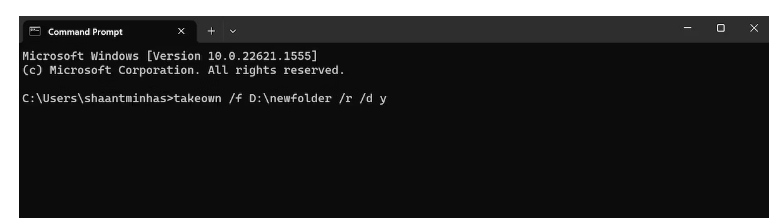
From an elevated Command Prompt:
takeown /f "D:\path\to\folder" /r /d y
icacls "D:\path\to\folder" /grant %USERNAME%:(OI)(CI)F /t
What the switches do:
/f— the file or folder to act on./r— recurse into subfolders./d y— answer yes automatically when prompted about folders you cannot currently list.(OI)(CI)F— grant Full control, inherited by files and subfolders./t— apply through the whole tree.
Never grant Full control to Everyone, and never do it on AppData, C:\Windows, Program Files or the root of a drive. Advice to do so circulates widely and it is bad advice: it makes your profile writable by any process on the machine, including malware, and it does not fix update errors. Grant permission to your own account, on the smallest path that solves the problem.
7. Check the drive
If the error moves around — different files each time, or it comes back after every fix — test the disk before doing anything else. From an elevated Command Prompt:
chkdsk C: /scanAnd check the drive’s own health assessment:
wmic diskdrive get model,statusOn an SSD, a manufacturer tool (Samsung Magician, Crucial Storage Executive, WD Dashboard) reports remaining life more usefully than Windows does. A drive reporting reallocated sectors or degraded health needs replacing, not permission changes.
8. Scan for malware
Software that modifies the registry or system files can leave permissions in a state Windows cannot recover from. Run a full offline scan:
- Open Windows Security → Virus & threat protection.
- Choose Scan options.
- Select Microsoft Defender Antivirus (offline scan) and run it.
The offline scan restarts the machine and scans before Windows loads, which catches things a normal scan cannot.
9. Install the update manually
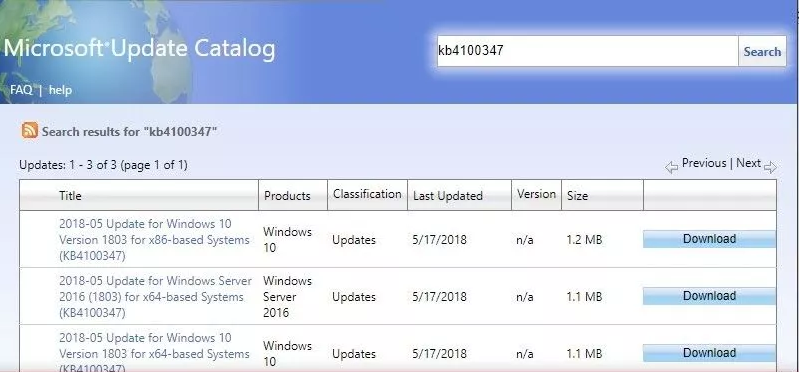
If one specific update keeps failing, sidestep Windows Update:
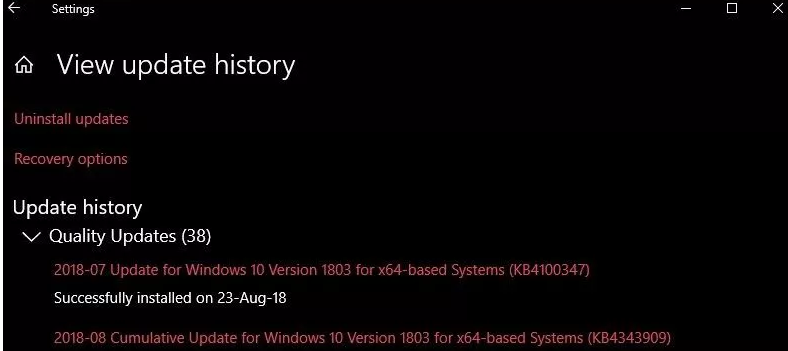
- Note the KB number of the failing update from Update history.
- Search for it in the Microsoft Update Catalog.
- Download the package matching your version and architecture.
- Run the
.msufile and reboot.
Frequently asked questions
What does 0x80070005 mean exactly?
It is the Windows HRESULT for E_ACCESSDENIED — access denied. The 0x8007 prefix marks it as a Win32 error surfaced as an HRESULT, and 0005 is error 5, “Access is denied”.
Why do I get it when I am already an administrator?
Being an administrator is not the same as running as one. Unless a process is elevated, it runs with a filtered token that has ordinary user rights. That is why “Run as administrator” fixes so many cases on its own.
Is 0x80070005 caused by a virus?
Usually not. Permissions, security software and a damaged component store account for the great majority. Scan anyway if the error appeared suddenly on a machine that was fine, but do not start there.
Will a system restore fix it?
If the error started after a specific change — a driver, an application, a permissions edit — then yes, rolling back to a point before that change is often the fastest fix. See creating and using a system restore point.
I get 0x80070005 during a Windows upgrade, not an update.
Upgrades fail on this code for the same reasons but also for a few of their own — insufficient disk space and third-party security software are the usual ones. If the code is paired with a second number, such as 0x80072F8F – 0x20000, that pair identifies the phase that failed and is more specific; see our guide to 0x80072F8F – 0x20000.


