On Windows, the shortcut worth learning is Win + Shift + S. On a Mac it is Cmd + Shift + 4. Both let you drag a rectangle instead of capturing the whole screen, which is what you want nine times out of ten.
Everything else is a variation on those two.
Checked August 2026 on Windows 11 25H2 and current macOS. The Windows shortcuts also work on Windows 10 22H2.
Windows: the shortcuts
| Shortcut | What it does | Where it goes |
|---|---|---|
| Win + Shift + S | Choose an area, window, or full screen | Clipboard, plus a notification to edit and save |
| Win + PrtScn | Whole screen, saved automatically | Pictures → Screenshots |
| PrtScn | Whole screen | Clipboard only |
| Alt + PrtScn | The active window only | Clipboard only |
| Win + Alt + PrtScn | Active window, saved automatically | Videos → Captures |
| Win + G | Game Bar — screenshots and video | Videos → Captures |
“Clipboard only” means nothing is saved to disk — paste it somewhere with Ctrl + V or it is gone when you copy something else.
Make PrtScn open the snipping overlay
Worth doing on any machine you use regularly:
Settings → Accessibility → Keyboard → turn on Use the Print screen key to open screen capture.
Now the key you instinctively press does the useful thing.
The Snipping Tool
The overlay is the Snipping Tool. Along the top of the dimmed screen you get four modes:
- Rectangle — drag a box. The default and the one you will use most.
- Freeform — draw any shape.
- Window — click a window to capture just it, cleanly, including its shadow.
- Full screen — everything.
After capturing, click the notification to open the editor, where you can crop, annotate, redact and save.
Delayed capture
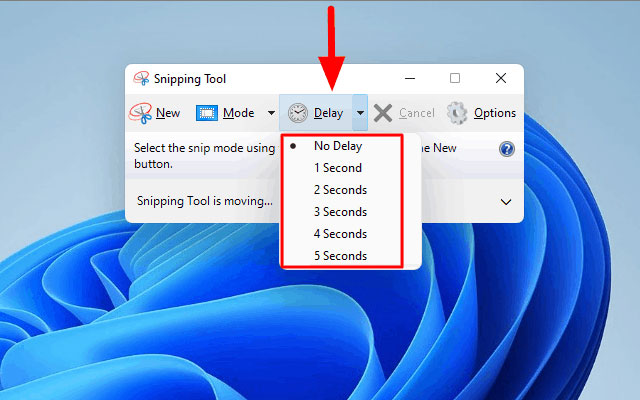
For capturing a menu that closes when you press a shortcut: open the Snipping Tool from the Start menu, set a delay of 3 or 10 seconds, then open your menu and wait.
Screen recording
The Snipping Tool records video too. Open it and switch from the camera icon to the record icon, then select an area. There is a pause control while recording.
Mac: the shortcuts
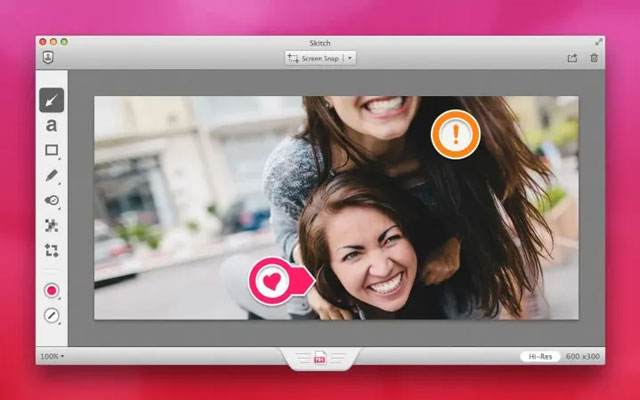
| Shortcut | What it does |
|---|---|
| Cmd + Shift + 3 | Whole screen |
| Cmd + Shift + 4 | Drag to select an area |
| Cmd + Shift + 4, then Space | Capture a single window |
| Cmd + Shift + 5 | The full capture toolbar, including recording |
| Add Ctrl to any of the above | Copy to clipboard instead of saving |
By default Mac screenshots are saved to the Desktop as PNG. To change that, press Cmd + Shift + 5 and use Options → Save to.
Useful while dragging on a Mac
- Hold Space to move the selection without resizing it.
- Hold Shift to constrain one edge.
- Hold Option to resize from the centre.
- Press Esc to cancel.
Capturing a whole scrolling page
Neither operating system captures beyond what is on screen. For a full web page, the browser can do it without any extra software:
- Press F12 to open developer tools in Chrome or Edge.
- Press Ctrl + Shift + P.
- Type screenshot and choose Capture full size screenshot.
In Firefox, right-click the page and choose Take Screenshot → Save full page.
Where screenshots go, and how to change it
Windows: C:\Users\<you>\Pictures\Screenshots. To move it, right-click the Screenshots folder → Properties → Location → Move.
Mac: the Desktop, changeable from the Cmd + Shift + 5 toolbar.
A note before you share one
Screenshots leak more than people expect: browser tabs with account names, notification banners, the taskbar clock, file paths containing your real name, and email addresses in the corner of a window. Before posting one publicly, crop it — and use the editor’s redaction rather than a coloured rectangle at low opacity, which can sometimes be reversed.
Frequently asked questions
Where did my screenshot go?
If you pressed PrtScn or Win + Shift + S, it went to the clipboard, not to a file. Paste it into an application, or use the notification to save it. Win + PrtScn is the one that saves automatically.
My laptop has no Print Screen key.
Some compact keyboards put it behind Fn, sometimes labelled PrtSc or Prt Sc. Use Win + Shift + S instead — it needs no such key. See also enabling and disabling the Fn keys.
Why is my screenshot black?
Usually DRM protection — streaming services deliberately black out captures. It can also be a hardware acceleration issue: turning off hardware acceleration in the application, or using the Game Bar with Win + G, often works around it.
How do I screenshot just one window?
Windows: Alt + PrtScn, or the Window mode in the snipping overlay. Mac: Cmd + Shift + 4, then Space, then click the window.
Can I change the file format?
Windows saves PNG by default; the Snipping Tool editor can save as JPG. On a Mac, the format is set with a Terminal command — PNG is the better choice for screenshots regardless, since JPEG compression blurs text.
Do I need a third-party screenshot app?
Not for ordinary use. Built-in tools cover selection, windows, delays, annotation and recording. Third-party tools are worth it mainly for scrolling capture outside a browser, or automatic uploading.