There is no single “reset sound” button in Windows, which is why this question is asked so often. What there is instead is a short sequence that returns audio to a working default state — and it fixes most sound problems without reinstalling anything.
Start with the output device. It is wrong more often than everything else combined.
Checked August 2026. Applies to Windows 11 25H2 and Windows 10 22H2, where menu names differ slightly.
1. Check the output device
Windows switches output automatically when you plug in a monitor, a headset or a Bluetooth device, and does not always switch back.
- Press Win + I → System → Sound.
- Under Output, select the device you actually want.
A common trap: a monitor connected over HDMI or DisplayPort appears as an audio device even when it has no speakers. Sound is playing perfectly — into a screen that cannot make any.
2. Check per-app volume
Windows keeps a separate volume for every application, and one can be muted while everything else works.
Settings → System → Sound → Volume mixer.
Check both the level and the output device for each app — an application can be routed to a different device entirely.
3. Reset an app’s audio settings
The closest thing to a real reset button, and few people know it exists:
- Settings → System → Sound.
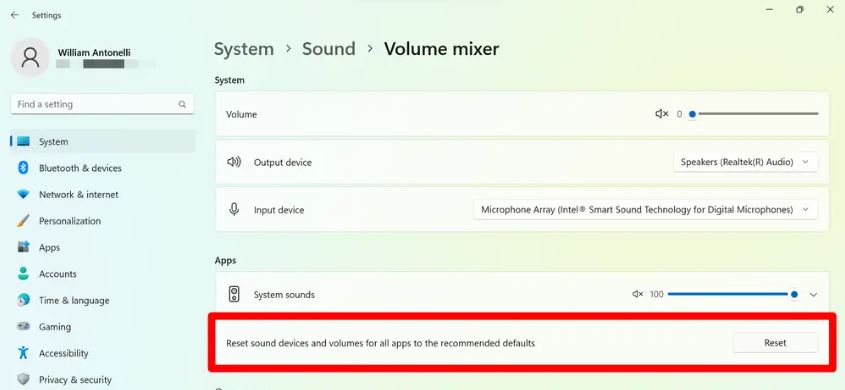
- Scroll to Advanced → Volume mixer.
- At the bottom, next to Reset sound devices and volumes for all apps to the recommended defaults, select Reset.
This clears every per-app override in one step.
4. Run the audio troubleshooter
Settings → System → Troubleshoot → Other troubleshooters → Run next to Audio.
It checks for muted devices, disabled endpoints and stopped services, and fixes several of them itself.
5. Restart the audio services
Audio services get stuck, particularly after sleep. From an elevated Command Prompt:
net stop audiosrv
net stop AudioEndpointBuilder

net start AudioEndpointBuilder
net start audiosrv
Order matters: AudioEndpointBuilder must be running before audiosrv will start.
To check they are configured correctly, run services.msc and confirm both Windows Audio and Windows Audio Endpoint Builder are set to Automatic.
6. Turn off audio enhancements
Enhancements are a frequent cause of distortion, crackling and complete silence on specific devices.
- Settings → System → Sound.
- Select your output device.
- Set Audio enhancements to Off.
If the vendor’s own utility is installed — Realtek Audio Console, Nahimic, Dolby Access, Sonic Studio — check it too. These layer their own processing on top and often re-enable effects after an update.
7. Try a different sample rate
Some devices misbehave at particular sample rates, especially over Bluetooth or USB.
- Settings → System → Sound → your output device.
- Under Format, try 24 bit, 48000 Hz (Studio Quality).
- Test, then try 44100 Hz if it is still wrong.
8. Reinstall the audio driver
The proper reset when nothing above helps.
- Press Win + X, then M, for Device Manager.
- Expand Sound, video and game controllers.
- Right-click your audio device → Uninstall device.
- Do not tick “attempt to remove the driver” on the first attempt.
- Restart. Windows reinstalls it automatically.
If that does not help, repeat and tick the remove-driver box — then install the driver from your motherboard or laptop manufacturer’s support page for your exact model, not from a generic Realtek download.
Avoid “driver updater” utilities for audio in particular. They install generic drivers over vendor-tuned ones, and on laptops that frequently breaks the speaker and microphone configuration in ways that are tedious to undo.
9. Check the microphone separately
Input has its own settings and its own privacy gate:
- Settings → System → Sound → Input — select the right device and test the level.
- Settings → Privacy & security → Microphone — confirm access is allowed, both overall and for the specific app.
A microphone that works in one app and not another is nearly always the per-app privacy toggle.
10. Bluetooth audio specifically
Bluetooth headsets appear twice — once as stereo output, once as a headset with microphone at much lower quality. If audio sounds like a telephone, Windows has selected the headset profile because something is using the microphone.
Close whatever has the microphone open, then reselect the stereo output device.
Frequently asked questions
Is there a single button to reset all sound settings?
The closest is Reset sound devices and volumes for all apps in the Volume mixer. It clears per-app settings but does not touch drivers or device-level enhancements.
My sound stopped after a Windows update.
Usually a driver replaced during the update. Reinstall the vendor’s audio driver, or roll it back in Device Manager → the device → Driver → Roll Back Driver.
Why does sound work in one app but not another?
Per-app volume or per-app output device in the Volume mixer. For microphones, it is the per-app privacy permission.
Sound cuts out after the PC sleeps.
Restarting the audio services usually restores it. For a permanent fix, open Device Manager → the audio device → Properties → Power Management, and clear Allow the computer to turn off this device to save power.
Do I need the Realtek Audio Console?
Not for basic sound, which the driver handles. It is worth having if you need its equaliser, microphone effects, or the jack-detection settings on a desktop with front-panel connectors.


