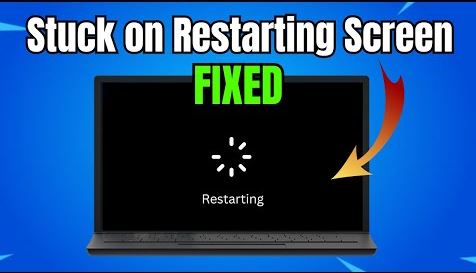
A Windows machine stuck on “Restarting…” is usually waiting for something specific: a service that will not stop, a driver that will not unload, or an update mid-install. Knowing which one changes what you should do — and whether you should wait.
Checked August 2026. Applies to Windows 11 and Windows 10 22H2.
First: how long should you wait?
This is the question that matters, because interrupting a real update is how a slow restart becomes an unbootable machine.
| What you see | Wait |
|---|---|
| “Working on updates”, percentage shown | Up to several hours. Do not interrupt. |
| “Restarting” with a spinning indicator | 30 minutes |
| “Restarting”, indicator frozen still | 15 minutes |
| Blank screen, disk light still flickering | Keep waiting — work is happening |
| Blank screen, no disk activity for 15 minutes | Force a shutdown |
The disk activity light is the most reliable signal available to you. If it is flickering, leave it.
Forcing a shutdown safely
Once you have waited:
- Hold the power button for about 10 seconds until the machine powers off.
- Wait 30 seconds.
- Power on.
Windows normally recovers on its own, and may roll back an update it could not finish.
Do this as little as possible. Cutting power during a write can corrupt the file system, and doing it repeatedly to “fix” slow restarts eventually produces real damage — usually at the worst possible time.
1. Disconnect everything external
Do this before anything more involved. USB devices are a common cause: a stick Windows is waiting to flush, an external drive, a dock, a printer.
Unplug everything except the keyboard and mouse, and try a restart. If it works, add devices back one at a time.
2. Find out what is blocking shutdown
Once you can get into Windows:
- Press Win + X → Event Viewer.
- Go to Applications and Services Logs → Microsoft → Windows → Diagnostics-Performance → Operational.
- Filter for Event ID 203 (shutdown degradation) and 200 (shutdown duration).
The event names the service or driver that took too long. Nine times out of ten it is one thing — an antivirus agent, a VPN client, a backup service, a vendor updater.
See why Windows shutdown is slow for what to do once you have the name.
3. Turn off Fast Startup
Fast Startup hibernates the kernel session instead of shutting down fully. It speeds up boot, and it is also implicated in a good share of stuck-restart and stuck-shutdown reports, particularly with older drivers.
- Press Win + R, run
powercfg.cpl. - Select Choose what the power buttons do.
- Select Change settings that are currently unavailable.
- Clear Turn on fast startup, then Save changes.
Boot becomes a little slower. In exchange, every shutdown is a real one — which also resolves a category of problems that “restart fixes but shutdown does not”.
4. Update or roll back drivers
Drivers that fail to unload cleanly are a leading cause. The usual suspects:
- Graphics drivers
- Network adapters, particularly with Wake-on-LAN enabled
- Chipset and storage drivers
- Virtual adapters from VPN software
If this started after a driver update, roll it back: Device Manager → the device → Properties → Driver → Roll Back Driver.
5. Reduce what has to stop
Fewer startup programs means fewer things to close at shutdown. See disabling startup programs.
Pay particular attention to overlapping security products — two antivirus programs fighting each other at shutdown is a classic cause.
6. Repair system files
DISM /Online /Cleanup-Image /RestoreHealth
sfc /scannow
chkdsk C: /scan
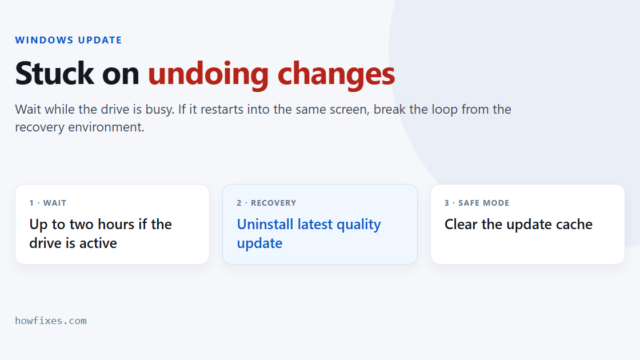
7. If it is stuck on a Windows update
When the screen says “Working on updates” and has not moved for hours:
- Force a shutdown, then power on. Windows usually rolls the update back on its own.
- If it loops, interrupt boot three times to reach the recovery environment.
- Choose Troubleshoot → Advanced options → Uninstall Updates, and remove the latest quality or feature update.
- Alternatively use System Restore from the same menu — see using a restore point.
Once back in Windows, reset the update components and try the update again, or install it manually from the Microsoft Update Catalog.
8. Check the drive
If restarts became slow gradually and nothing else changed, suspect the storage. Check SMART data — see how to check SSD health. A drive with reallocated sectors takes longer on every flush, and eventually stops entirely.
Frequently asked questions
How long is too long?
For a normal restart, 15 minutes with no disk activity. For “Working on updates”, give it several hours — feature updates on older hardware genuinely take that long.
Will forcing a shutdown break Windows?
Once, probably not. Repeatedly, and during a write, yes — file system corruption is the realistic risk. Use it as a last resort, not a routine.
Why does shutdown work but restart hang, or the other way round?
Fast Startup. A “shutdown” is a partial hibernation while a “restart” is a full cycle, so they exercise different code paths. Turning Fast Startup off makes both behave the same.
My PC restarts fine in Safe Mode.
That points at a third-party driver or service, since Safe Mode loads almost none of them. Use Event Viewer to identify which, or perform a clean boot with msconfig and re-enable items in halves.
Could it be a hardware fault?
It can — a failing drive or unstable memory both produce hangs at shutdown. But software causes are far more common. Work through the driver and service checks first.