Zoom error 10004 appears when the Zoom client tries to update itself and cannot. You launch Zoom or join a meeting, it checks for a newer version, the download fails, and you get error 10004 instead of a meeting.
It is an update problem, not a meeting problem — which is why the fastest fix is usually to bypass Zoom’s own updater entirely.
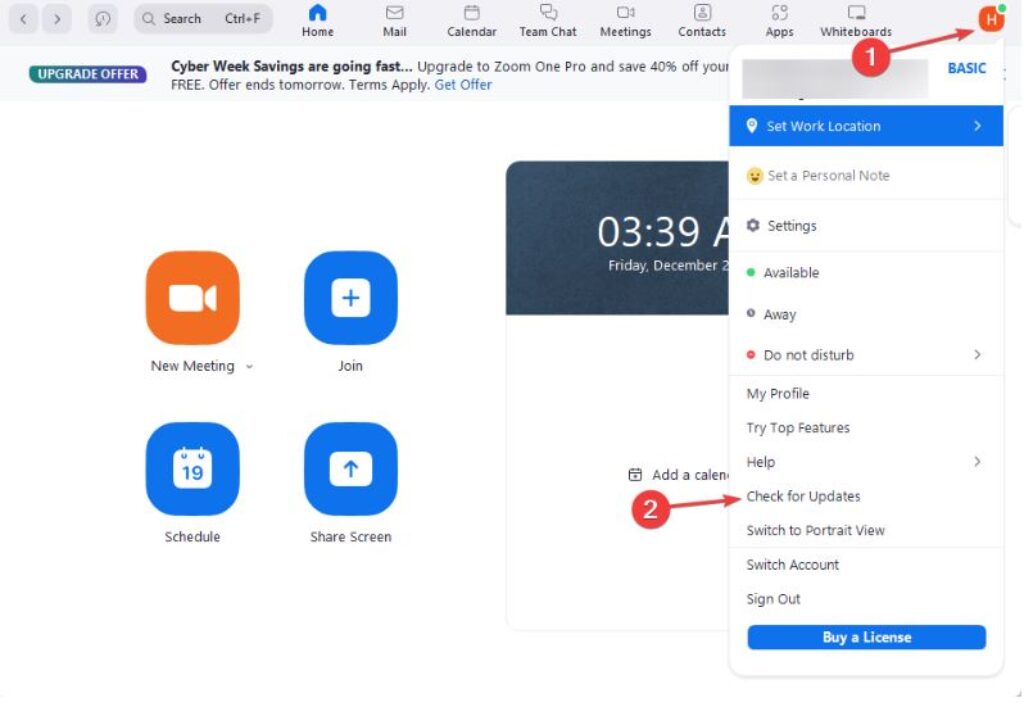
Checked August 2026. Applies to the Zoom desktop client on Windows and macOS. If you are on a managed work machine, skip to the section on corporate networks — it is the most likely cause there.
The quick fix: install Zoom manually
Before troubleshooting the updater, just do what the updater was trying to do. This resolves the great majority of cases in a couple of minutes.
- Close Zoom completely. On Windows, check the system tray and end any
Zoom.exein Task Manager. On macOS, quit from the menu bar. - Download the current client from zoom.us/download.
- Run the installer. It updates in place — your settings and sign-in are preserved.
If you are joining a meeting right now and cannot wait, use the browser client: on the join page, choose Join from your browser. Fewer features, but it works without installing anything.
Why the updater fails
Ordered roughly by how often each one is the culprit:
- The updater lacks permission to write to the installation folder — common where Zoom was installed by an administrator and you are running as a standard user.
- Antivirus or endpoint protection is blocking the downloaded installer.
- A corporate proxy or firewall is blocking Zoom’s update servers while allowing meeting traffic.
- A VPN is routing the update request somewhere it cannot complete.
- A partially downloaded or corrupted update file is cached from a previous attempt.
- Not enough disk space for the download and unpack.
Fix 1: run Zoom as administrator
On Windows, right-click the Zoom shortcut and choose Run as administrator, then let it update.
To stop it recurring: right-click the shortcut → Properties → Compatibility → tick Run this program as an administrator.
Fix 2: turn off security software temporarily
Disable real-time protection, retry the update, and turn it straight back on. If that was the cause, add Zoom’s installation folder to the exclusions list rather than leaving protection off:
- Windows:
%APPDATA%\ZoomandC:\Program Files\Zoom - macOS:
/Applications/zoom.us.app
Fix 3: clear the Zoom cache
A corrupted partial download will fail on every retry until it is cleared.
Windows:
- Close Zoom completely.
- Press Win + R, type
%APPDATA%, press Enter. - Rename the Zoom folder to Zoom.old.
- Start Zoom and sign in again.
macOS: in Finder, press Cmd + Shift + G, go to ~/Library/Application Support/zoom.us, and rename that folder.
Renaming rather than deleting means you can put your settings back if something else goes wrong.
Fix 4: reinstall cleanly
If an in-place install does not take:
- Windows: Settings → Apps → Installed apps → Zoom → Uninstall. macOS: open Zoom, then zoom.us → Uninstall Zoom from the menu bar.
- Restart the machine. This matters — it releases file locks that quietly cause the reinstall to fail.
- Download a fresh installer from zoom.us/download and run it.
Zoom also publishes a Clean Zoom utility for Windows that removes leftovers a normal uninstall misses. Worth using if a standard reinstall has already failed once.
Fix 5: check the network path
Meeting traffic and update traffic take different routes, so Zoom meetings can work perfectly while updates fail.
- Disconnect any VPN and retry.
- Try a different network — a phone hotspot is the quickest test. If the update works there, the block is on your usual network.
- Check the system clock. A wrong date breaks certificate validation and produces download failures that look like anything but a clock problem. On Windows: Settings → Time & language → Date & time → Sync now.
On a work machine
If this is a managed computer, error 10004 is often working as intended. Many organisations block client self-updates and push versions centrally instead, because they want to control which version is deployed.
Signs this is your situation: you cannot install software yourself, other applications also fail to self-update, and the machine is domain-joined or enrolled in an MDM. Contact IT rather than trying to get around it — bypassing a managed deployment tends to break more than it fixes.
Frequently asked questions
What is Zoom error 10004?
The Zoom desktop client failed to download or apply an update. It is raised by the updater, not by anything to do with your meeting or your account.
Can I join a meeting while this error is showing?
Often yes — dismiss the error and try. If the client refuses, join from your browser, or from the mobile app, while you sort the desktop update out.
Does it mean my Zoom account has a problem?
No. It has nothing to do with your account, your subscription or your meeting licence.
Will reinstalling lose my settings or chat history?
Settings and chat history are tied to your account and come back when you sign in. Locally saved recordings are stored in your Documents folder by default and are not touched by an uninstall — but check where yours are saved before uninstalling, just in case that setting was changed.
Why does it keep coming back after I fix it?
Because the underlying block is still there. Usually that means permissions on the install folder, or a security product that keeps quarantining the installer. Fix the cause rather than reinstalling each time — or, on a managed machine, accept that IT is handling updates.
Is the browser client good enough?
For joining, speaking and screen sharing, mostly yes. Virtual backgrounds, breakout room controls and some host features are limited or missing. It is a good stopgap, not a permanent replacement.


