MoUSO Core Worker Process — the file is MoUsoCoreWorker.exe — is part of Windows Update. MoUSO stands for Update Session Orchestrator: it decides when to check for, download and install updates, and it is what replaced the old wuauclt mechanism.
It is a legitimate Windows component. When it pins a CPU core for hours, something in the update pipeline is stuck.
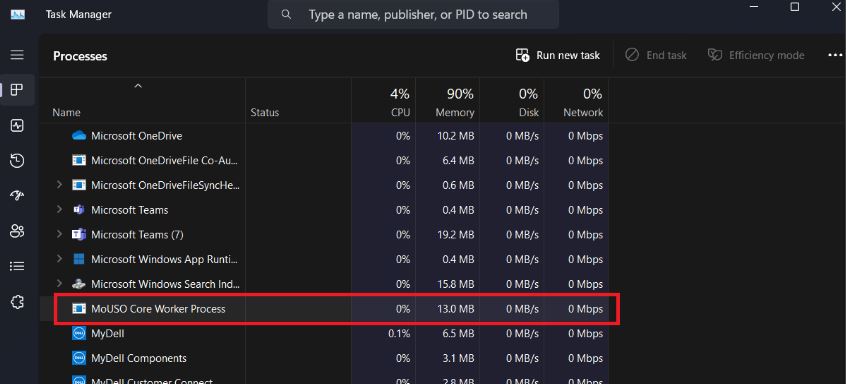
Checked August 2026. Applies to Windows 11 and Windows 10 22H2. Note that Windows 10 left support on 14 October 2025 — an unsupported machine still runs this process, but it has less to do.
When it is normal, and when it is not
| Behaviour | Verdict |
|---|---|
| Bursts of CPU for a few minutes | Normal — it is checking or staging an update |
| Activity after a restart | Normal — finishing update work |
| Steady 20–50% CPU for hours | Stuck. Work through the fixes below |
| Preventing the machine from sleeping | Common symptom of the same problem |
| Running from outside System32 | Not the real one — scan the machine |
The genuine file is at C:\Windows\System32\MoUsoCoreWorker.exe. Verify with Task Manager → Details → right-click → Open file location.
1. Let it finish, once
Before intervening: if updates are genuinely downloading, the process is doing its job. Check Settings → Windows Update. If something shows as downloading or installing, leave the machine on and connected for an hour.
Interrupting a large feature update mid-stage is how machines end up with a half-applied update and worse problems.
2. Restart the update services
The fix that resolves most stuck cases. From an elevated Command Prompt:
net stop wuauserv
net stop bits
net stop usosvc

net start wuauserv
net start bits
net start usosvc
usosvc is the Update Orchestrator Service — the one MoUSO belongs to, and the one most guides forget.
Start every service you stopped. A machine left with wuauserv stopped never updates again, and gives no indication that anything is wrong.
3. Reset the update components
If restarting the services is not enough, clear the cache as well:
net stop wuauserv
net stop cryptSvc
net stop bits
net stop msiserver

ren C:\Windows\SoftwareDistribution SoftwareDistribution.old
ren C:\Windows\System32\catroot2 catroot2.old

net start wuauserv
net start cryptSvc
net start bits
net start msiserver
Then restart the machine and check for updates once.
4. Run the Windows Update troubleshooter
Settings → System → Troubleshoot → Other troubleshooters → Run next to Windows Update.
5. Find the update that is failing
MoUSO frequently spins because it is retrying an update that cannot install. Look at Settings → Windows Update → Update history for a failed entry, then deal with that specific error rather than the process using CPU.
Common ones covered separately: 0x80070005, 0x8024A206, 0x800704C7 and not enough disk space.
If one update fails repeatedly, install it by hand from the Microsoft Update Catalog. That usually stops the retry loop for good.
6. Repair system files
DISM /Online /Cleanup-Image /RestoreHealth
sfc /scannow
7. If it stops the machine sleeping
A related and common complaint. Find out what is holding the machine awake:
powercfg /requestsRun from an elevated prompt. If MoUSO or the Update Orchestrator appears, resolving the stuck update is the fix.
Windows also has a legitimate wake timer for updates. To stop it waking the machine overnight:
Settings → Windows Update → Advanced options → turn off Wake up this device to install updates.
What not to do
Do not disable the Update Orchestrator Service permanently. Guides recommending you set usosvc to Disabled are trading a temporary CPU spike for a machine that stops receiving security updates — and does so silently, with Windows Update still appearing to work. Fix the stuck update instead.
Ending the task in Task Manager is fine as a temporary measure — Windows restarts it — but it will come back to the same stuck state until the underlying update is resolved.
Frequently asked questions
Is MoUsoCoreWorker.exe a virus?
No, when it runs from C:\Windows\System32\. Check the location in Task Manager if you want to be certain.
What does MoUSO stand for?
Update Session Orchestrator. It coordinates update checks, downloads and installs, including the timing around restarts and active hours.
Can I end the task?
Yes, and Windows restarts it. It is a temporary measure — if an update is stuck, it will return to the same state.
Why does it run when I am not updating anything?
It checks periodically, and stages downloads in the background. That is expected. Only sustained high CPU over hours indicates a problem.
Is it safe to disable Windows Update to stop this?
No. You would be turning off security updates to silence a symptom. Resolve the failing update instead — the process settles as soon as it succeeds.


