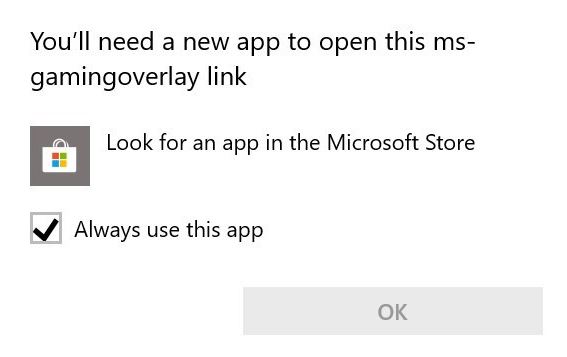
The “You’ll need a new app to open this ms-gamingoverlay link” pop-up appears because something asked Windows to open the Xbox Game Bar and the Game Bar is not installed — usually because it was removed by a “debloat” script, or never shipped on that image.
The quickest fix is to stop whatever is asking. The complete fix is to reinstall the Game Bar.
Checked August 2026. Applies to Windows 11 and Windows 10 22H2.
Why it happens
ms-gamingoverlay: is a protocol handler, like http: or mailto:. When something invokes it, Windows looks for the registered application — the Xbox Game Bar — and shows this dialog when it cannot find one.
Things that invoke it:
- Pressing Win + G, deliberately or by accident
- Launching a game that expects the Game Bar overlay
- Windows deciding an application is a game
- Some capture and streaming software
Fix 1: Turn off the Game Bar triggers
If you do not want the Game Bar at all, stop Windows asking for it:
- Press Win + I → Gaming → Game Bar.
- Turn off Allow your controller to open Game Bar.
Then turn off Game Mode and captures:
- Gaming → Game Mode → off.
- Gaming → Captures → turn off Record what happened (background recording).
This alone stops the pop-up for most people.
Fix 2: Reinstall the Xbox Game Bar
The complete fix, and the right one if a game genuinely wants the overlay.
From the Microsoft Store
Search the Store for Xbox Game Bar and install it. That re-registers the protocol handler.
From PowerShell
If the Store route fails, or the app was removed, from an elevated PowerShell:
Get-AppxPackage -AllUsers Microsoft.XboxGamingOverlay | Foreach {Add-AppxPackage -DisableDevelopmentMode -Register "$($_.InstallLocation)\AppXManifest.xml"}That re-registers a package still present on disk. If it returns nothing, the package was fully removed — install it from the Store instead.
Fix 3: Remove the registry override
Debloat scripts often disable the Game Bar with a registry value, and that value keeps producing the pop-up even after reinstalling.
Take a restore point before editing the registry.
From an elevated PowerShell:
Set-ItemProperty -Path 'HKCU:\Software\Microsoft\Windows\CurrentVersion\GameDVR' -Name AppCaptureEnabled -Value 0 -Type DWord
Set-ItemProperty -Path 'HKCU:\System\GameConfigStore' -Name GameDVR_Enabled -Value 0 -Type DWord
These disable Game DVR cleanly, which is different from leaving a broken protocol registration behind.
Fix 4: Stop Windows treating an app as a game
Windows sometimes decides a non-game application is a game and invokes the overlay for it.
- Open the application.
- Press Win + G — if the Game Bar opens, there is a Settings option to untick Remember this is a game.
- Without a working Game Bar, use Settings → System → Display → Graphics to review how specific applications are configured.
Fix 5: If it happens only with one game
Then it is that game asking:
- Turn off the in-game overlay in the game’s own settings.
- Turn off the launcher’s overlay — Steam, Epic, GOG and the EA app all have one.
- Verify the game files through the launcher.
A note about debloat scripts
This error is a good illustration of what those scripts cost. Removing an app that other components expect leaves dangling registrations — the removal succeeds, and the symptom appears weeks later with no obvious connection to the cause.
If you have run one and are seeing several odd errors, the fastest route back is usually:
DISM /Online /Cleanup-Image /RestoreHealth
sfc /scannow
Followed by reinstalling the specific apps you actually removed.
Frequently asked questions
What is ms-gamingoverlay?
The protocol Windows uses to open the Xbox Game Bar, in the same way mailto: opens your email client. The error means nothing is registered to handle it.
Do I need the Xbox Game Bar?
Only for its features: screen recording, performance overlay, in-game chat and widgets. If you use none of those, turning off the triggers is a perfectly good answer.
Will disabling it improve performance?
Marginally, in specific cases. Background recording — “Record what happened” — does have a measurable cost; the Game Bar simply being installed does not.
The pop-up appears when I am not gaming.
Something is invoking the protocol: an accidental Win + G, a controller button, or an application Windows has classed as a game. Turn off the controller trigger first.
Can I remove the Game Bar completely?
It can be removed, but it is exactly that removal that produces this error when something still asks for it. Disable the triggers instead of uninstalling the app — see uninstalling the Xbox Game Bar for what that involves.