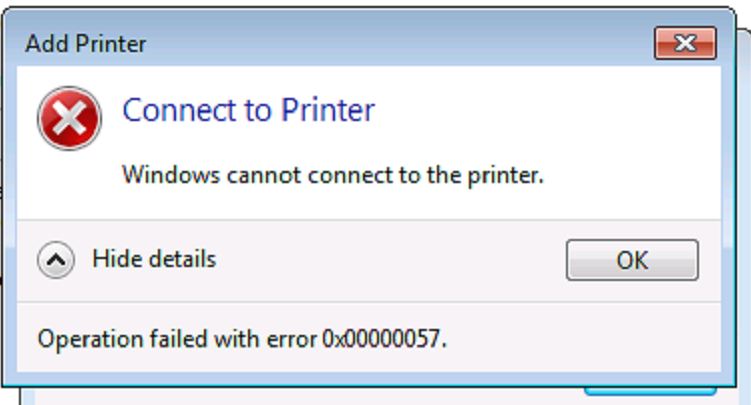
Printer error 0x00000057 appears when Windows tries to install or connect to a printer and the driver installation fails. The parameter is incorrect, in Windows’ words — which in practice means the driver package is damaged, or the print spooler’s cache has become inconsistent.
The fix that works most often is clearing the spooler cache and reinstalling the driver from scratch.
Checked August 2026. Applies to Windows 11 and Windows 10 22H2. Note that Windows 10 left support on 14 October 2025.
1. Restart the print spooler
Always start here. The spooler is a service, and it gets into bad states regularly.
- Press Win + R, type
services.msc, press Enter. - Find Print Spooler.
- Right-click → Restart.
Or from an elevated Command Prompt:
net stop spooler
net start spooler
2. Clear the spooler cache and reinstall the driver
The proper fix. This removes the stuck driver files and lets Windows install a clean copy.
From an elevated Command Prompt:
net stop spooler

del /Q /F /S "%systemroot%\System32\spool\PRINTERS\*.*"

net start spooler
Then remove the printer and its driver properly:
- Settings → Bluetooth & devices → Printers & scanners → select the printer → Remove.
- Press Win + R, type
printmanagement.msc, press Enter. - Open All Drivers, right-click the printer’s driver, choose Delete driver package.
- Restart the machine.
- Add the printer again.
Deleting the driver package, not just the printer, is the step people skip — and it is the one that matters, because a damaged package left in the store gets reused.
On Windows Home, where Print Management is not installed, use printui /s /t2 from Run to reach the same driver list.
3. Install the driver from the manufacturer
Windows’ built-in drivers are generic. For anything beyond basic printing, get the driver from the printer maker for your exact model:
Download the full driver package rather than a “basic” or “web installer” edition where both are offered — the web installers frequently fail on machines that are already in this state.
4. If the printer is shared from another PC
This error is especially common when connecting to a printer shared over a network, and the cause is specific: the architecture or the driver version does not match between the two machines.
Two reliable ways around it:
Install the driver locally first
- Install the manufacturer’s driver on the client machine, even though the printer is not attached to it.
- Then add the shared printer. Windows uses the local driver instead of pulling one from the host.
Add it as a local port instead
Sidesteps the shared-printer mechanism entirely:
- Settings → Printers & scanners → Add device → Add manually.
- Choose Add a local printer or network printer with manual settings.
- Choose Create a new port → Local Port.
- Enter the path in the form
\\HOSTNAME\PrinterShareName. - Select the manufacturer and model when prompted.
5. Check for the RPC hardening restriction
Since the print spooler security changes of recent years, Windows blocks non-administrators from installing printer drivers from a remote machine by default. On a home network this often presents as an installation error rather than a permissions message.
The correct fix is to install the driver locally first, as above. Changing RestrictDriverInstallationToAdministrators to allow unrestricted driver installation re-opens a serious remote code execution vector, and is not worth doing on a machine that touches the internet.
6. Repair system files
If the error persists across a clean driver install, the component store may be damaged. From an elevated prompt:
DISM /Online /Cleanup-Image /RestoreHealth
sfc /scannow
Reboot and try again.
7. Check recent updates
Printing has been broken and re-fixed by Windows updates more than once. If this started immediately after an update:
- Settings → Windows Update → Update history — note what installed.
- Check whether a newer cumulative update is available; the fix usually arrives in the next one.
- As a temporary measure, Uninstall updates will remove the offending one — reinstall it once a fix ships.
Frequently asked questions
What does 0x00000057 mean?
It is ERROR_INVALID_PARAMETER. Something in the driver installation request was not what Windows expected — usually a damaged driver package or an inconsistent spooler state.
Is it a hardware fault?
No. This is a driver and spooler error. The printer itself is almost certainly fine — for a hardware-side printer error, see printer error 0x00000077.
Why does it only happen with the shared printer?
Because the client is trying to obtain a driver from the host, and either the architecture does not match or the driver version differs. Installing the manufacturer’s driver locally first removes the dependency.
Do I need to delete the driver package as well as the printer?
Yes, and it is the step that makes the difference. Removing only the printer leaves the damaged package in the driver store, and Windows reuses it on the next attempt.
Is it safe to clear the PRINTERS folder?
Yes, with the spooler stopped. It contains queued print jobs only — you lose anything waiting to print, nothing else.