The Xbox Game Bar can be turned off in Settings in about ten seconds, which is what most people actually want. Fully uninstalling it is possible, needs PowerShell, and has a specific downside worth knowing before you do it.
Checked August 2026. Applies to Windows 11 25H2 and Windows 10 22H2.
Disable it — the recommended route
This stops the overlay and the background recording without removing anything, so nothing else breaks.
1. Stop it opening
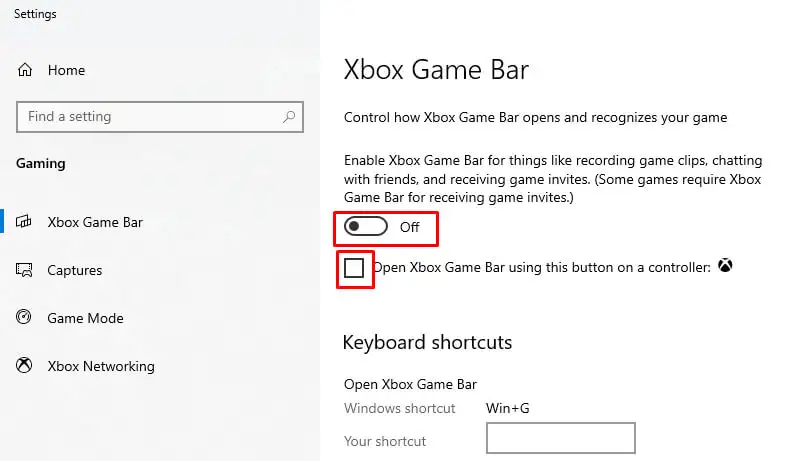
- Press Win + I → Gaming → Game Bar.
- Turn off Allow your controller to open Game Bar.
2. Stop background recording
The part that actually costs performance:
- Gaming → Captures.
- Turn off Record what happened.
3. Turn off Game Mode
Gaming → Game Mode → off.
Game Mode is not the overlay — it prioritises the running game and defers background activity. It is usually harmless and occasionally helps, so turn it off only if you are chasing a specific problem such as stuttering.
4. Registry, for a thorough disable
Take a restore point before editing the registry.
Set-ItemProperty -Path 'HKCU:\Software\Microsoft\Windows\CurrentVersion\GameDVR' -Name AppCaptureEnabled -Value 0 -Type DWord
Set-ItemProperty -Path 'HKCU:\System\GameConfigStore' -Name GameDVR_Enabled -Value 0 -Type DWord
Run from an elevated PowerShell. Set both back to 1 to re-enable.
Uninstalling it properly
The Game Bar has no entry in Settings → Apps with an Uninstall button — it is a system app. Removal is done from PowerShell.
Read this first. Removing the Game Bar leaves the ms-gamingoverlay: protocol unregistered. Anything that still asks for it — a game, a controller button, an accidental Win + G — produces the “You’ll need a new app to open this ms-gamingoverlay link” pop-up. That error is caused by this removal, and it is the single most common reason people end up reinstalling it again.
From an elevated PowerShell:
Get-AppxPackage Microsoft.XboxGamingOverlay | Remove-AppxPackageFor every user on the machine:
Get-AppxPackage -AllUsers Microsoft.XboxGamingOverlay | Remove-AppxPackage -AllUsersRelated packages you may also want to check, though these are separate apps:
Get-AppxPackage *xbox* | Select-Object Name, PackageFullNameDo not remove Microsoft.XboxIdentityProvider. It handles Xbox account sign-in, and removing it breaks sign-in for Game Pass titles and any game that uses an Xbox account — including some that have nothing to do with the overlay.
Reinstalling it
If you change your mind, or a game needs it:
Microsoft Store: search for Xbox Game Bar and install.
PowerShell, if the package is still on disk:
Get-AppxPackage -AllUsers Microsoft.XboxGamingOverlay | Foreach {Add-AppxPackage -DisableDevelopmentMode -Register "$($_.InstallLocation)\AppXManifest.xml"}Note that Windows feature updates restore removed system apps, so a removal is not necessarily permanent.
What you actually gain
Being realistic about it:
| Action | Real effect |
|---|---|
| Turning off background recording | Measurable — it was continuously encoding video |
| Turning off the overlay | Small; a little memory and no hook into games |
| Turning off Game Mode | Usually none, occasionally fixes stuttering |
| Uninstalling entirely | Frees disk space; no performance gain over disabling |
The honest summary: disabling gets you nearly all of the benefit, with none of the protocol-handler problem.
What you lose
- Win + Alt + R screen recording, and Win + Alt + PrtScn game screenshots
- The performance overlay showing FPS, CPU and GPU usage
- Xbox friends list and party chat on the desktop
The Snipping Tool covers screen recording for anything other than exclusive-fullscreen games — see taking screenshots and recordings.
Frequently asked questions
Will removing the Game Bar improve FPS?
Turning off background recording can, because it was encoding video continuously. Removing the app itself gains essentially nothing beyond that.
Is it safe to uninstall?
Yes, in that Windows keeps working. The consequence is the ms-gamingoverlay pop-up whenever something still invokes it. Disabling avoids that entirely.
Why is there no Uninstall button in Settings?
Because it is a system app rather than a normal Store app. Windows deliberately does not offer a one-click removal for those.
Does it come back after a Windows update?
Feature updates often restore removed system apps. Registry-based disabling generally survives, which is another argument for disabling rather than removing.
Does the Game Bar collect data?
It is connected to your Xbox account for social features and telemetry. If that is your concern, signing out and disabling it achieves the same as removal.