Windows hides file extensions by default, and that default has been a security problem for twenty years. Turning them back on takes two clicks and is one of the most worthwhile changes you can make to a fresh install.
Checked August 2026 on Windows 11 25H2. The Folder Options method also works on Windows 10 22H2.
What a file extension is
The extension is the part after the last dot: report.docx, holiday.jpg, setup.exe. It tells Windows which program opens the file.
With extensions hidden, File Explorer shows only report, holiday and setup. You are relying entirely on the icon to know what a file is — and an icon is just an image the file itself can specify.
Why this matters
Consider an email attachment named:
invoice.pdf.exeWith extensions hidden, Windows shows it as invoice.pdf. The attacker sets a PDF icon. You see a PDF, you double-click, and you run a program.
This is not a theoretical trick — it is one of the oldest and most reliable delivery methods there is, and it works because of a display default. With extensions visible, the same file reads invoice.pdf.exe and the deception collapses.
The everyday benefits are worth having too:
- Tell
photo.jpgfromphoto.pngfromphoto.heicat a glance - Spot a spreadsheet saved as
.csvwhen you needed.xlsx - Rename files correctly instead of accidentally producing
notes.txt.txt - See at a glance whether a download is
.zip,.msior.exe
Method 1: the View menu — two clicks
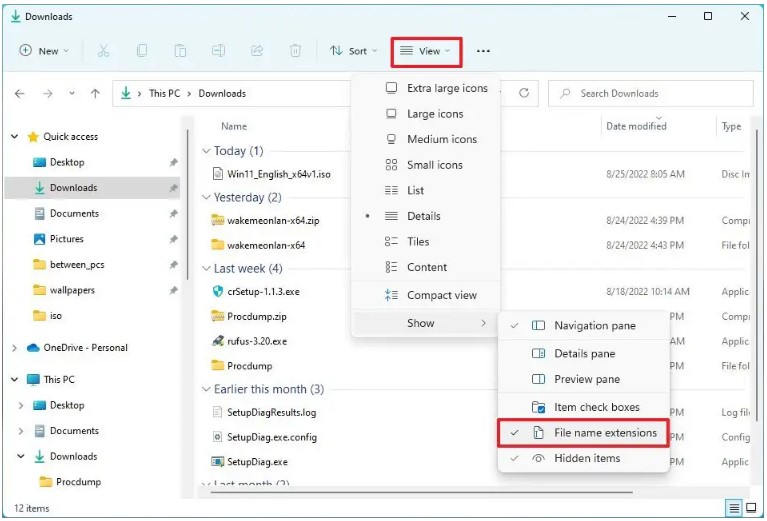
- Open File Explorer (Win + E).
- Select View on the toolbar.
- Point at Show.
- Tick File name extensions.
The change applies immediately to every folder. While you are there, Hidden items in the same submenu is worth turning on too.
On Windows 10 the equivalent is the View ribbon tab, with a File name extensions checkbox.
Method 2: Folder Options
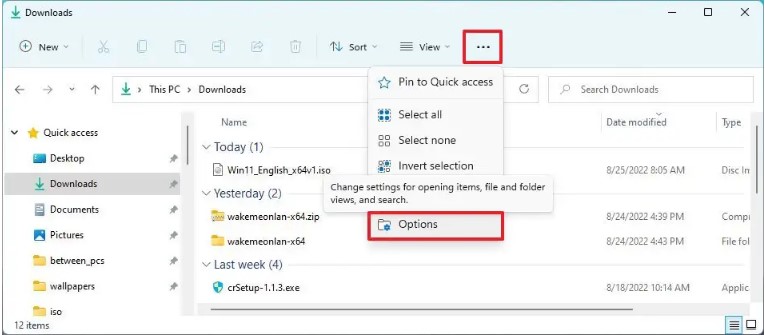
- In File Explorer, select the … (See more) button, then Options.
- Go to the View tab.
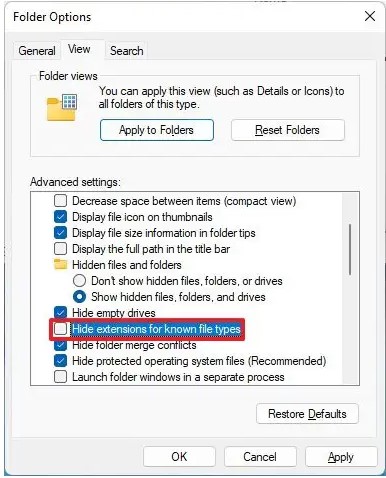
- Under Advanced settings, clear the box marked Hide extensions for known file types.
- Select Apply, then OK.
The wording is inverted, which trips people up: you are unticking a box to make something appear.
Method 3: command line
For scripting a new machine, or applying it to several at once. From an elevated PowerShell:
Set-ItemProperty -Path 'HKCU:\Software\Microsoft\Windows\CurrentVersion\Explorer\Advanced' -Name HideFileExt -Value 0
Stop-Process -Name explorer -Force
The second line restarts File Explorer so the change takes effect without signing out. The setting is per user, so run it for each account that needs it.
Any registry change deserves a safety net. Take a restore point before editing the registry by hand — the command above is safe, but the habit is what protects you when a future edit is not.
Renaming files once extensions are visible
With extensions shown, renaming selects the whole name including the extension. Two things follow:
- Keep the extension when you rename. Deleting it leaves Windows unsure how to open the file.
- Changing an extension does not convert a file. Renaming
photo.pngtophoto.jpgproduces a PNG with a misleading name, not a JPEG. Windows will warn you; the warning is worth reading.
To rename without touching the extension, press F2 and then Home — the cursor moves to the start, and you can edit just the name.
Frequently asked questions
Why does Windows hide extensions by default?
To keep the interface simple for people who do not need them. It is a decision from the 1990s that has aged poorly, given how effectively the double-extension trick still works.
I turned it on but extensions are still hidden.
Check three things. First, restart File Explorer: Ctrl + Shift + Esc, find Windows Explorer, choose Restart. Second, confirm the file actually has an extension — some, such as folders or certain system files, do not. Third, on a work machine, Group Policy may be enforcing the setting; that cannot be overridden locally.
Does showing extensions change anything about my files?
No. It is purely a display setting. Nothing is renamed, moved or modified.
How do I hide them again?
Reverse whichever method you used: untick File name extensions, or re-tick Hide extensions for known file types.
What extensions should I be suspicious of in an email?
.exe, .scr, .bat, .cmd, .com, .pif, .js, .vbs, .hta, .msi and .lnk all run code. So do Office documents with macros (.docm, .xlsm). An unexpected archive containing any of these deserves the same suspicion — putting the file in a .zip is how it gets past filters.


