Windows 11 animates almost everything: windows opening, menus sliding, controls fading. Turning those animations off makes the interface feel faster and genuinely helps on older hardware — and for some people it is an accessibility necessity rather than a preference.
There are three ways to do it. Start with the first; the other two exist for locked-down machines and fleets.
Checked August 2026 on Windows 11 25H2. The Performance Options and registry routes also apply to Windows 10 22H2.
What you actually gain
Be clear about the size of the win, because a lot of guides oversell it:
- Perceived speed goes up noticeably. You stop waiting through a 200 ms fade every time a window opens. Over a day, that is the difference between an interface that feels snappy and one that feels sluggish.
- Measured performance barely moves on modern hardware. Animations are drawn by the GPU and cost very little. Nobody gains frames in a game by turning them off.
- On old or integrated graphics, and on remote desktop sessions, the gain is real. These are the cases where animations genuinely stutter.
- Accessibility. Motion effects trigger nausea, dizziness and migraines for people with vestibular disorders. For them this is not a tweak, it is a requirement — which is why Windows has a dedicated setting for it.
Method 1: Accessibility settings — the right one for most people
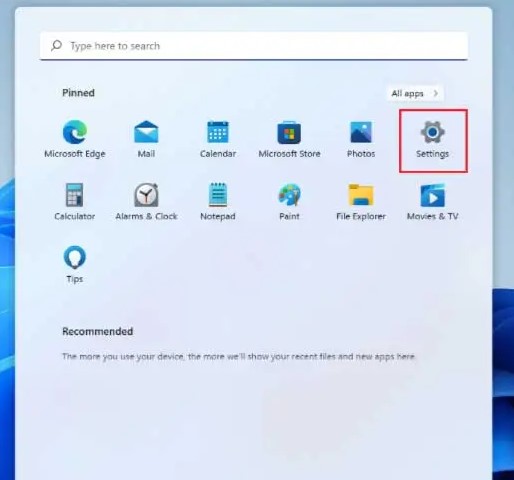
- Press Win + I to open Settings.
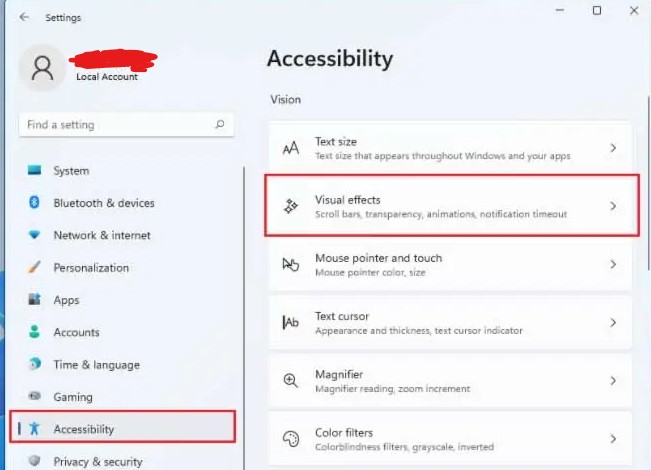
- Select Accessibility.
- Select Visual effects.
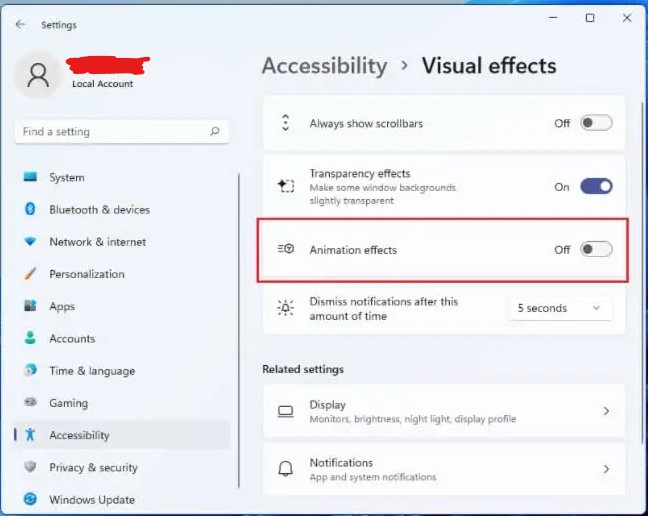
- Turn Animation effects off.
Two other switches on the same page are worth knowing about:
- Transparency effects — the frosted-glass look. Turning it off helps more on weak graphics hardware than the animations do.
- Dismiss notifications after this amount of time — unrelated to speed, but the page it lives on is easy to forget.
This setting is the one applications are supposed to respect when deciding whether to animate their own interfaces, so it is the most complete option.
Method 2: Performance Options — finer control
The classic dialog, still the only place to switch effects off individually.
- Press Win + R, type
sysdm.cpl, press Enter. - Go to the Advanced tab.
- Under Performance, select Settings.
- On the Visual Effects tab, choose Adjust for best performance to disable everything, or Custom to pick.
Adjust for best performance also turns off font smoothing and thumbnail previews, which makes the desktop look distinctly worse. If you go that route, come back and re-tick these two:
- Smooth edges of screen fonts — without it, text looks jagged on every display.
- Show thumbnails instead of icons — without it, File Explorer shows generic icons instead of image previews.
A sensible custom set is: those two on, everything else off.
Method 3: Registry
Take a restore point before editing the registry. The commands below are safe, but a mistyped path in the editor is not, and a restore point is the difference between a two-minute fix and an evening.
From an elevated PowerShell, to disable animations for the current user:
Set-ItemProperty -Path 'HKCU:\Control Panel\Desktop\WindowMetrics' -Name MinAnimate -Value 0
Set-ItemProperty -Path 'HKCU:\Software\Microsoft\Windows\CurrentVersion\Explorer\VisualEffects' -Name VisualFXSetting -Value 2
Stop-Process -Name explorer -Force
Set MinAnimate back to 1 to re-enable. The setting is per user, so it must be run for each account.
Method 4: Group Policy
Only present on Windows 11 Pro, Enterprise and Education — Home does not include the Group Policy Editor.
- Press Win + R, type
gpedit.msc, press Enter. - Go to User Configuration → Administrative Templates → Windows Components → Desktop Window Manager.
- Configure the animation-related policies there.
Use this only when you need the setting enforced across accounts or machines. For one PC, Method 1 is the correct answer.
If your PC is still slow
Animations are rarely the actual problem. If the machine feels slow after turning them off, the usual causes in order:
- Too many startup programs — see disabling startup programs.
- A mechanical hard disk. Nothing in software comes close to the difference an SSD makes on a machine still running an HDD.
- Not enough memory. Check Task Manager → Performance → Memory. Sustained high usage means constant paging to disk.
- Thermal throttling. A laptop full of dust runs slower under sustained load, whatever the visual settings are.
Frequently asked questions
Will disabling animations speed up my PC?
It will feel faster because you stop waiting for transitions. Measured performance changes very little on modern hardware, and more on old or integrated graphics and over remote desktop.
Can I turn them back on?
Yes, at any time — reverse whichever method you used. Nothing is permanent and nothing is deleted.
Is editing the registry for this safe?
The two values above are user-level display settings and are safe. The general risk in registry editing is the editor, not these keys: it applies changes immediately with no undo. Take a restore point and use PowerShell commands rather than clicking through, and the risk is small.
Are animations purely cosmetic?
Mostly, but not entirely. Transitions give a visual cue about where a window went when it minimised, which some people rely on to keep track. Turn them off and see whether you miss it.
Why is Animation effects greyed out?
Group Policy is enforcing it, which is common on work machines. Contact whoever manages the device.


