
On most laptops the top row does two jobs. Press F5 and you might refresh a page, or you might change the screen brightness — which one depends on a setting called Action Keys Mode or Hotkey Mode, and it lives in the firmware, not in Windows.
There is a keyboard shortcut that toggles it on most machines, and a firmware setting that makes the change permanent.
Checked August 2026. Applies to Windows 11 and Windows 10. The exact key and menu names vary by manufacturer — the sections below cover the main ones.
What the Fn key does
Laptop keyboards do not have room for a full desktop layout, so the function row is shared. Fn is a modifier that switches which of the two meanings applies.
Which meaning is the default is the setting you are looking for:
- Action keys mode on (the common factory default): pressing F5 changes brightness or volume. Hold Fn for the real F5.
- Action keys mode off: pressing F5 is F5. Hold Fn for brightness.
Neither is more correct. If you use function keys for renaming files, refreshing, or debugging in an IDE, turn action keys off. If you mostly adjust volume and brightness, leave them on.
Method 1: the Fn Lock shortcut
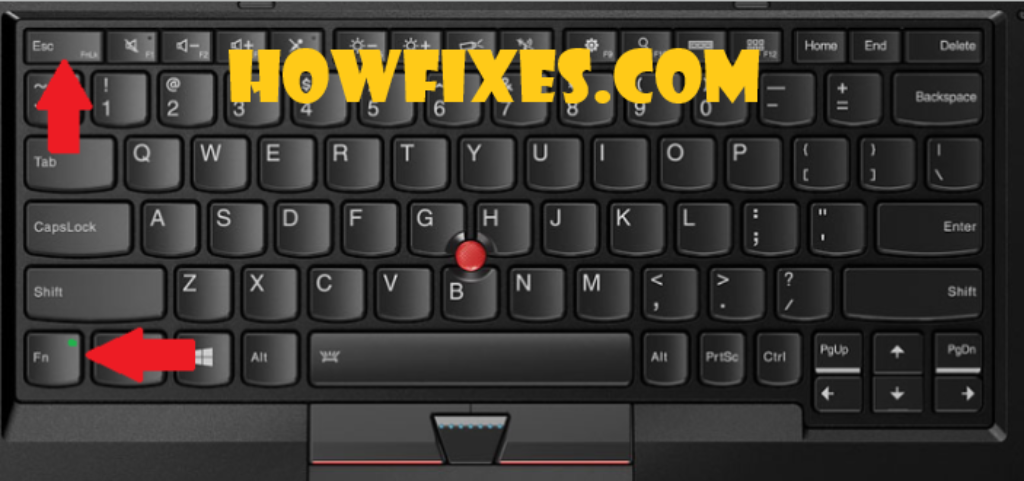
Most laptops have a toggle. Look for a padlock symbol on Esc, or on F1–F12, then:
| Manufacturer | Usual shortcut |
|---|---|
| Lenovo (ThinkPad, IdeaPad) | Fn + Esc |
| HP | Fn + Esc, or firmware only |
| Dell | Fn + Esc |
| ASUS | Fn + Esc |
| Acer | Fn + F12, or firmware only |
| Microsoft Surface | Fn + Caps Lock |
| Apple keyboard on Windows | Firmware or Boot Camp settings |
The toggle usually survives a restart, but not always — on machines where it does not, use the firmware setting instead.
Method 2: BIOS/UEFI — the permanent fix
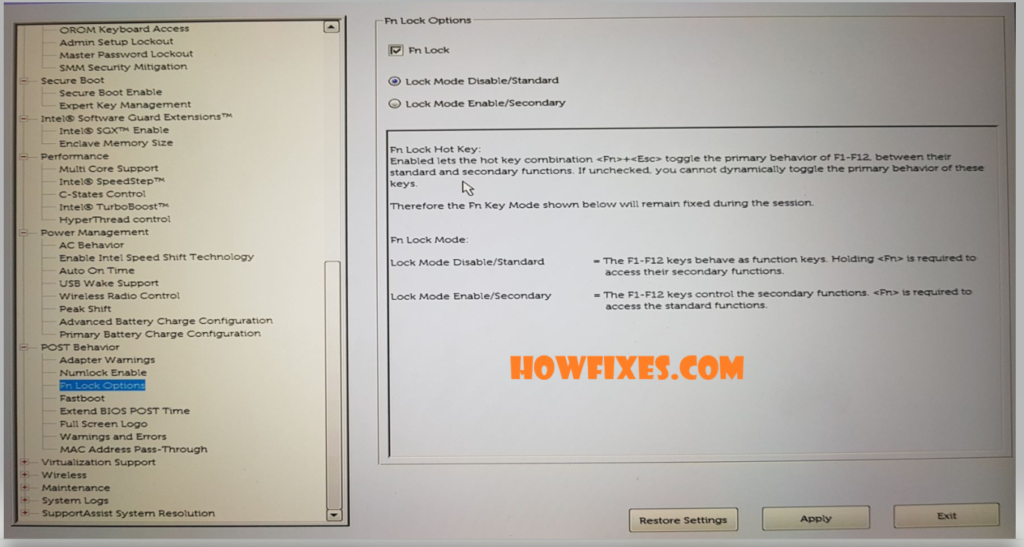
The reliable way to enter firmware from Windows, without trying to catch a key at boot:
- Settings → System → Recovery.
- Under Advanced startup, select Restart now.
- Choose Troubleshoot → Advanced options → UEFI Firmware Settings → Restart.
Then find the setting. It is named differently by every vendor:
- HP: System Configuration → Action Keys Mode
- Dell: Advanced or POST Behaviour → Fn Lock Options / Function Key Behaviour
- Lenovo: Configuration → Hotkey Mode
- ASUS: Advanced → Function Key Behavior
- Acer: Main → Function Key Behavior
Set it, then save and exit — usually F10.
Change only this setting while you are in there. Firmware menus also hold Secure Boot, TPM and boot order; altering those by accident can stop Windows starting or lock a BitLocker-encrypted drive. If you are unsure what you changed, exit without saving.
Method 3: the manufacturer’s app
Several vendors expose the same setting in Windows, which avoids the firmware trip entirely:
- Lenovo Vantage — Device → Input & Accessories → Fn key
- Dell Power Manager or My Dell
- MyASUS
- HP Support Assistant on some models
Get these from the manufacturer’s own site or the Microsoft Store, not from a search result — “driver utility” downloads are a well-worn malware route.
If the Fn key does not work at all
Different problem: the key itself is doing nothing.
- Check the hardware. Try the on-screen keyboard (Win + Ctrl + O) to see whether Windows registers other keys normally. A single dead key is usually physical.
- Reinstall the keyboard driver. In Device Manager, expand Keyboards, right-click your keyboard, choose Uninstall device, then restart.
- Install the vendor’s hotkey driver. Special keys need it — a clean Windows install without it leaves brightness and volume keys dead. Look for “hotkey”, “function key” or “quick launch” drivers on the support page for your exact model.
- Check Filter Keys. Settings → Accessibility → Keyboard → make sure Filter keys is off. It can be switched on accidentally by holding right Shift.
Frequently asked questions
Does every laptop have an Fn key?
Almost every laptop does. Desktop keyboards usually do not, because they have room for a dedicated function row — though compact and gaming keyboards often include one for media controls.
Why does my Fn Lock reset when I restart?
Some models keep the toggle only until power off. Set it in the firmware instead — that setting persists.
Can I remap the Fn key itself?
Usually not. On most laptops Fn is handled in the keyboard controller and never reaches Windows as a key event, so software remappers cannot see it. The function keys it modifies can generally be remapped; Fn itself cannot.
My function keys work in Windows but not in games.
Some games read raw keyboard input and see the media function rather than F1–F12. Turning action keys mode off in firmware fixes it, because the keys then send the real function codes by default.
Is there a Windows setting for this?
No. Windows has no built-in control over Fn behaviour — it is decided by the firmware or by the manufacturer’s own utility. Any site claiming there is a Windows setting for it is wrong.


