Wake-on-LAN needs four separate things to be right, and it fails silently if any one of them is wrong. In order of how often each is the culprit:
- Fast Startup is on — this is the answer most of the time
- Wake-on-LAN is not enabled in the network adapter settings
- It is not enabled in the firmware
- The magic packet cannot reach the machine

Checked August 2026. Applies to Windows 11 and Windows 10 22H2.
1. Turn off Fast Startup — start here
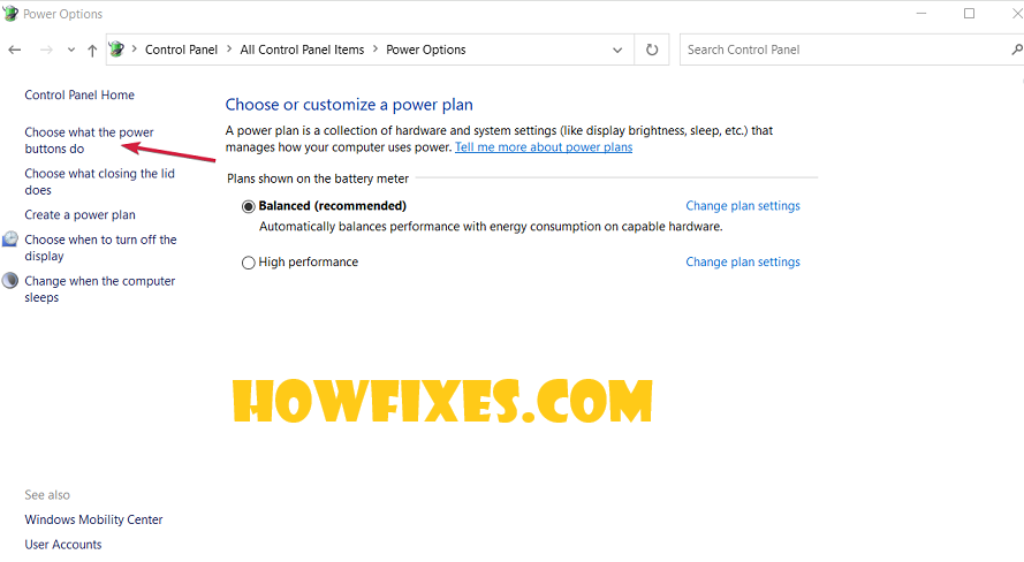
Fast Startup means “shut down” is really a partial hibernation. The network adapter is powered down in a state where it does not listen for magic packets — so the machine never wakes, and nothing you configure elsewhere helps.
- Press Win + R, run
powercfg.cpl. - Select Choose what the power buttons do.
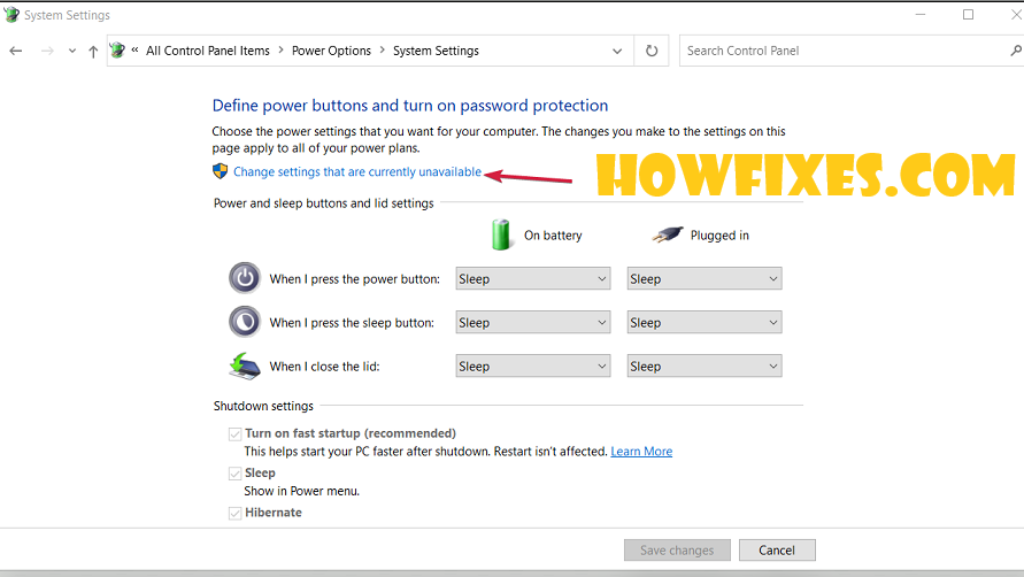
- Select Change settings that are currently unavailable.
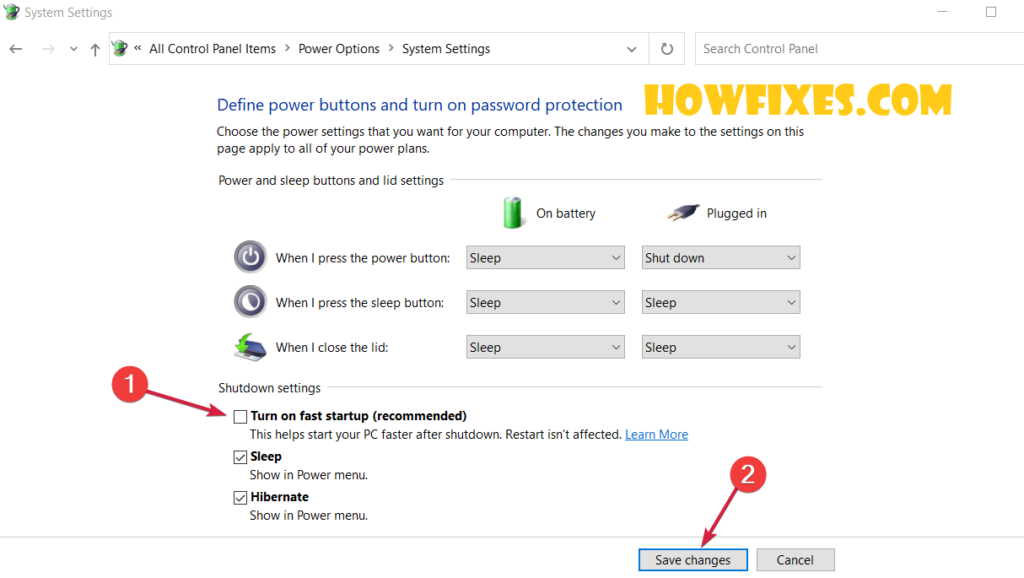
- Clear Turn on fast startup (recommended).
- Select Save changes.
Boot becomes slightly slower. In exchange, a shutdown is a real shutdown — which is what Wake-on-LAN requires.
2. Configure the network adapter
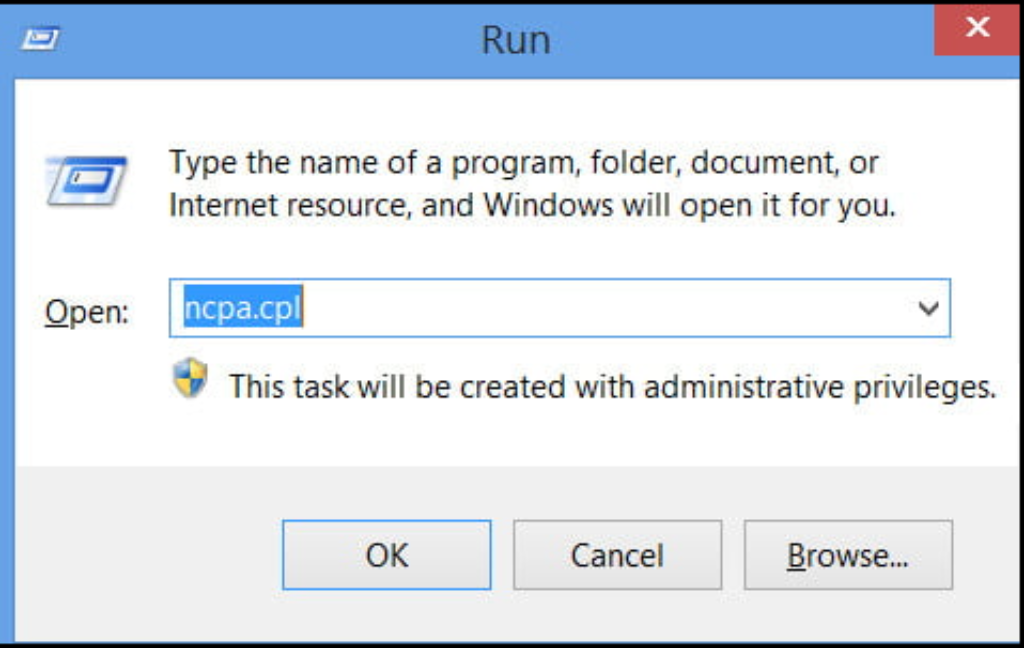
- Press Win + R, run
ncpa.cpl. - Right-click your Ethernet adapter → Properties.
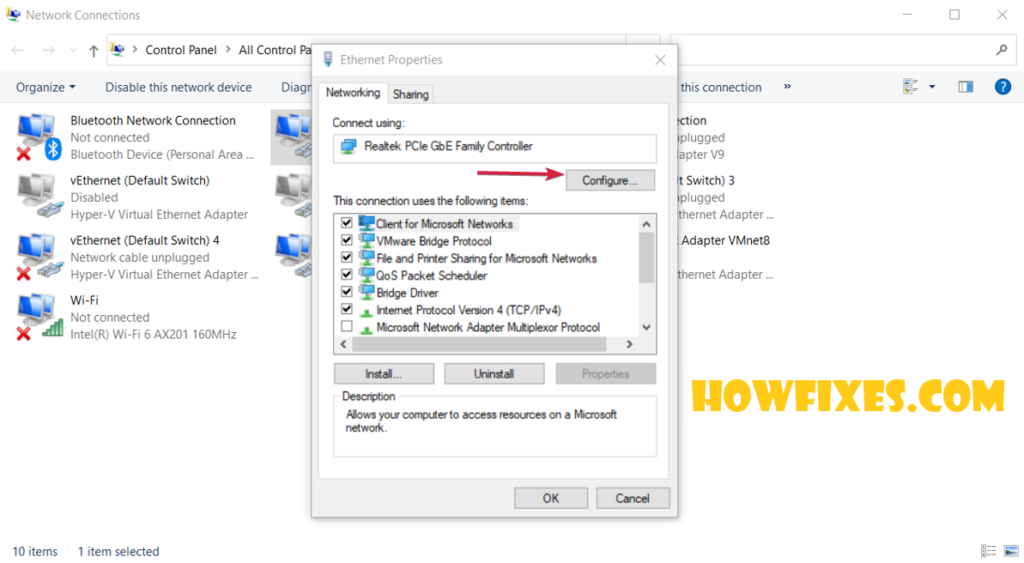
- Select Configure.
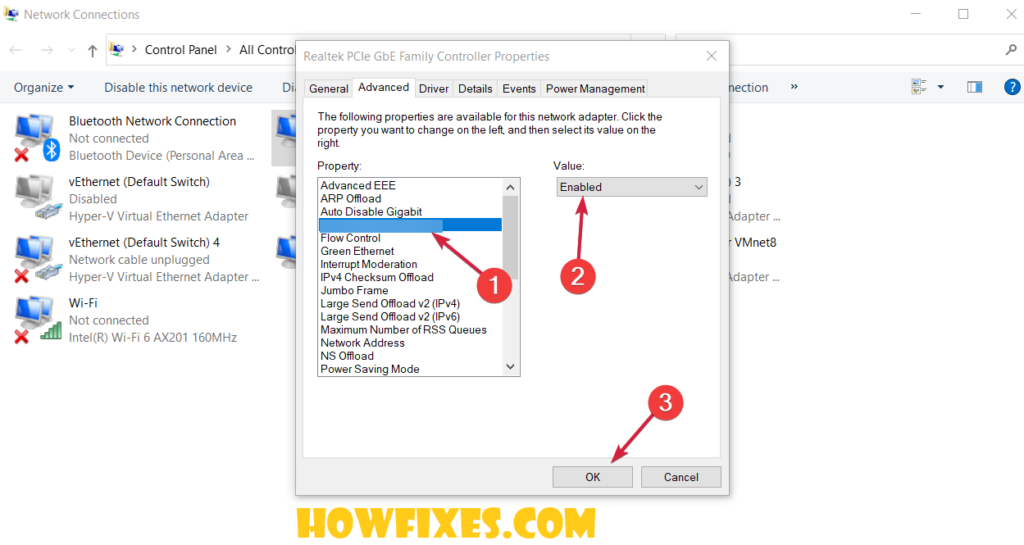
- On the Advanced tab, enable these where present:
- Wake on Magic Packet → Enabled
- Wake on pattern match → Enabled
- Enable PME → Enabled
- Shutdown Wake-On-Lan → Enabled
- Energy Efficient Ethernet → Disabled, as it can interfere
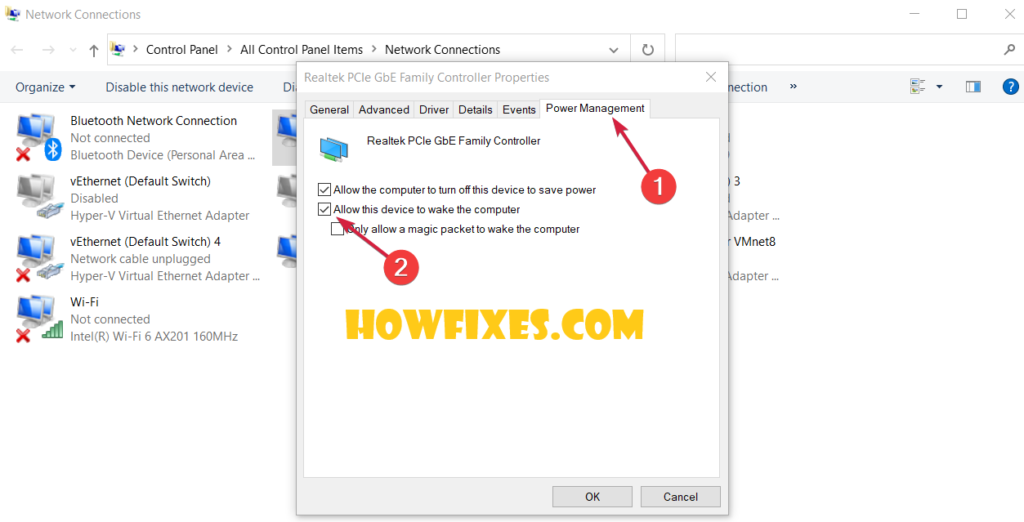
- On the Power Management tab, tick:
- Allow this device to wake the computer
- Only allow a magic packet to wake the computer
- Clear Allow the computer to turn off this device to save power.
3. Enable it in firmware
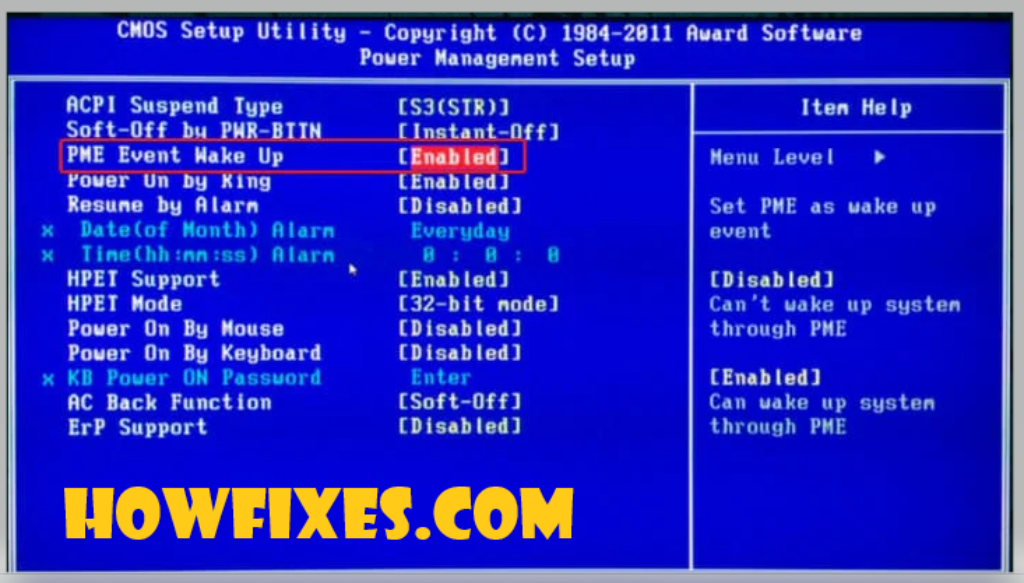
Enter firmware setup (Settings → System → Recovery → Restart now → Troubleshoot → Advanced options → UEFI Firmware Settings) and look under Power Management for:
- Wake on LAN / Wake on PCI-E / Power On By PCI-E
- Resume by PCI-E Device
- ErP or EuP — this one must be disabled. It cuts standby power to the network port entirely, which makes waking impossible.
- Deep Sleep — disable, for the same reason
4. Verify from Windows
From an elevated Command Prompt, list what is permitted to wake the machine:
powercfg /devicequery wake_armedYour Ethernet adapter should appear. If it does not, step 2 has not taken effect.
To see what actually woke the machine last time:
powercfg /lastwake5. Send the packet correctly
A magic packet is a UDP broadcast containing the target’s MAC address. Getting this wrong is the second most common failure.
- You need the MAC address of the wired adapter — see how to find your MAC address.
- Send to the broadcast address of the subnet, typically
192.168.1.255, not to the machine’s IP. A sleeping machine does not answer ARP, so its IP address does not resolve. - Port 9 is conventional; some tools use 7.
Test from another machine on the same network first. Only once that works should you attempt it from outside.
Over the internet
Harder, and worth being honest about:
- Broadcasts are not routed across the internet, so the router must forward the packet.
- Options are a port forward to the broadcast address (many routers refuse), a static ARP entry on the router, or — much better — a VPN into the network, or a small always-on device on the LAN to send it.
6. Check wi-fi expectations
Wake-on-Wireless-LAN exists but is far less widely supported, needs adapter and firmware support on both sides, and often does not work from full shutdown at all. If you can use a cable for the machine you want to wake, do.
Frequently asked questions
Why does it work from sleep but not from shutdown?
Fast Startup. A shutdown with it enabled leaves the adapter in a state that does not listen. Turn it off.
It worked before and stopped.
A Windows update replaced the network driver and reset its Advanced settings. Recheck the adapter properties — this is very common.
Do I need a static IP for the target?
Not for the magic packet, which is addressed by MAC. You will want one for connecting afterwards, and a DHCP reservation on the router is the tidiest way to arrange it.
Is Wake-on-LAN a security risk?
Modest. A magic packet can only power a machine on; it grants no access. The risk is exposing the forwarding rule to the internet, which is why a VPN is the better route.
How do I know the packet is arriving?
Test from a second machine on the same subnet first. If that works and remote does not, the problem is the router, not the PC.


