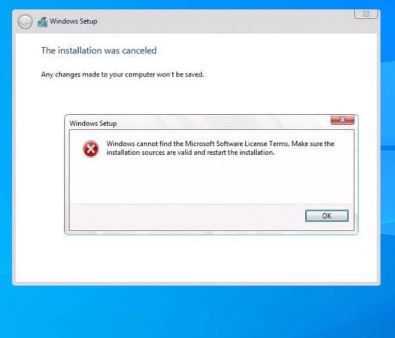
“Windows cannot find the Microsoft Software License Terms” stops Windows setup before it starts. Despite how it reads, this is almost never a licensing problem — it is setup failing to read a file from your installation media.
The three causes, in order of likelihood: incomplete installation media, a USB port setup loses contact with, and a corrupted download.
Checked August 2026. Applies to installing Windows 11 and Windows 10.
1. Rebuild the installation media properly
This resolves the majority of cases, and there is one specific mistake behind most of them.
The 4 GB file problem
If you formatted a USB stick as FAT32 and copied the ISO contents across by hand, the copy almost certainly failed. install.wim in current Windows images is larger than 4 GB, and FAT32 cannot store a single file above 4 GB. File Explorer may report an error you dismissed, or simply skip it.
Setup then boots — the boot files copied fine — and fails as soon as it needs something from the missing part.
Do it properly
- Download the Media Creation Tool or the ISO from Microsoft’s own download page.
- Let the Media Creation Tool write the USB stick. It handles the file split automatically.
- Or use Rufus, which splits
install.wimacross FAT32 when needed. Choose GPT and UEFI for any modern machine.
Use a USB stick of 8 GB or more, and preferably a different one from the one that failed — sticks degrade silently.
2. Change the USB port
Setup re-enumerates devices between phases. If the media is on a USB 3.0 controller it cannot see yet, the source disappears mid-install and files it needs become unreadable.
- Move the stick to a USB 2.0 port — usually black rather than blue.
- On a desktop, use a rear-panel port directly on the motherboard, not a front header or a hub.
- Then choose Back and Next in setup rather than restarting.
This is the same underlying cause as “no device drivers were found” — two different messages from one problem.
3. Verify the download
A truncated or corrupted ISO produces this reliably. Two checks:
- File size. Compare against what the download page states. A file noticeably smaller is incomplete.
- Hash. Microsoft publishes SHA-256 values for ISO downloads. Verify with:
Get-FileHash -Algorithm SHA256 "C:\path\to\windows.iso"If it does not match, download again — and download from Microsoft, not from a third-party mirror.
4. Check the media is readable
Boot the machine, open the USB stick in File Explorer, and confirm these exist:
sources\install.wimorsources\install.esdsources\eula.rtf— the licence terms setup is complaining aboutsetup.exeat the root
A missing or zero-byte install.wim confirms the FAT32 problem above.
5. Run setup from Windows instead
If you are upgrading rather than installing clean, avoid booting from the stick altogether:
- Right-click the ISO in File Explorer and choose Mount.
- Run
setup.exefrom the mounted drive. - Choose to keep your files and applications.
This performs an in-place upgrade and sidesteps the whole boot-media path.
6. Free up disk space
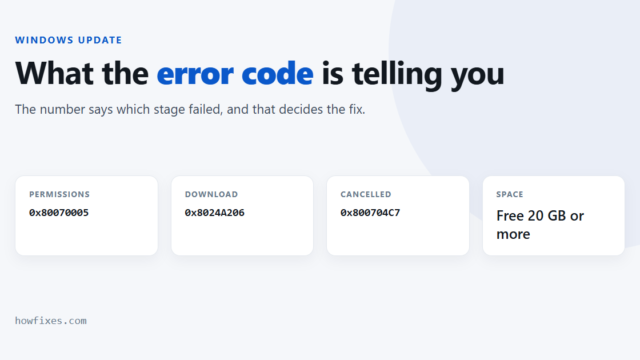
Setup needs room to extract to. Below roughly 20 GB free, it fails in ways that rarely mention space — including this message.
Check Settings → System → Storage, and see how to free up space if you are short.
7. Disconnect other drives
On a clean install with several drives attached, setup occasionally reads from the wrong one. Disconnect every drive except the target and the USB stick, install, then reconnect.
This also prevents a more expensive mistake — installing the boot loader onto the wrong disk.
In order, what to try
- Rebuild the USB stick with the Media Creation Tool or Rufus, on a different stick.
- Use a USB 2.0 port, and choose Back then Next.
- Verify the ISO hash.
- Confirm
sources\install.wimexists on the stick. - If upgrading, mount the ISO and run setup from Windows.
- Free up disk space, and disconnect other drives.
Frequently asked questions
Is this a licensing or activation problem?
No. Setup cannot read eula.rtf from the media. Your product key and activation status are not involved — for those, see activation error 0x803F7001.
Why does the USB stick boot if files are missing?
Because the boot files are small and copied successfully. The failure comes later, when setup needs a file that never made it across.
Can I just copy the ISO contents to a stick?
Only if the stick is formatted NTFS and the machine boots NTFS media — many UEFI systems will only boot FAT32. Use the Media Creation Tool or Rufus and avoid the question entirely.
Does it matter which USB stick I use?
Yes. Old and cheap sticks fail silently mid-write. If one has produced two failed installs, use another before troubleshooting the PC.
I get this upgrading from Windows 10 to Windows 11.
Mount the ISO in Windows and run setup.exe rather than booting from a stick. An in-place upgrade does not use the boot path where this error occurs.