Find my device locates a lost Windows laptop or tablet on a map, from any browser. It is free, it is built in, and it takes about thirty seconds to turn on — but it only works if you enable it before the device goes missing.
Checked August 2026 on Windows 11 25H2. Also available on Windows 10 22H2.
What you need first
Three requirements, and the second is the one that stops most people:
- You are signed in to Windows with a Microsoft account, not a local account.
- That account is an administrator on the device.
- Location services are turned on.
To check the account type: Settings → Accounts → Your info. A local account shows no email address, and Find my device will be unavailable until you switch.
Turn it on
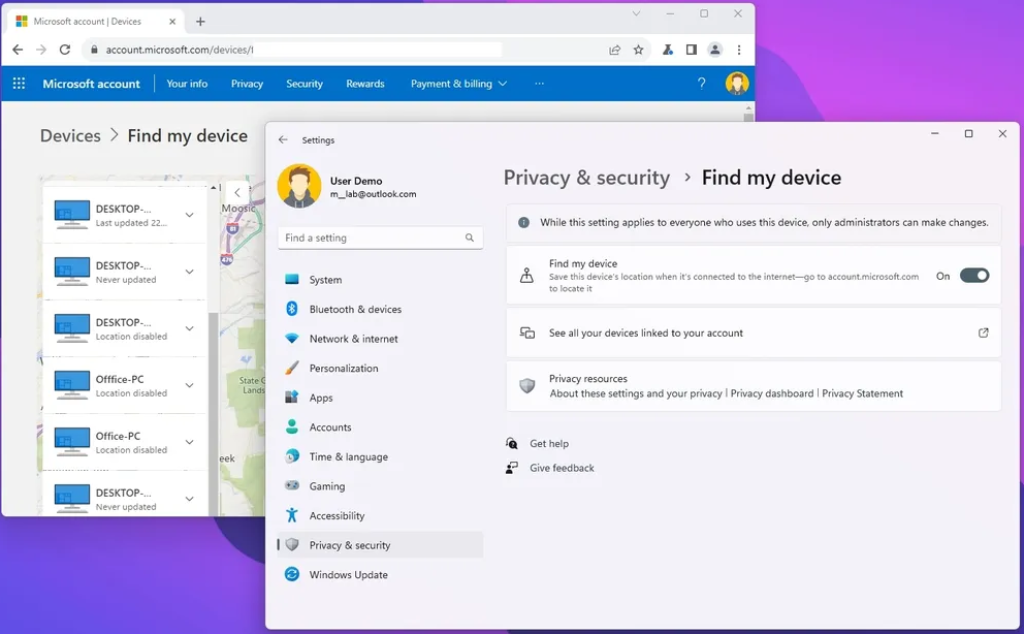
- Press Win + I to open Settings.
- Select Privacy & security.
- Select Find my device.
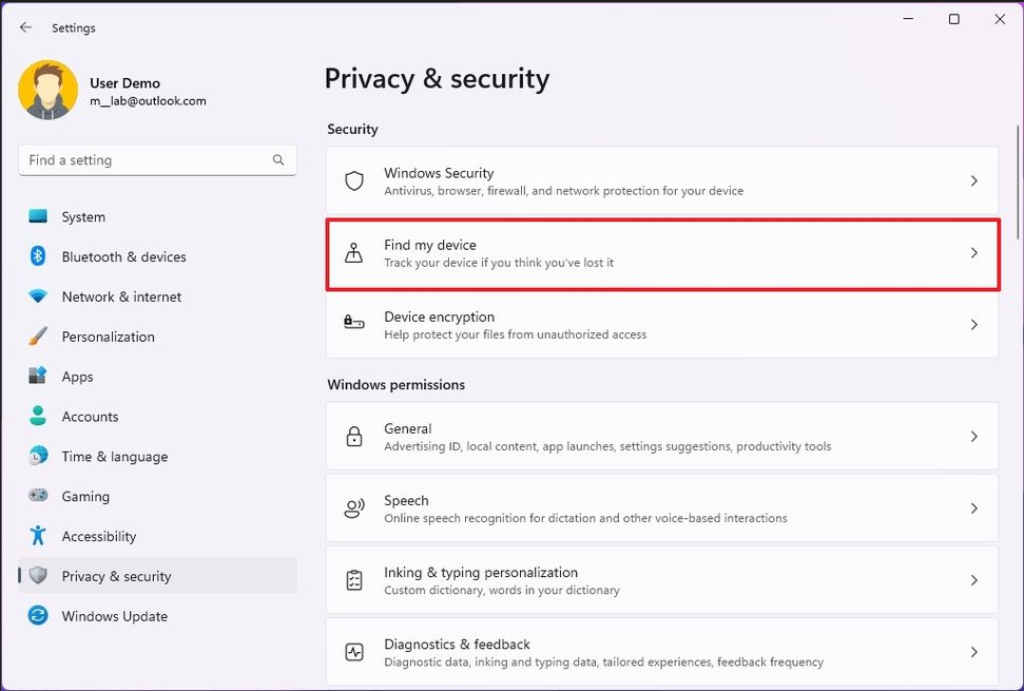
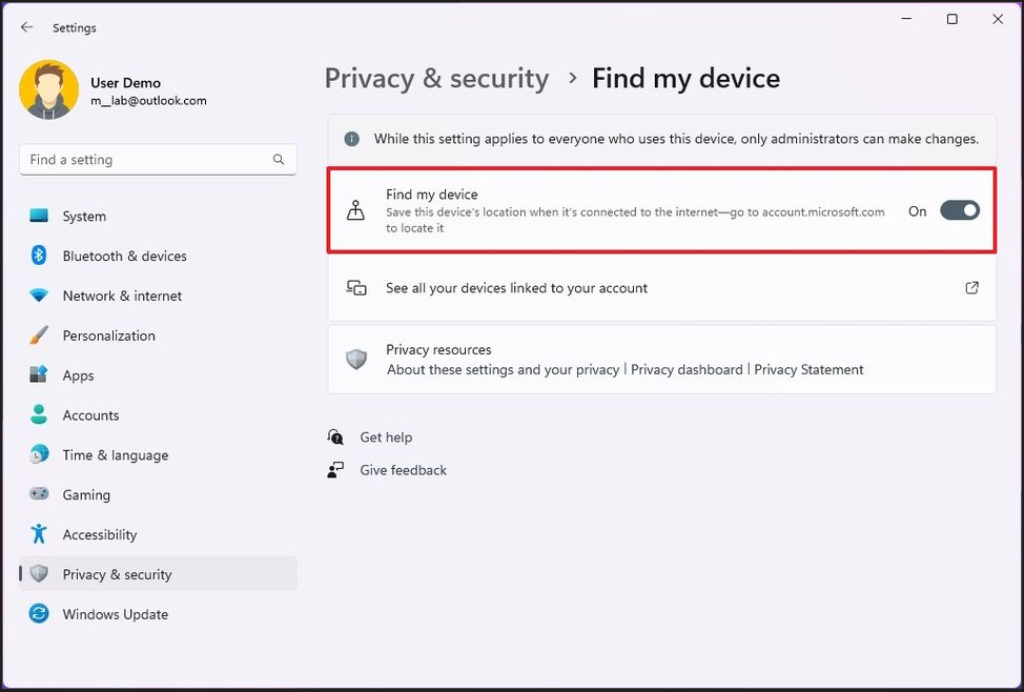
- Turn Find my device on.
- If prompted, allow Location — without it, Windows can report the device but not where it is.
Check location separately at Settings → Privacy & security → Location, and make sure Location services is on.
Find the device
- Go to account.microsoft.com/devices on any computer or phone.
- Sign in with the same Microsoft account.
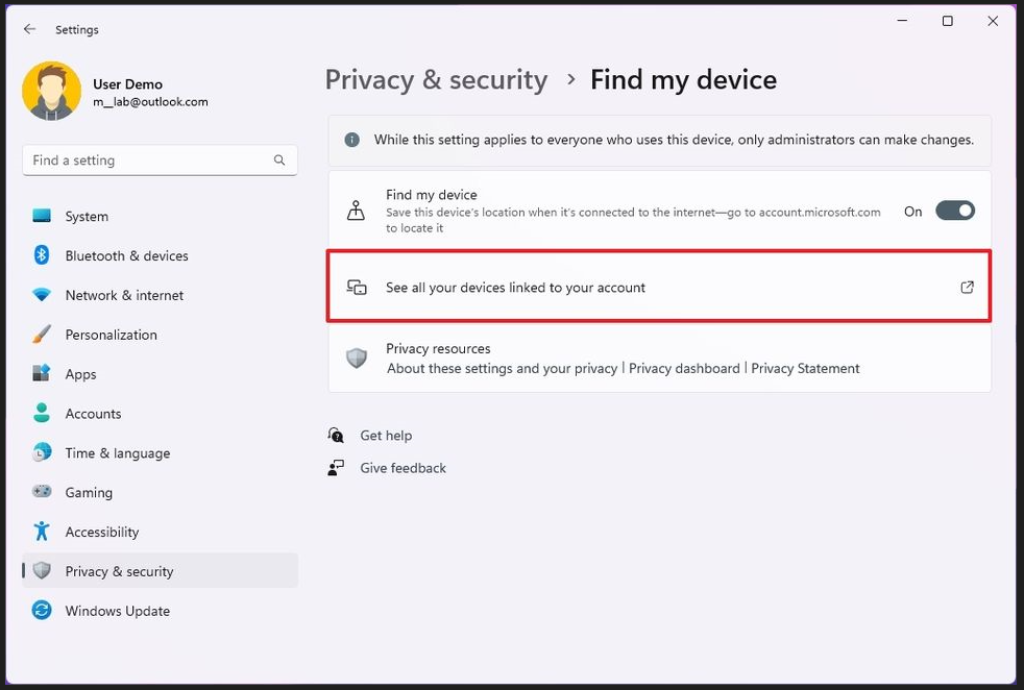
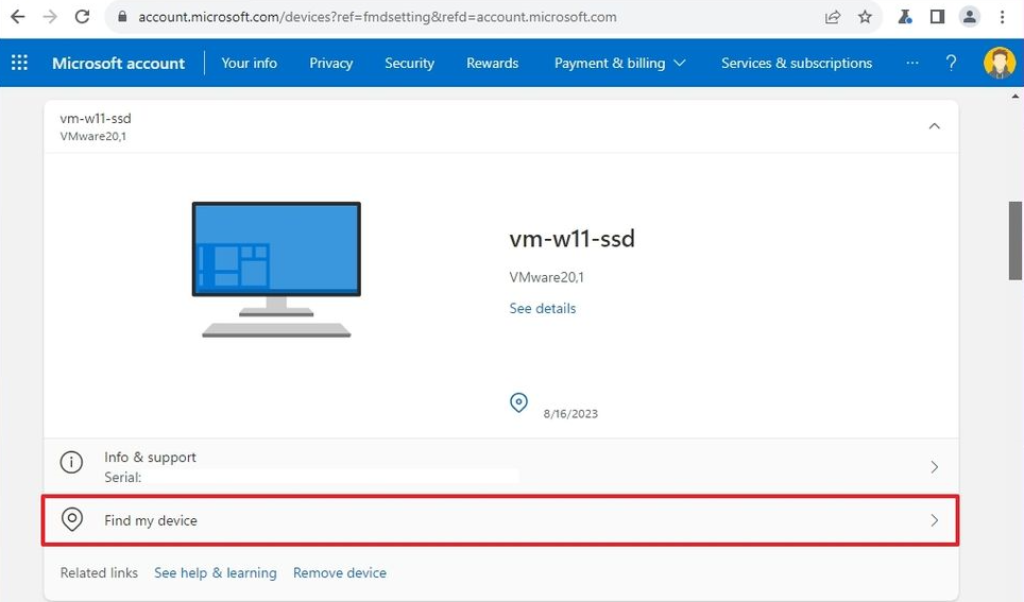
- Find the device in the list and select Find my device.
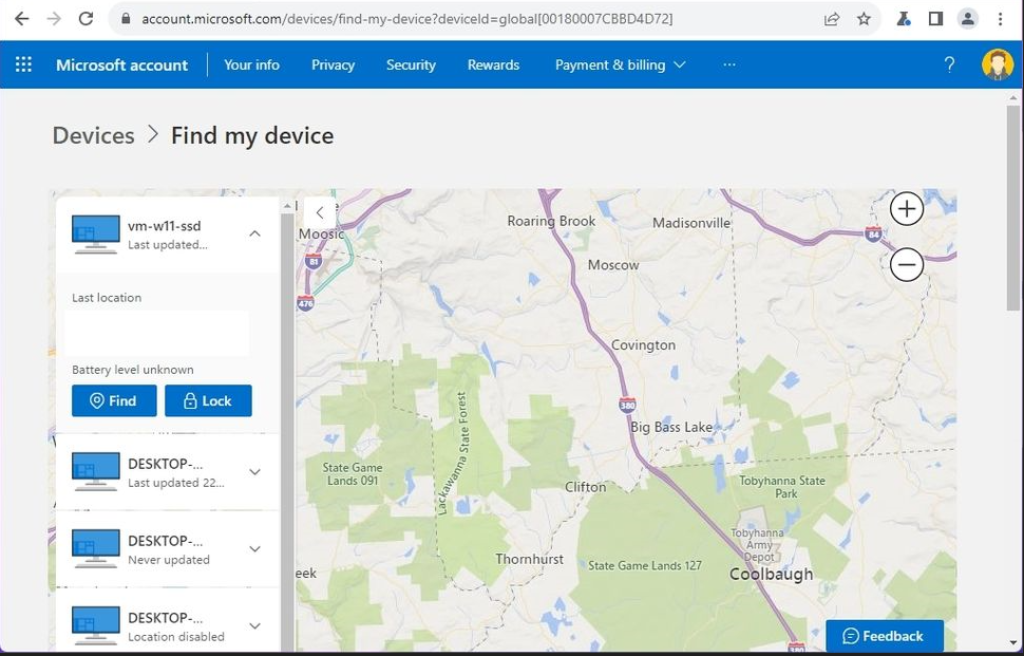
The map shows the last known location with a timestamp. From here you can also select Lock to remotely lock the device, sign the current user out, and display a message with contact details on the lock screen.
What it can and cannot do
Set expectations correctly, because this is where the disappointment usually happens.
| It can | It cannot |
|---|---|
| Show the last known location on a map | Track a device that is switched off |
| Lock the device remotely | Locate a device with no internet connection |
| Sign out the current user | Erase the device remotely |
| Show a message on the lock screen | Take a photo of whoever has it |
| Update the location when it next connects | Survive a full reinstall of Windows |
The important limitation: a device that is off, or offline, cannot be located. You see where it last was, which is often enough for a laptop left in an office and rarely enough for one that has been stolen.
There is also no remote wipe for consumer accounts — that is a business feature, available through Microsoft Intune on managed devices.
What actually protects your data
Find my device helps you recover the hardware. It does nothing for the information on it. For that:
- Turn on BitLocker. Settings → Privacy & security → Device encryption, or search for Manage BitLocker. Without encryption, anyone can remove the drive and read every file, whatever your password is.
- Save the recovery key somewhere you can reach without that machine. It is stored at account.microsoft.com/devices/recoverykey when encryption was set up under a Microsoft account.
- Use a PIN or Windows Hello, and set the machine to lock quickly when idle.
A stolen laptop with BitLocker on is an expensive loss. Without it, it is a data breach.
If a device is genuinely stolen
- Locate it from your Microsoft account and note the position and timestamp. Do not go and retrieve it yourself.
- Report it to the police with the serial number and the location data.
- Lock it remotely.
- Change your Microsoft account password, and sign out of all sessions.
- Change passwords for anything the browser on that machine was signed in to.
Frequently asked questions
Why is Find my device greyed out?
Almost always because you are signed in with a local account rather than a Microsoft account, or you are not an administrator. On a work device it may also be disabled by policy.
Does it work if the laptop is switched off?
No. It shows the last location recorded while the device was on and connected. When it next comes online, the position updates.
Does it work on a desktop PC?
It can be enabled, but a desktop without GPS or wi-fi positioning gives only an approximate location based on its IP address — accurate to a city, not a street.
Can I erase the device remotely?
Not with a personal Microsoft account. Remote wipe is available through Microsoft Intune for organisation-managed devices. BitLocker is the consumer answer: the data stays unreadable without the key.
Does this work like Find My iPhone?
Similar idea, fewer capabilities. Apple’s version supports offline finding through nearby devices, sound alerts and activation lock. Windows has none of those — it needs the device online.
Is a third-party tracking app worth adding?
They exist, and some offer more features. Weigh that against installing software with deep system access and a subscription. For most people, Find my device plus BitLocker covers the realistic scenarios.


