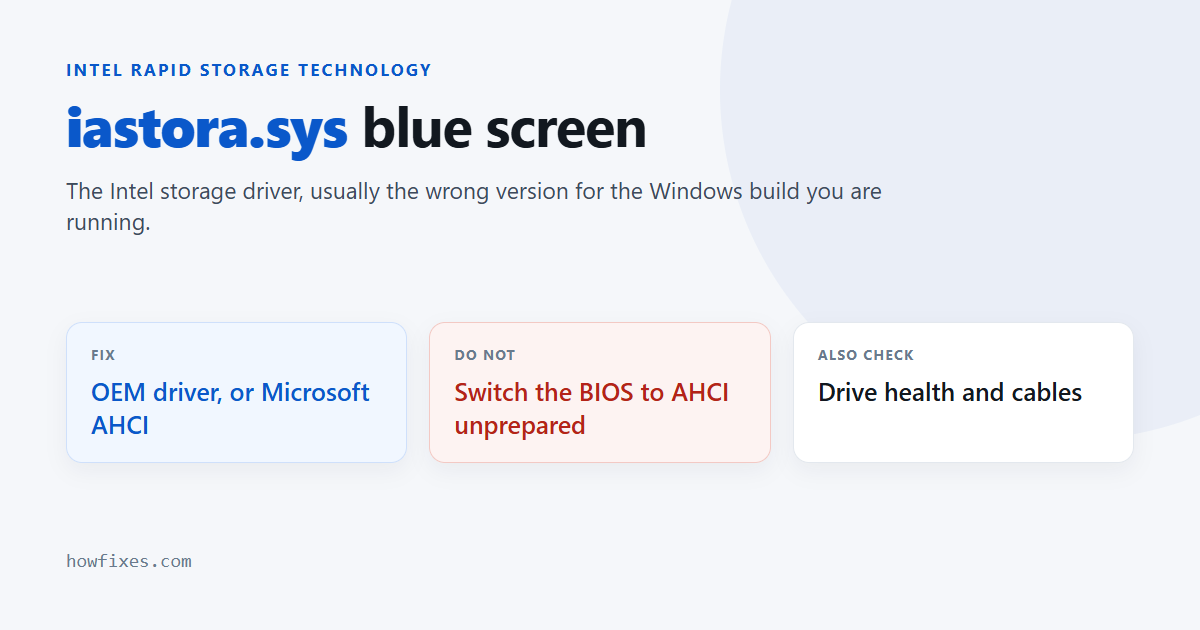
When a crash dump names iastora.sys, it is pointing at the Intel Rapid Storage Technology driver — the software that sits between Windows and your SATA or NVMe drives on Intel chipsets. An iastora.sys blue screen almost always means that driver is the wrong version for the Windows build you are running.
It is one of the more straightforward crashes to fix, as long as you avoid one BIOS change that will leave the machine unbootable.
Checked October 2026. Applies to Windows 11 and Windows 10 22H2. The file is also written iaStorA.sys — Windows file names are not case sensitive, so these are the same driver. The newer iaStorVD.sys is its replacement on recent platforms and the same advice applies.
Which stop codes come with iastora.sys
The driver name is the useful part; the stop code varies with where in the operation it failed. These are the ones you will see:
| Stop code | What it means here |
|---|---|
DRIVER_IRQL_NOT_LESS_OR_EQUAL |
The driver touched memory at the wrong interrupt level — the classic version |
SYSTEM_THREAD_EXCEPTION_NOT_HANDLED |
It threw an error it had no handler for |
KMODE_EXCEPTION_NOT_HANDLED |
Same, caught one stage further out |
INACCESSIBLE_BOOT_DEVICE |
Windows cannot reach the boot drive — usually a SATA mode change, see the warning below |
PAGE_FAULT_IN_NONPAGED_AREA |
Often the drive or its cable rather than the driver |
For reading any of these from the dump yourself, see how to read a Windows stop code.
Why iastora.sys fails after a Windows upgrade
Intel RST drivers are tied closely to the Windows storage stack. A major Windows update changes that stack, and a driver from 2018 sitting on a 2026 build can fail in exactly this way. The crash appearing within days of a version upgrade is the single most common pattern.
The other frequent trigger is a driver-updater utility installing a generic Intel package over the one your laptop manufacturer tested. On laptops in particular, the OEM build is the one that works.
Replace the driver
Get the right version and install it properly. Order matters.
- Find your machine’s support page — Dell, HP, Lenovo, ASUS, Acer — and look for Intel Rapid Storage Technology under storage or chipset drivers. Use this in preference to a generic download.
- If your support page has nothing current, take the latest from Intel’s download centre.
- Install it and restart.
If the crashes began immediately after a driver update, roll back instead: Device Manager → expand Storage controllers → right-click the Intel RST controller → Properties → Driver → Roll Back Driver.
Or switch to Microsoft’s own driver
Windows includes a standard AHCI driver, storahci.sys, that works with Intel controllers and is maintained with Windows itself. On a machine with no RAID array and no Optane module, it is a perfectly good permanent answer and it takes iastora.sys out of the boot path entirely.
- Device Manager → Storage controllers.
- Right-click the Intel controller → Update driver → Browse my computer → Let me pick from a list.
- Choose Standard SATA AHCI Controller and restart.
You lose the Intel management utility and a little NVMe performance on some systems. You gain a driver that does not need replacing after every Windows upgrade.
Do not change the SATA mode in the BIOS from RAID or RST to AHCI on a running installation. Windows will not boot — you get INACCESSIBLE_BOOT_DEVICE — because it has no AHCI driver loaded at boot. If you need to make that change, first run bcdedit /set {current} safeboot minimal from an elevated prompt, restart into the BIOS, change the mode, let Windows start in Safe Mode once, then clear it with bcdedit /deletevalue {current} safeboot. Skipping that sequence is the usual way people turn a fixable blue screen into an unbootable PC.
Check the drive itself
iastora.sys gets the blame, but a drive returning errors makes any storage driver fail. Worth ruling out before you spend longer on software.
- Run
chkdsk C: /scanfrom an elevated prompt. - Check the drive’s SMART data — see how to check SSD health.
- On a desktop, reseat the SATA data and power cables. A marginal cable produces intermittent storage crashes that look exactly like a driver fault.
- Check for a firmware update for the drive, from its manufacturer.
If it will not boot far enough to fix
Start in Safe Mode — iastora.sys loads in a reduced configuration there, and often does not crash — then change the driver as above. The three ways in are covered in starting Windows in Safe Mode.
If even that fails, use System Restore from the recovery environment to go back to before the driver changed.
Frequently asked questions
Can I just delete iastora.sys?
No. Deleting a boot-critical storage driver leaves Windows unable to reach the drive it loaded from. Replace the driver through Device Manager, which swaps it safely, rather than removing the file.
Do I need Intel RST at all?
Only for a RAID array or an Intel Optane cache. A single SSD or hard drive needs nothing beyond the standard AHCI driver, which is why switching to it is a legitimate fix and not a workaround.
Why does it crash only when copying large files?
Because that is when the driver is under real load and queue depths are highest. Load-dependent crashing is also consistent with a failing drive or an overheating NVMe module, so check temperatures and SMART data alongside the driver.
Is Optane worth keeping?
Rarely now. It was designed to accelerate mechanical drives, and Intel has discontinued the product line. If your machine has an Optane module in front of an SSD, disabling it in the Intel utility removes a dependency and usually costs nothing measurable.
What if a clean Windows install still crashes?
Then it is hardware: the drive, its cable, or the motherboard’s storage controller. An iastora.sys crash that survives a fresh install with Microsoft’s own driver has stopped being a software problem.