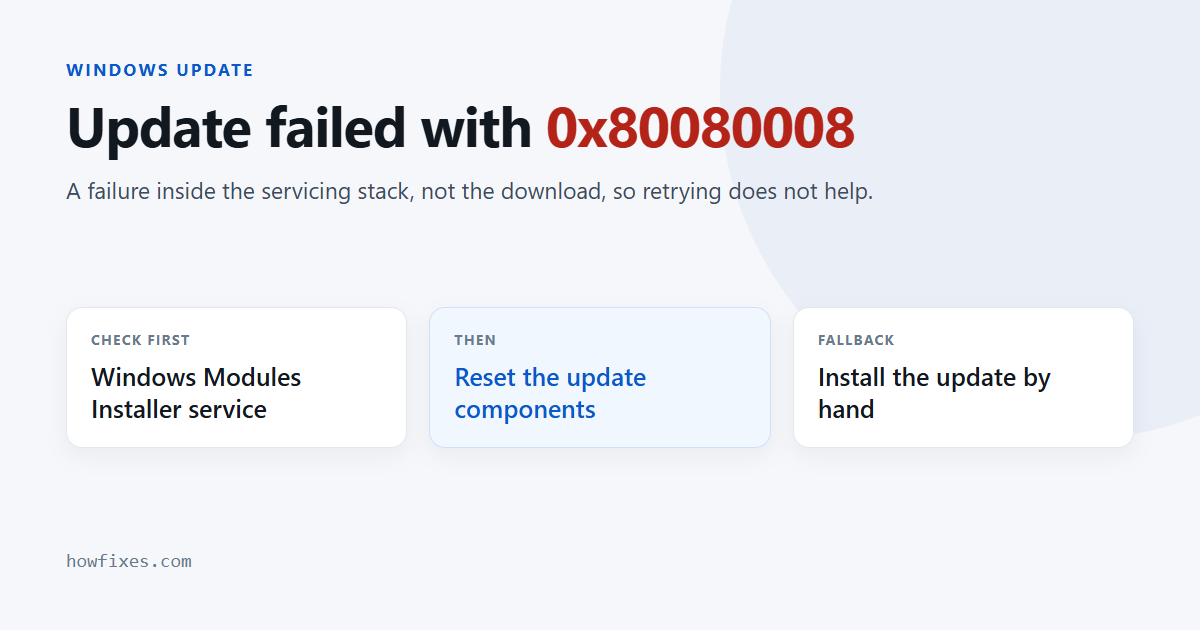
Windows Update stops with 0x80080008 and offers nothing beyond “something went wrong”. Codes in this family come from the update machinery itself — the services and the component store — rather than from the download, which is why retrying never helps and why repairing those components usually does.
Here is what to check, in the order that resolves it fastest.
Checked October 2026. Applies to Windows 11 and Windows 10 22H2. For the wider set of codes and what each one means, see our guide to Windows Update error codes.
What 0x80080008 actually points at
Microsoft does not publish a plain-English meaning for every one of these numbers, and chasing an exact definition is largely wasted effort. What the 0x8008 prefix does tell you is that the failure happened inside the servicing stack — the set of services and files Windows uses to install updates — rather than while fetching the package.
That narrows the realistic causes to five:
| Cause | How you can tell | Fix |
|---|---|---|
| A required service is disabled | A debloat script or tweak utility was run | Restore the service start types |
| Corrupted update cache | The same update fails repeatedly | Reset the components |
| Damaged component store | Other odd failures alongside it | DISM, then SFC |
| Security software intervening | Third-party antivirus installed | Pause real-time protection and retry |
| Not enough free space | Under about 20 GB free | Free space, then retry |
Check the services first
This is the most common concrete cause of 0x80080008 and the quickest to rule out. Press Win + R, run services.msc, and confirm none of these is set to Disabled:
- Windows Update (wuauserv) — Manual (Trigger Start) or Automatic
- Windows Modules Installer (TrustedInstaller) — Manual
- Background Intelligent Transfer Service (BITS) — Manual
- Cryptographic Services — Automatic
- Windows Installer — Manual
Windows Modules Installer is the one people miss. It does the actual installing, it is frequently switched off by “optimiser” utilities, and with it disabled updates download perfectly and then fail at the install step — which is exactly the symptom here.
To set them back from an elevated prompt:
sc config wuauserv start= demand
sc config trustedinstaller start= demand
sc config bits start= demand
sc config cryptsvc start= auto
net start cryptsvc
Reset the update components
If the services are fine, clear the cache — a stale or half-written package in it will reproduce 0x80080008 on every attempt. From an elevated Command Prompt or Terminal:
net stop wuauserv
net stop cryptSvc
net stop bits
net stop msiserver

ren C:\Windows\SoftwareDistribution SoftwareDistribution.old
ren C:\Windows\System32\catroot2 catroot2.old

net start wuauserv
net start cryptSvc
net start bits
net start msiserver
Start every service you stopped. Shortened versions of this sequence circulate that stop four services and start only one or two. The result is a machine where Windows Update looks normal and silently installs nothing at all. If you lose track of where you got to, just restart — that starts them all.
Nothing is lost by renaming those folders. They are caches: you lose the update history list, no installed updates are removed, and Windows rebuilds both on the next check.
Repair the component store
The servicing stack reads from the component store, so a damaged store produces this kind of failure on every attempt:
DISM /Online /Cleanup-Image /RestoreHealth
sfc /scannow
DISM before SFC, every time. SFC repairs system files using the component store that DISM repairs, so running them the other way round often achieves nothing. Reboot afterwards and retry the update.
Test whether antivirus is the cause
Third-party security software genuinely does block the servicing stack mid-install, and it is a recognised source of 0x80080008. Pause real-time protection, retry the update, and turn protection straight back on either way.
If that was it, the fix is to update your security software rather than to leave it off — and if the product is one you no longer use, uninstalling it with the vendor’s own removal tool clears out the filter drivers that an ordinary uninstall leaves behind. For a related permissions failure, see error 0x80070005.
Check free space
A cumulative update needs considerably more room than the download size suggests, because it stages files and keeps a rollback copy. Under roughly 20 GB free on the system drive, update failures become common and the code you get is not necessarily about space at all.
Run Settings → System → Storage → Cleanup recommendations, and see how to clear disk space in Windows if you need more.
Install the update by hand
When one specific update keeps returning 0x80080008, bypass the pipeline entirely.
- Open Settings → Windows Update → Update history and note the KB number of the failing update.
- Search for it in the Microsoft Update Catalog.
- Download the package matching your Windows version and architecture.
- Run the
.msufile.
If the manual package installs cleanly, the fault was in the delivery path rather than in Windows itself — useful to know, and it gets you current while you sort the rest out.
Frequently asked questions
Can I ignore a failing update?
One, usually. Updates are cumulative, so the next month’s package contains everything the failed one did. If several in a row fail, the pipeline itself needs fixing rather than skipping.
Will a PC repair utility fix 0x80080008?
No, and tools that promise to are best avoided. The commands on this page are the same repairs those utilities claim to perform, run directly and without the registry “cleaning” that causes its own problems. Make a restore point before running anything that claims to repair Windows automatically.
Why did this start after I used a tweaking tool?
Because most of them disable services, and several disable Windows Modules Installer specifically. That single change produces update failures with no obvious connection to what was done. The service checks above reverse it.
Is this ever a hardware problem?
Occasionally. A failing drive writes files incorrectly, which produces integrity failures throughout the servicing stack and can surface as 0x80080008 among other codes. If repairs keep coming undone and the machine is otherwise unstable, run chkdsk C: /scan and check the drive’s health before going further.
What if nothing works?
An in-place repair install rebuilds Windows while keeping your files and programs: mount the current ISO, run setup.exe from inside Windows, and choose to keep everything. It is the reliable end of the line for 0x80080008 and it takes about half an hour.