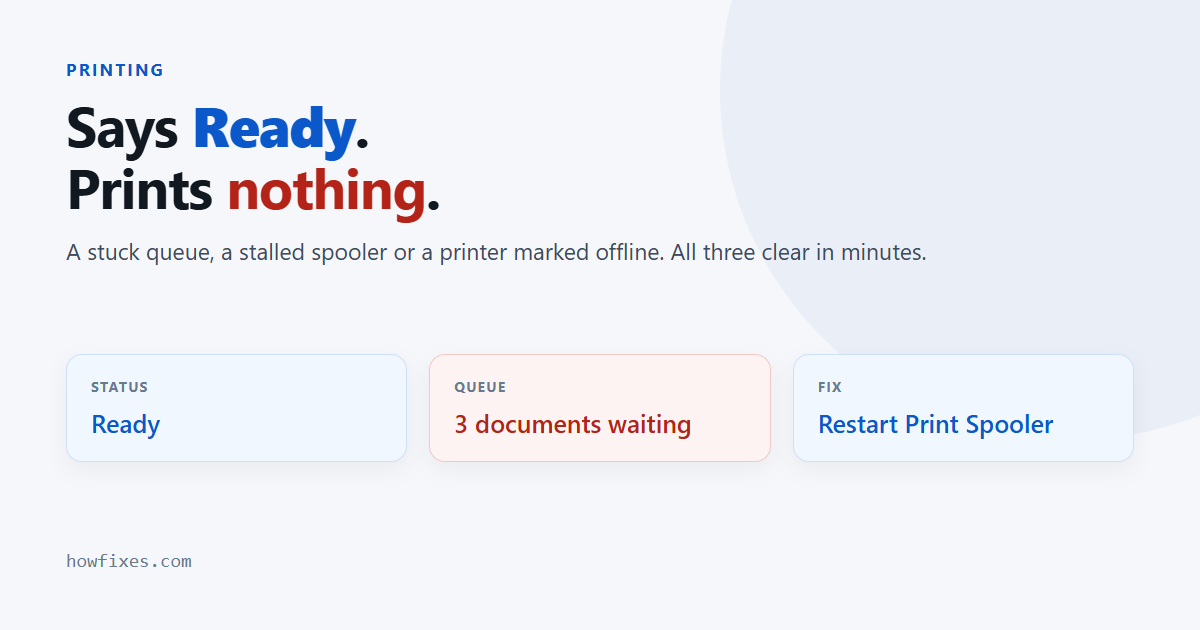
A printer not printing while Windows cheerfully reports it as ready is one of the most common faults there is — and one of the least informative. Documents go into the queue, nothing comes out, and no error appears anywhere.
The cause is nearly always on the Windows side: a jammed queue, a stalled spooler service, or a device quietly marked offline. All three take a couple of minutes to clear.
Checked October 2026. Applies to Windows 11 and Windows 10 22H2.
Start with the three quick checks
- Is it the right printer? Windows manages the default printer automatically and will quietly switch it to the last one you used — often a PDF writer or a printer at another location. Open Settings → Bluetooth & devices → Printers & scanners and confirm.
- Is it marked offline? Select the printer, open Printer properties, and in the queue window check that Use Printer Offline is not ticked. Windows sets this on its own after a failed job and does not always clear it.
- Is the queue blocked? Open the printer’s queue. One stuck document at the front stops everything behind it, and it will sit there indefinitely.
Printer not printing but shows as ready
This exact combination — ready status, growing queue, no output — points at the print spooler. The service accepts jobs and then fails to pass them on, so from the outside everything looks healthy.
Restart it:
- Press Win + R, run
services.msc. - Find Print Spooler, right-click, Restart.
- Confirm the startup type is Automatic.
If restarting clears it for a while and the fault returns, the queue holds a corrupted job that reloads each time. Clear it properly from an elevated Command Prompt:
net stop spooler
del /Q /F /S "%systemroot%\System32\spool\PRINTERS\*.*"
net start spooler
That deletes every pending job, including ones you still want — reprint them afterwards. Nothing else is affected: no settings, no drivers, no installed printers.
Work out where it is actually failing
The symptom tells you which half to look at.
| Symptom | Points at | Do this |
|---|---|---|
| Queue fills, nothing prints | Spooler or a stuck job | Clear the queue as above |
| Jobs vanish instantly, no output | Driver | Reinstall the driver |
| Blank pages come out | Ink, toner or print head | Run the device’s own cleaning cycle |
| Garbled characters | Wrong driver for the model | Install the exact model’s driver |
| “Printer offline” on a network printer | Network or IP change | Check the printer’s IP and the port |
| Works from one PC, not another | That PC’s driver or queue | Fix locally, not at the printer |
| Stopped after a Windows update | Driver incompatibility | Reinstall the manufacturer’s driver |
Run the built-in troubleshooter
Genuinely worth the two minutes here, because it resets the spooler state and port configuration without you having to find each setting: Win + I → System → Troubleshoot → Other troubleshooters → Run next to Printer.
Reinstall the driver
If jobs disappear without printing, or output is garbled, replace the driver — and remove the old one first rather than installing over it.
- Settings → Bluetooth & devices → Printers & scanners, select the printer, choose Remove.
- Open
printmanagement.msc, go to All Drivers, and delete the driver package too. This is the step that makes the difference — removing the printer leaves the driver behind. - Restart.
- Install the current driver from the manufacturer’s own support page for your exact model.
Use the manufacturer’s driver rather than the generic one Windows offers. Generic drivers print but frequently lose duplex, tray selection and colour management, and on some models they are the reason nothing comes out at all.
Check the connection
- USB: try a different port directly on the machine, not through a hub. Printers are sensitive to underpowered hubs.
- Network: print the printer’s own configuration page from its control panel and compare the IP address with the one Windows has. A printer on DHCP that changed address is a classic cause — give it a static address or a DHCP reservation.
- Wi-Fi: confirm it is on the same network, and not on a guest network or a 5 GHz band the printer cannot see.
Guides to specific printer errors
- Printer error 0x00000077 — a connection failure when printing to a shared or network printer.
- Printer install error 0x00000057 — the driver package fails to install.
- Opening Device Manager — where to check whether the device is detected at all.
Microsoft also keeps a current reference for printer connection and printing problems, which is worth checking for model-specific notes.
Frequently asked questions
Why does Windows keep changing my default printer?
Because “Let Windows manage my default printer” is on by default and sets the default to whatever you last printed to. Turn it off in Printers & scanners → Printer preferences and set the default yourself.
Is it safe to delete everything in the queue?
Yes. Those are temporary spool files, not documents. Deleting them cancels pending jobs and nothing more — your files are untouched and you can simply print again.
It prints from my phone but not my PC. What does that tell me?
That the printer, its network connection and its consumables are all fine, and the fault is in Windows — the queue, the spooler or the driver. Work through this page and ignore the hardware entirely.
Why did it stop working after a Windows update?
Printer drivers are among the most frequent casualties of a major Windows update, particularly on older models. Reinstalling the manufacturer’s current driver resolves most cases; if there is no updated driver for your version of Windows, the generic class driver is the fallback.
Do I need the manufacturer’s full software suite?
No. The driver alone is enough, and the bundled suites add startup programs, trays and update services you do not need. Install the driver-only package where one is offered — a printer not printing is never fixed by the extra software.