Event Viewer keeps a record of what Windows was doing when it crashed, froze or restarted on its own. It is the tool to reach for when there is no blue screen to read — when the machine simply went dark, or came back with “Windows did not shut down properly” and no explanation at all.
It is also intimidating, mostly because it is full of red icons that mean nothing. Here is how to find the few entries that matter.
Checked October 2026. Applies to Windows 11 and Windows 10 22H2.
Open Event Viewer and filter the log
Press Win + R, type eventvwr.msc and press Enter. Then:
- In the left pane, expand Windows Logs and select System.
- In the right pane, choose Filter Current Log.
- Tick Critical and Error only. Leave Warning and Information unticked.
- Set Logged to Last 24 hours, or to a custom range around the crash.
- Select OK.
What remains is a list short enough to read. Find the entry closest to the time the machine failed and work backwards from there — the entries logged in the minute or two before the crash are usually more informative than the crash entry itself.
The event IDs worth knowing
| ID | Source | What it means |
|---|---|---|
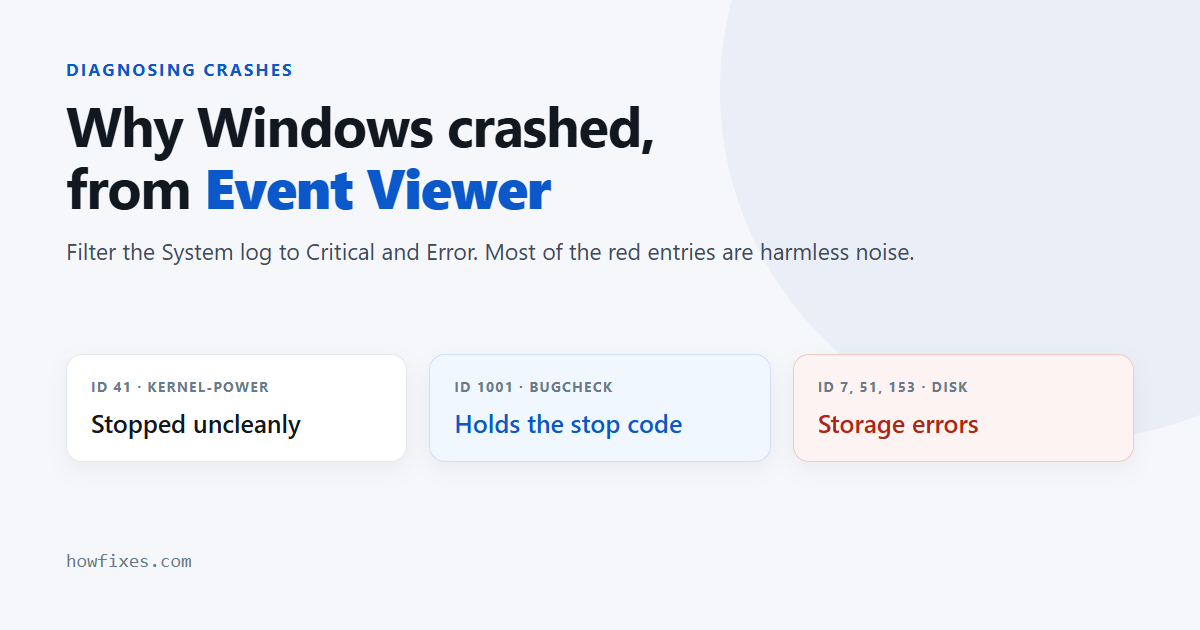
| 41 | Kernel-Power | The system stopped without shutting down cleanly — a crash, a freeze, or lost power |
| 1001 | BugCheck | A blue screen happened; the entry contains the stop code and parameters |
| 6008 | EventLog | The previous shutdown was unexpected |
| 1000 | Application Error | A program crashed, with the faulting module named |
| 7000 / 7031 | Service Control Manager | A service failed to start, or terminated unexpectedly |
| 7, 11, 51, 153 | Disk / Ntfs | Storage errors — take these seriously, back up now |
| 4101 | Display | The display driver stopped responding and recovered |
| 46 | volmgr | The crash dump could not be written |
Event 41 on its own tells you nothing
This is the most misread entry in the log. Kernel-Power 41 simply means Windows was not shut down properly — it is logged on the next boot, after the fact, and it appears identically for a blue screen, a hard freeze, a power cut and a held power button.
Its only use is confirming the time. The BugCheckCode field inside it is worth a look: if it is non-zero there was a blue screen, and if it is zero the machine stopped without one, which points at power, heat or hardware rather than a driver.
Event 1001 is the one you want
BugCheck 1001 carries the actual stop code. Select the entry and read its description — it quotes the code and the dump file path. From there, see how to read a Windows stop code for what to do with it.
Most Event Viewer errors do not matter
This is the part nobody says clearly enough. A healthy Windows installation logs errors constantly — services that time out and retry, DCOM permission entries, scheduled tasks that found nothing to do, network adapters renegotiating. They are logged because something was logged, not because something is wrong.
Entries you can generally ignore: DistributedCOM 10016, Service Control Manager timeouts that recovered, Kernel-EventTracing 2 or 3, and Application Popup noise from drivers that loaded anyway.
The question that filters them is simple: does this entry sit within a minute or two of the time something actually went wrong? If not, it is background noise, however alarming it looks.
Reliability Monitor is easier to read
For a quick overview, skip the log entirely. Press Win + R and run perfmon /rel.
You get a timeline of crashes, failed updates and installed software by day, with the critical events marked. It draws on the same data as Event Viewer but presents it as a chart, which makes it far quicker to spot that the trouble began the day a particular driver or program was installed.
Build a view you can reuse
If you are diagnosing something intermittent, let Event Viewer keep the filter rather than rebuilding it on every visit:
- Right-click Custom Views → Create Custom View.
- Tick Critical and Error.
- Under Event logs, choose Windows Logs → System and Application.
- Name it and save.
You can also export what you find: right-click the log, Save All Events As, and choose .evtx to keep it readable in another copy of the tool, or .csv for a spreadsheet.
When the log is empty or stops at the crash
A log that ends abruptly with nothing before it is itself a finding: the machine lost power or froze so hard that nothing could be written. That rules out most driver faults and points at the power supply, heat, or a failing drive that could not accept the write.
If the crash is stopping Windows from starting, reach the log from Safe Mode — the logs are the same files and they are all there.
Frequently asked questions
Can I clear the logs safely?
Yes. They are diagnostic records, and clearing them breaks nothing. Export anything you still need first, because clearing is not reversible — and there is rarely a reason to, since the logs are small and overwrite their oldest entries automatically.
Why do I have thousands of errors?
Because logging is verbose by design. The count is not a health score. One noisy service can generate hundreds of entries a day on a perfectly stable machine.
Does a cleanup tool that “fixes log errors” help?
No. Those utilities delete log entries, which changes nothing about the underlying system — it only removes the evidence you would need to diagnose the fault. See making a restore point before running anything that claims to repair Windows.
Where are the log files stored?
In C:\Windows\System32\winevt\Logs, as .evtx files. You can copy one to another computer and open it in Event Viewer there, which is how you examine a log from a machine that no longer starts. Microsoft documents the format and the tooling in its Windows Event Log reference.
Is there a faster way to see just the crashes?
Reliability Monitor, as above. Use Event Viewer when you need the detail — the stop code, the faulting module, the exact sequence in the seconds before the machine stopped.