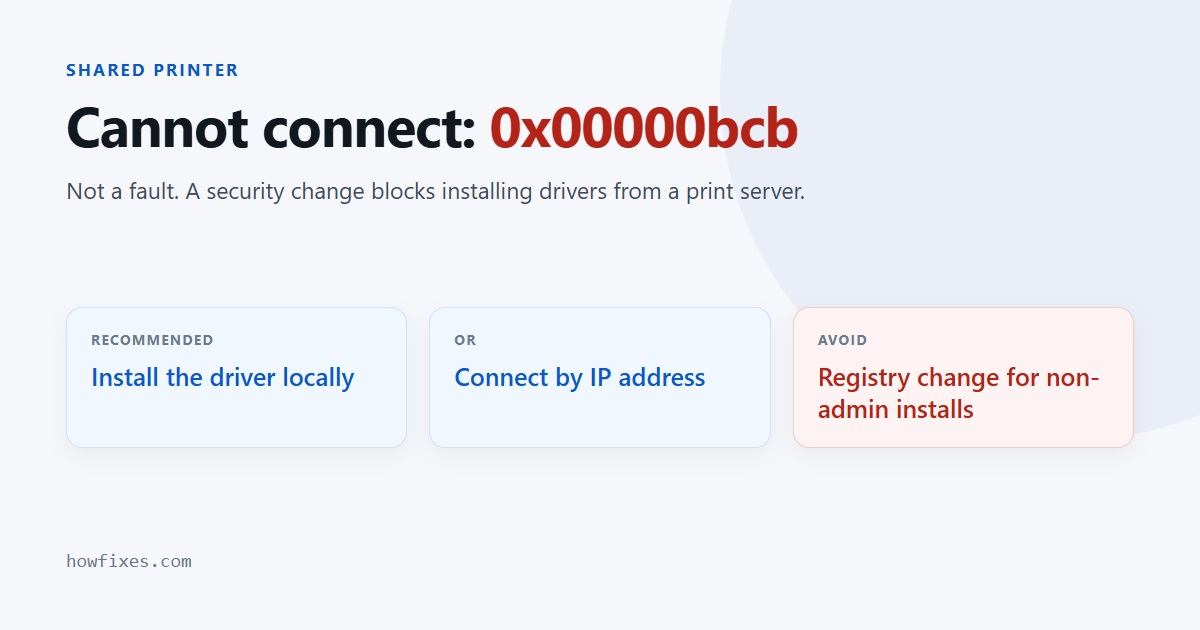
You try to add a shared printer from a server or another PC, and Windows refuses with 0x00000bcb — usually worded as “Windows cannot connect to the printer. Operation failed with error 0x00000bcb”. The printer is reachable, the share is right, and it worked before.
This one is not a fault. It is a deliberate security restriction, and knowing that changes which fix you should use.
Checked October 2026. Applies to Windows 11 and Windows 10 22H2. If your printer is connected directly rather than shared, this is not your error — see printer not printing in Windows instead.
What causes 0x00000bcb
Adding a shared printer used to mean Windows downloaded the driver from the print server and installed it. That mechanism — Point and Print — was being used to run code as SYSTEM on client machines, so Microsoft tightened it in the Print Spooler security changes shipped in 2021.
Since then, installing a driver from a remote print server requires administrator rights. A standard user connecting to a shared printer gets refused, and the refusal surfaces as 0x00000bcb. The share is working exactly as intended; it is the driver installation that is blocked.
Which gives three workable routes, and one you should think twice about:
| Approach | Security | Best for |
|---|---|---|
| Install the driver locally first | Unaffected | Nearly everyone — the recommended fix |
| Connect by IP instead of the share | Unaffected | Network printers with their own address |
| Add the printer as an administrator | Unaffected | One-off setup on a single machine |
| Registry: allow non-admin driver install | Reduces it | Last resort, see the warning |
The recommended fix: install the driver locally
If the driver is already present on the client, Windows has nothing to fetch from the server and the restriction never applies. This is the fix Microsoft intends and it leaves security alone.
- Download the driver for the exact printer model from the manufacturer’s support page, onto the client PC.
- Run the installer, or install it through Add a printer → The printer that I want isn’t listed → Add a local printer, pointing it at the downloaded driver.
- Now add the shared printer as normal. It will use the local driver and connect.
On a machine where nothing can be installed without a password, an administrator needs to do step two once. After that the connection works for every user on that PC.
Connect by IP address instead
Often the better answer on a small network: skip the share entirely and talk to the printer directly. It also removes the dependency on whichever PC was hosting the share being switched on.
- Print the printer’s configuration page from its own control panel and note its IP address.
- In Windows: Settings → Bluetooth & devices → Printers & scanners → Add device → Add manually.
- Choose Add a printer using an IP address or hostname.
- Set the device type to TCP/IP Device and enter the address.
- Select the driver for the model when prompted.
Give the printer a static address or a DHCP reservation afterwards, or it will move and stop working. Printers that change address are the most common reason a working setup breaks weeks later.
Add it as an administrator
Quick and safe for a single machine. Open an elevated Command Prompt — right-click Start, choose Terminal (Admin) — and run:
rundll32 printui.dll,PrintUIEntry /in /n"\\SERVER\PrinterShare"Replace SERVER and PrinterShare with the real names. Because the command runs elevated, the driver installs and 0x00000bcb does not appear. The printer is then available to the user who ran it.
The registry option, and why to avoid it
This reopens the vulnerability the restriction exists to close. Setting RestrictDriverInstallationToAdministrators to 0 under HKEY_LOCAL_MACHINE\SOFTWARE\Policies\Microsoft\Windows NT\Printers\PointAndPrint lets any user install a printer driver from any print server — which is precisely the privilege-escalation path that was being exploited. Microsoft documents the setting, and also recommends against using it. On a domain or any machine holding data that matters, use one of the routes above instead. If you do set it, make a restore point first and plan to reverse it.
Microsoft’s own write-up of the change and its settings is in the Point and Print default behaviour article, which is worth reading before changing anything.
If none of it works
- Clear the client’s stale driver state: open
printmanagement.msc→ All Drivers and delete any failed entry for that model, then retry. - Restart the spooler on both machines — run
services.mscand restart Print Spooler on the client and on the host. - Check the architecture matches. A 64-bit client cannot use a 32-bit driver from the server.
- Check for other codes. A connection failure rather than a driver failure gives error 0x00000077; a package that will not install gives error 0x00000057.
Frequently asked questions
Why did this start on its own?
Because the restriction arrives with a Windows update, not with anything you did. A setup that worked for years stops the month the update installs, which is why it so often looks like a network fault.
Is it safe to uninstall the update that caused it?
No, and it would not help for long — the change is now part of every cumulative update, so it comes straight back. Removing it also leaves the machine without the rest of that month’s security fixes.
Does this affect USB printers?
No. It only applies to installing a driver from a remote print server. A directly connected printer installs its driver locally and never touches the restricted path.
Will printing from a Mac or phone still work?
Yes. Those clients do not use Point and Print, so they are unaffected and will keep printing to the same shared printer normally.
What is the right long-term setup?
Connect clients to the printer by IP, or deploy the driver to them through your management tooling and let them connect to the share with the driver already present. Both remove 0x00000bcb permanently without weakening anything.