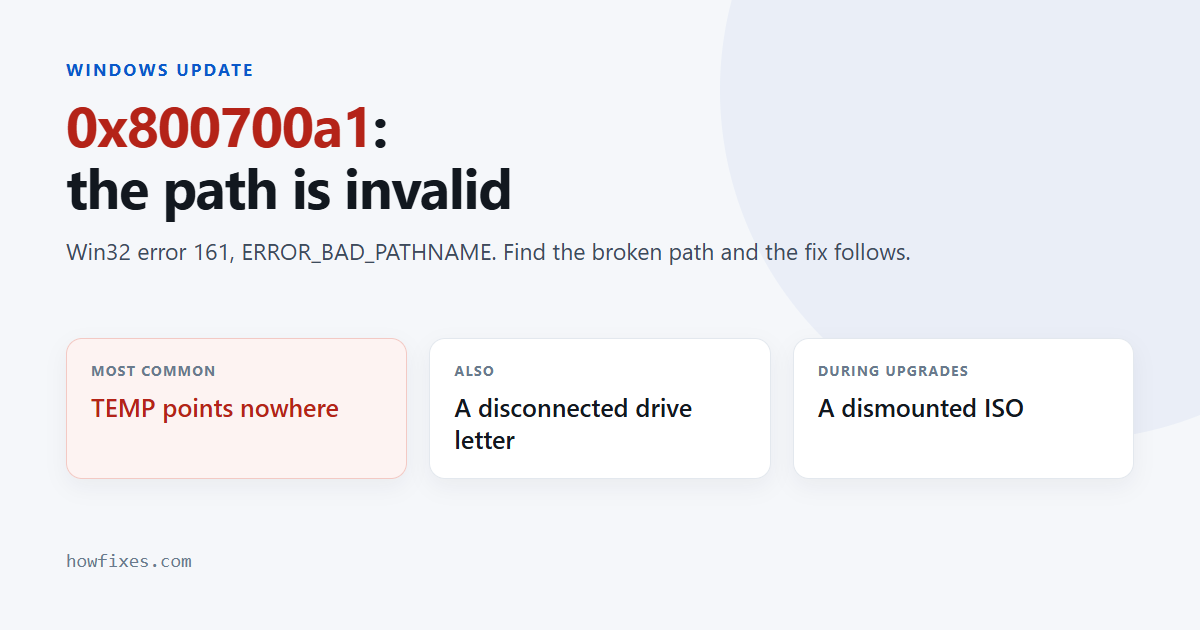
Windows Update fails with 0x800700a1, and unlike most update codes this one has a precise meaning. Strip the 0x8007 wrapper and what remains is Win32 error 161 — ERROR_BAD_PATHNAME, “the specified path is invalid”.
That is unusually helpful. Windows is not telling you something is corrupted; it is telling you it was handed a location it cannot use. Find the bad path and the fix follows.
Checked October 2026. Applies to Windows 11 and Windows 10 22H2. For the other codes and what they mean, see our guide to Windows Update error codes.
Which path 0x800700a1 is complaining about
Updates touch several locations, and any one of them being wrong produces 0x800700a1. These are the realistic candidates, roughly in order of how often they turn out to be the cause:
| Candidate | How it breaks | Check |
|---|---|---|
| Temp folders | TEMP or TMP points somewhere that no longer exists |
Environment variables |
| Update cache | SoftwareDistribution damaged or part-renamed |
Reset the components |
| A mapped drive | A drive letter in a path is disconnected | File Explorer |
| Redirected profile folders | Documents or Desktop moved to a drive now absent | Folder properties |
| A mounted ISO | Upgrade started from an image since dismounted | Remount, or copy to disk |
| Changed drive letter | The system or data drive was relettered | Disk Management |
Check the temp folder variables first
The most frequent cause of 0x800700a1, and the quickest to confirm. Update packages are expanded in the temp folder, and a TEMP variable pointing at a folder that has been deleted or sat on a drive that is no longer attached fails exactly this way.
- Press Win + R, run
sysdm.cpl. - Go to Advanced → Environment Variables.
- Check
TEMPandTMPin both the user and system lists.
The defaults are %USERPROFILE%\AppData\Local\Temp for the user and %SystemRoot%\TEMP for the system. If either points anywhere else, set it back to the default — and if a previous tweak moved the temp folder to a RAM disk or a second drive, that is your answer.
Then confirm the folders actually exist. Paste each path into File Explorer; a path that will not open is the whole problem.
Look for disconnected drives
Open File Explorer and look for a mapped network drive with a red cross, or a drive letter that no longer resolves. Any of them appearing inside a path the update uses is enough to produce 0x800700a1. Disconnect anything dead, then retry the update.
Also check whether your profile folders have been redirected: right-click Documents, choose Properties → Location. If it points at a drive that is not currently attached, either reattach it or move the folder back to the default location before updating.
Reset the update components
If the paths all look right, the cache itself may be the invalid one — particularly if a previous repair attempt renamed it halfway. From an elevated Command Prompt:
net stop wuauserv
net stop cryptSvc
net stop bits
net stop msiserver

ren C:\Windows\SoftwareDistribution SoftwareDistribution.old
ren C:\Windows\System32\catroot2 catroot2.old

net start wuauserv
net start cryptSvc
net start bits
net start msiserver
Start every service you stopped. Shortened copies of this sequence stop four services and start one or two, which leaves Windows Update looking normal while it installs nothing at all. If you lose track, restart the PC — that starts them all.
If an earlier attempt left a SoftwareDistribution.old behind, delete it before running this, or the rename fails and you get the same error again.
Repair the system files
Worth one pass, since a damaged component store can hold a bad path of its own and return 0x800700a1 no matter how healthy the rest of the system looks:
DISM /Online /Cleanup-Image /RestoreHealth
sfc /scannow
DISM before SFC — SFC repairs system files using the store that DISM repairs. Reboot afterwards and retry.
If it happens during an upgrade
When 0x800700a1 appears while upgrading rather than during a routine update, the installation source is usually the invalid path.
- If you mounted an ISO, copy its contents to a folder on the hard drive and run
setup.exefrom there. A mounted image that gets dismounted mid-upgrade produces this exactly. - If you are running setup from a USB stick, copy it to the drive instead — a stick that drops off momentarily has the same effect.
- Use a path with no spaces or non-English characters, such as
C:\win. Long or unusual paths are a genuine source of this error. - Download fresh media rather than reusing an old ISO. See how to download the Windows 11 ISO.
Install the update by hand
To get current while you investigate, bypass the pipeline: note the KB number from Update history, find it in the Microsoft Update Catalog, download the package for your version and architecture, and run the .msu from a simple folder path such as C:\kb.
Frequently asked questions
Does this code mean my files are corrupted?
No. It means a path is invalid, which is a configuration problem rather than damage. That is why the fix is usually a setting rather than a repair — and why running repair tools first so often changes nothing.
Why did it start after I cleaned up my disk?
Because cleanup utilities delete temp folders rather than just their contents. The folder is gone, the variable still points at it, and the next update fails with 0x800700a1. Recreating the folder, or resetting the variable to the default, fixes it.
Could a moved user profile cause this?
Yes, and it is a common cause on machines where the profile or its folders were relocated to a second drive. If that drive is absent, slow to mount at boot, or has been relettered, the stored path is invalid at the moment the update runs.
Is it related to the other 0x8007 codes?
Only in form. They share the 0x8007 wrapper that marks a standard Windows error, but the meaning is in the last digits — 0x80080008 points at the servicing stack, while this one points at a path.
What if nothing here finds it?
Create a new local administrator account and try the update from there. If it succeeds, a path stored in your original profile is the cause and you have narrowed it to the profile rather than the system. A 0x800700a1 that fails on a clean profile too points at the system environment variables or a drive letter change.