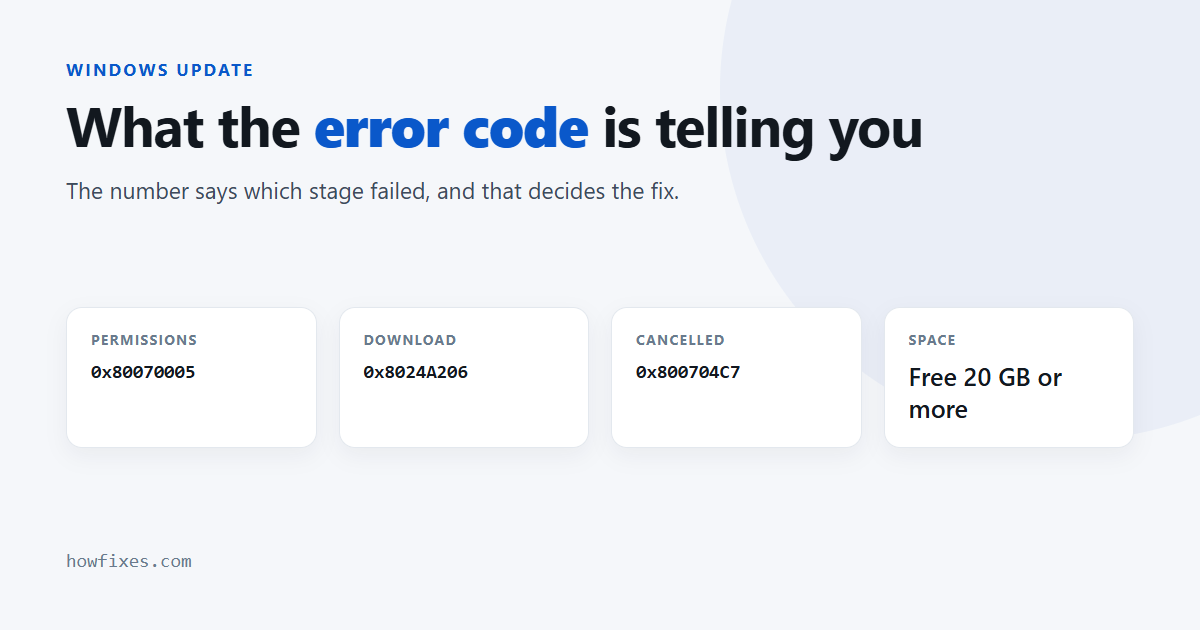
A Windows Update error code looks like noise, but it is not random. The number tells you which stage failed, and that determines the fix. A permissions failure and a corrupted download look identical on screen and need completely different treatment.
This page groups the common codes by what they actually mean, links to a full guide for each, and covers the handful of fixes that resolve most of them regardless of the number.
Checked October 2026. Applies to Windows 11 and Windows 10 22H2. Windows 10 itself left support on 14 October 2025 — if you are on it, see our guide to Extended Security Updates running to 2027.
How to read the code
Most of these begin 0x8007, which simply marks a standard Windows error surfaced as an HRESULT. The useful part is what follows, and codes beginning 0x8024 come from the update client itself rather than from Windows generally.
The common codes, grouped
| Code | What it means | Full guide |
|---|---|---|
0x80070005 |
Access denied — permissions or security software | 0x80070005 |
0x8024A206 |
The downloaded package failed its integrity check | 0x8024A206 |
0x800704C7 |
The operation was cancelled part-way | 0x800704C7 |
0x80070103 |
A driver that is already installed, or already newer | 0x80070103 |
0x80072F8F |
TLS failure — usually a wrong system clock | 0x80072F8F |
0x803F7001 |
Activation, not update — no licence found for this device | 0x803F7001 |
| No code, just fails | Frequently insufficient free space | disk space |
The five fixes that cover most of them
Before chasing a specific number, these resolve the majority. Work down in order.
1. Check the services are running
The most common concrete cause, and usually the work of a past “debloat” script. Press Win + R, run services.msc, and confirm none of these is set to Disabled:
- Windows Update — Manual (Trigger Start) or Automatic
- Background Intelligent Transfer Service — Manual
- Cryptographic Services — Automatic
- Windows Installer — Manual
2. Run the troubleshooter
On Windows 11: Win + I → System → Troubleshoot → Other troubleshooters → Run next to Windows Update. It resets service states and permissions, which addresses several codes directly.
3. Reset the update components
From an elevated Command Prompt:
net stop wuauserv
net stop cryptSvc
net stop bits
net stop msiserver

ren C:\Windows\SoftwareDistribution SoftwareDistribution.old
ren C:\Windows\System32\catroot2 catroot2.old

net start wuauserv
net start cryptSvc
net start bits
net start msiserver
Start every service you stopped. Abbreviated versions of this sequence circulate that stop four services and start one or two. The result is a machine where Windows Update appears normal and silently never installs anything. If you lose track, restart — that starts them all.
4. Repair the component store
DISM /Online /Cleanup-Image /RestoreHealth
sfc /scannow
DISM before SFC. SFC repairs system files using the component store, so repairing the store first is what makes SFC useful. Reboot afterwards.
5. Install the update by hand
If one specific update keeps failing, skip the pipeline. Note the KB number from Update history, find it in the Microsoft Update Catalog, download the package matching your version and architecture, and run the .msu.
If the manual package installs cleanly, the download path was at fault rather than the system.
Things that are not the cause
Three pieces of advice circulate for almost every one of these codes and are worth ignoring: reinstalling your browser, disabling the firewall permanently, and running a “PC repair” utility. None of them touch the update pipeline, and the last category has a long history of being the problem rather than the fix.
Third-party antivirus, by contrast, genuinely does cause several of these. Disabling real-time protection briefly is a legitimate test — just turn it back on immediately afterwards.
Frequently asked questions
Can I just skip a failing update?
Usually. Updates are cumulative, so a later one contains everything an earlier one did. Skipping a single failing update is fine as long as the next one installs — if several in a row fail, the pipeline itself needs fixing.
Does renaming SoftwareDistribution lose anything?
Only your update history list. No installed updates are removed and no personal files are touched. It is a cache, and Windows rebuilds it on the next check.
Why does the same update fail repeatedly?
Because the underlying cause has not changed — most often a disabled service, security software intervening, or not enough free space. Fix the cause rather than retrying, and use the manual catalog download to break a retry loop.
Is a Windows Update error ever a hardware problem?
Occasionally. A failing drive writes files incorrectly, which produces integrity failures that look exactly like a bad download. If codes keep changing and the machine is otherwise unstable, check the drive’s health before anything else.
Whatever number you are looking at, the sequence above is the one that resolves it: services, troubleshooter, component reset, store repair, manual install. A Windows Update error that survives all five is almost always disk space or a dying drive rather than the update itself.