A system restore point is a snapshot of Windows system files, installed programs, drivers and the registry. If a driver, an update or an application breaks something, you roll back to the snapshot and the machine returns to how it was — without touching your documents, photos or downloads.
There is one catch that surprises people: on most machines System Protection is switched off by default, so there are no restore points to go back to. This guide covers turning it on, creating points, using them, and what to do when Windows will not start at all.
Checked August 2026. The steps are the same on Windows 11 (all supported versions) and Windows 10 22H2. Windows 10 left support on 14 October 2025, with consumer Extended Security Updates ending 12 October 2027.
What a restore point does and does not cover
| Restored | Not touched |
|---|---|
| Windows system files | Documents, photos, music, video |
| The registry | Email and browser profiles |
| Installed programs and drivers | Files in your user folders generally |
| System settings | Files on other drives without protection enabled |
A restore point is not a backup. It lives on the same drive as Windows, so it disappears with the drive. If the disk fails, is encrypted by ransomware, or is reformatted, every restore point goes with it. Keep real backups of anything you cannot lose — on a separate drive or in cloud storage — and treat restore points as an undo button, not as protection.
Turn on System Protection first
Nothing else works until this is on.
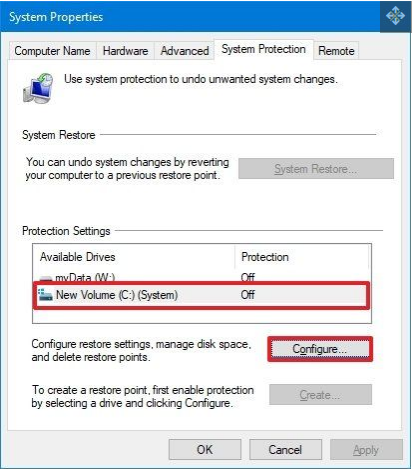
- Press Win + R, type
sysdm.cpland press Enter. (Or search for Create a restore point in the Start menu — it opens the same dialog.) - Go to the System Protection tab.
- Select the drive Windows is on — usually C:, shown as (System).
- Choose Configure.
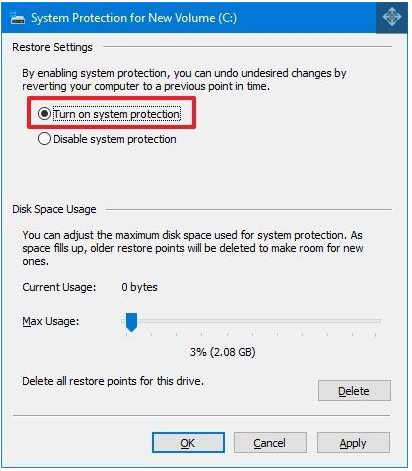
- Choose Turn on system protection.
- Drag Max Usage to somewhere between 5% and 10% of the drive. Below about 3% Windows keeps only one point, which defeats the purpose.
- Select Apply, then OK.
Create a restore point manually
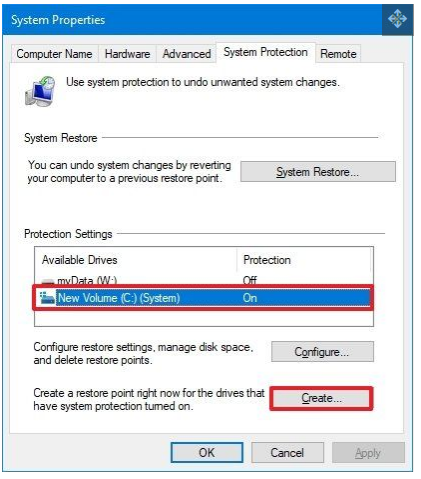
- On the System Protection tab, choose Create.
- Type a description you will recognise later — before NVIDIA 580 driver beats restore point 3.
- Choose Create and wait. It usually takes under a minute.
To do it from an elevated PowerShell — handy in a script before an install:
Checkpoint-Computer -Description "Before driver update" -RestorePointType "MODIFY_SETTINGS"Windows rate-limits automatic checkpoints to one every 24 hours by default. If Checkpoint-Computer appears to do nothing, that is usually why.
When to create one
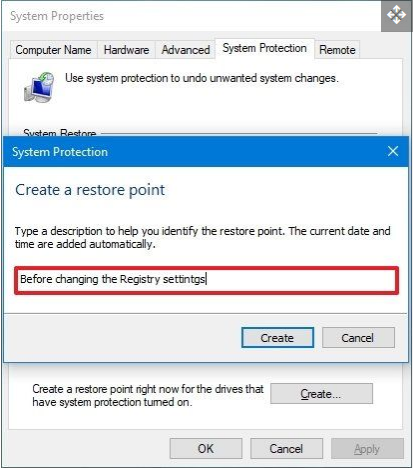
- Before editing the registry
- Before installing or updating a graphics or chipset driver
- Before installing unfamiliar software, particularly anything that runs as a service
- Before a feature update, if you want a fallback beyond the built-in 10-day rollback window
- Before changing UEFI/BIOS settings that Windows will react to
Windows also creates points automatically before Windows Update installs, and before some application installers run — but only if System Protection is on.
Restore from within Windows
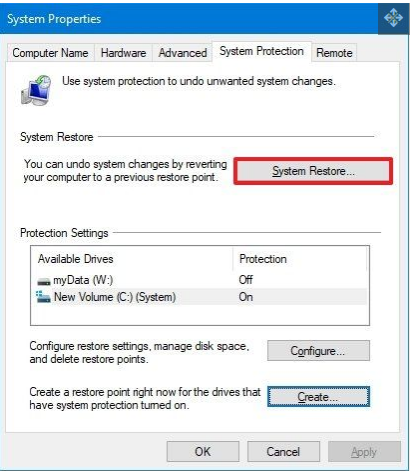
- Open
sysdm.cpl→ System Protection → System Restore. - Choose Next.
- Tick Show more restore points to see everything available, not just the most recent.
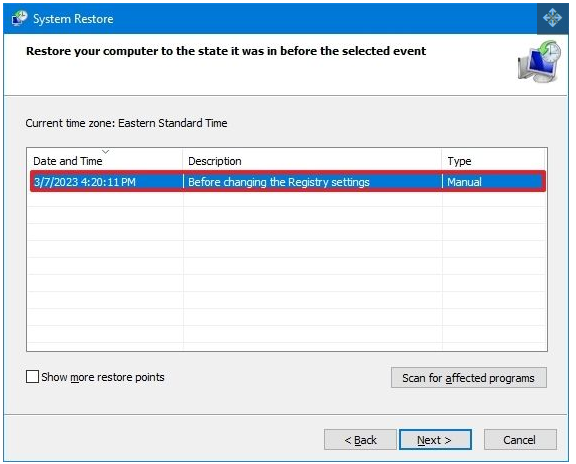
- Select a point dated before the trouble began and choose Next.
- Use Scan for affected programs — it lists exactly what will be removed and what will be restored. Worth thirty seconds every time.
- Choose Finish. The machine restarts and does the work outside Windows.
Do not interrupt it. A restore that is cut off part-way can leave the system unbootable, which turns a small problem into a large one.
Restore when Windows will not start
This is the case that matters most, and the one people discover they are not set up for.
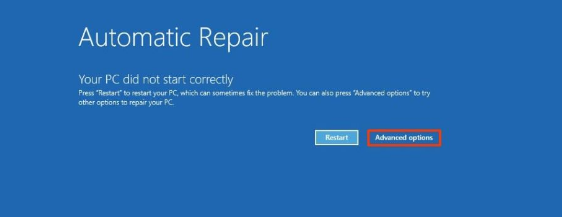
Getting into recovery: if Windows fails to start three times in a row, it enters the recovery environment automatically. You can force this by holding the power button to cut power during the boot logo, three times. Alternatively, boot from a Windows installation USB and choose Repair your computer.
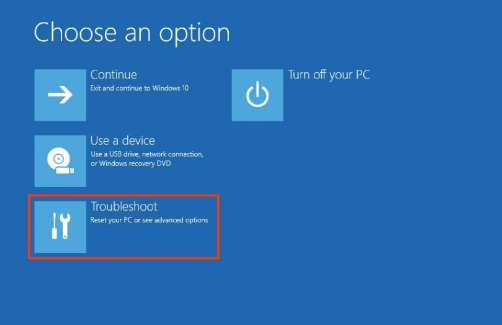
- Select Troubleshoot.
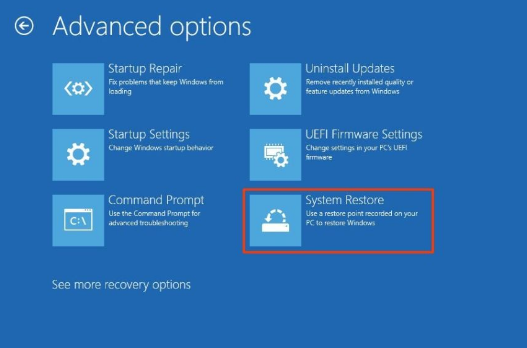
- Select Advanced options.
- Select System Restore.
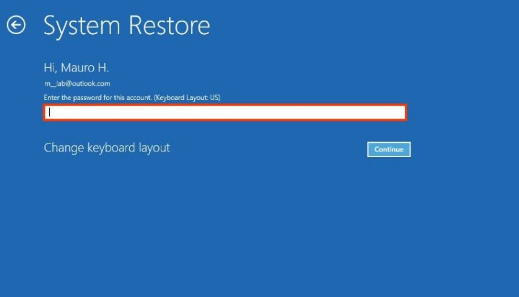
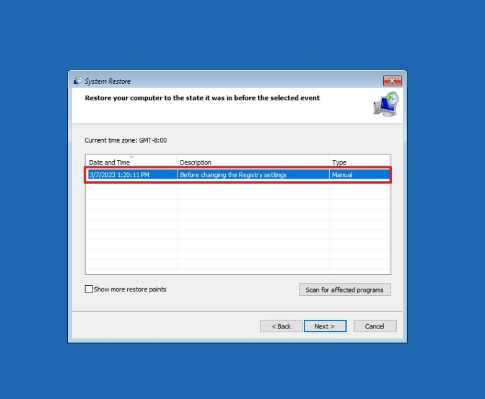
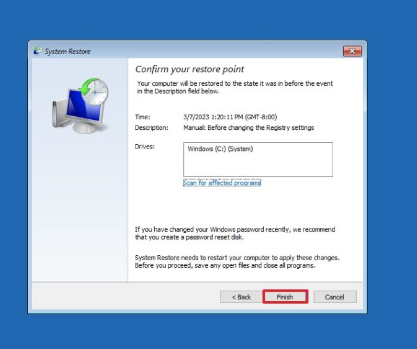
If the drive is encrypted with BitLocker, you will be asked for the recovery key before you can do any of this. Find it now, not later: it is at account.microsoft.com/devices/recoverykey if the drive was encrypted under a Microsoft account. Without it, recovery is not possible.
Why your restore points keep disappearing
A common and frustrating experience. The usual reasons:
- Max Usage is too low. Windows deletes the oldest points to stay under the limit. Set it to 5–10%.
- System Protection was turned off, by you, by a “cleaner” utility, or by a feature update. Turning it off deletes every existing point immediately.
- Disk cleanup removed them. The More Options tab in Disk Cleanup has a button that deletes all but the most recent point.
- Third-party optimiser software. Many “PC cleaner” tools clear restore points as part of freeing space, without making that obvious.
- Dual-booting with an older Windows, which deletes restore points created by the newer one.
Frequently asked questions
Will System Restore delete my files?
No. Documents, photos, music and video in your user folders are left alone. Programs installed after the restore point will be gone, and programs uninstalled since will come back — that is what Scan for affected programs lists.
Does a restore point remove viruses?
Not reliably, and you should not treat it as a cleaning method. Rolling back can remove malware that installed itself as a program or service, but it will not touch infected files in your documents, and many families deliberately delete restore points before doing anything else. Use a proper scan — including Microsoft Defender’s offline scan — and treat restore as a secondary step.
Should I use restore points instead of backups?
No. They are complementary. A restore point undoes a bad change on a working machine; a backup survives the machine. If the drive dies, only the backup helps.
How long does System Restore take?
Usually 15 to 45 minutes, depending on the drive and how much has changed. It is much slower on a mechanical hard disk than on an SSD. Let it finish.
What if System Restore fails?
Try a different, older restore point. If several fail, run sfc /scannow and DISM /Online /Cleanup-Image /RestoreHealth from the recovery environment’s Command Prompt, then try again. Antivirus software occasionally blocks a restore, so attempting it from Safe Mode sometimes succeeds where a normal boot does not.
Can I create a restore point automatically every day?
Yes, with a scheduled task calling Checkpoint-Computer. You will also need to relax the 24-hour rate limit by setting SystemRestorePointCreationFrequency to 0 under HKLM\SOFTWARE\Microsoft\Windows NT\CurrentVersion\SystemRestore. Give the drive enough space first, or the daily points will simply push each other out.