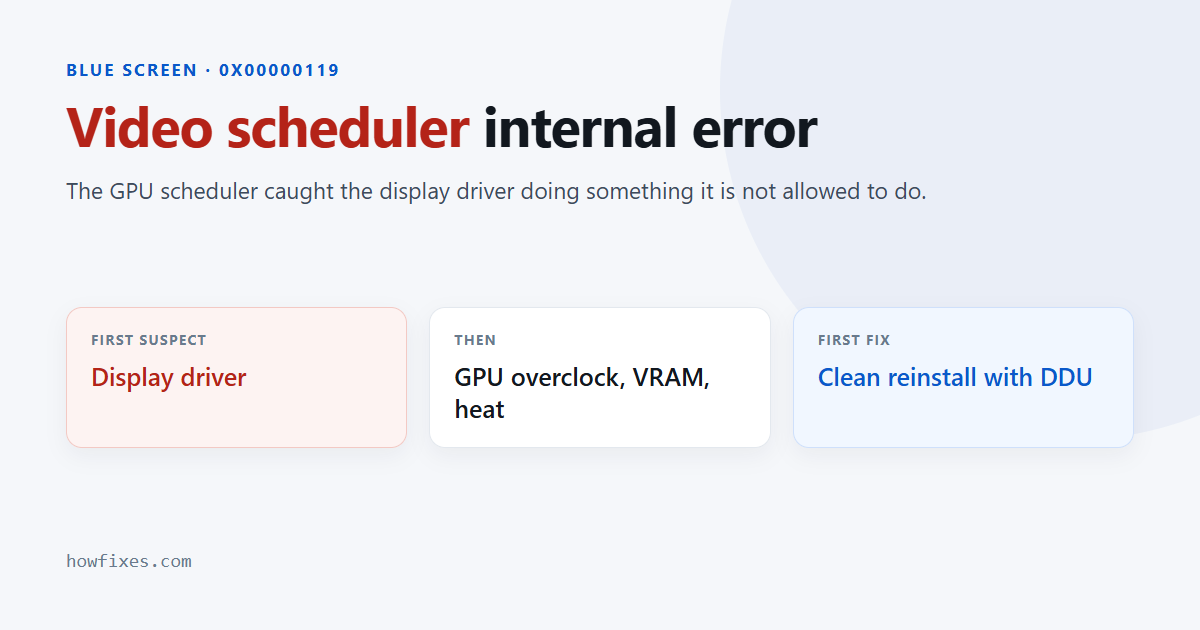
A video scheduler internal error blue screen — shown on screen as VIDEO_SCHEDULER_INTERNAL_ERROR, bug check 0x00000119 — means the component that hands work to your graphics card caught the display driver doing something it is not allowed to do. It then halted Windows rather than let the operation through.
That makes the display driver the first suspect by a wide margin, with GPU memory second. Everything below is ordered by how often it turns out to be the answer.
Checked October 2026. Applies to Windows 11 and Windows 10 22H2. For how to read any blue screen name and find the driver behind it, see our guide to Windows stop codes.
What triggers a video scheduler internal error
The scheduler validates every command packet before it reaches the GPU. It stops the machine when a packet is malformed, when the card does not respond in time, or when the data it is pointed at has been corrupted in transit.
| Cause | How you can tell | Fix |
|---|---|---|
| Display driver fault or bad install | Started after a driver update | Clean reinstall with DDU |
| GPU overclock | Only under load, in games | Return to stock clocks |
| Failing GPU memory | Visual artefacts before the crash | Test the VRAM |
| Overheating | Crashes after minutes of load | Check temperatures, clean the dust |
| System memory | Other crash names appear too | MemTest86 |
| Loose card or weak power supply | Started after moving the PC | Reseat the card and its power cables |
| Browser or app acceleration | Only while browsing or in one app | Turn off hardware acceleration |
Reinstall the display driver cleanly
Not “update” — installing over a damaged driver leaves the damaged parts in place. A clean removal first is what makes the difference.
- Download the current driver for your card from NVIDIA, AMD or Intel before you start, so you are not without one afterwards.
- Download Display Driver Uninstaller (DDU) as well.
- Start Windows in Safe Mode — see how to start Safe Mode.
- Run DDU and choose Clean and restart.
- Back in Windows, install the driver you downloaded. Choose a custom install and tick the clean-install option if offered.
If the newest driver crashes, install the previous version instead. New graphics drivers introduce regressions regularly, and a release two or three versions back is often the stable one.
If it started right after a driver update
Roll back rather than reinstalling: open Device Manager, expand Display adapters, right-click the card, Properties → Driver → Roll Back Driver. This is faster and it restores the exact version that worked.
Remove every overclock
Factory-overclocked cards are included, as are profiles saved in MSI Afterburner or your card’s own utility. Reset to the default clock and memory speeds and test at stock.
GPU memory overclocks are the worst offender here, because error correction hides small faults until the scheduler receives data that does not match what was sent. The crash then appears to be a driver problem when the clock speed is the actual cause.
Check temperatures and dust
A card that throttles hard or loses contact with its cooler misses scheduler deadlines. Watch the GPU temperature under load with HWiNFO or your card’s utility — sustained figures above 85 °C on the core, or any reading above 95 °C, mean cooling is the problem and not software.
Clear the dust from the heatsink and case filters, and confirm every fan actually spins. On a desktop more than four or five years old, dried thermal paste is a realistic cause.
Test the memory
Two different things to test, and both matter here.
- System memory: run MemTest86 from a USB stick for at least four passes.
- GPU memory: run a dedicated VRAM test such as OCCT’s VRAM check, or a long loop of a demanding game. Artefacts — flickering textures, coloured blocks — before a crash point firmly at the card.
Turn off hardware acceleration
If crashes only happen in a browser or one specific application, it is using the GPU through a path that trips the fault. Turning that off is a usable workaround while you sort out the driver.
In Chrome and Edge: Settings → System → turn off Use graphics acceleration when available. In Firefox: Settings → General → Performance, clear the recommended-settings box.
Repair the system files
Worth doing once, from an elevated Command Prompt, since a damaged component store can supply a broken driver file on every install attempt:
DISM /Online /Cleanup-Image /RestoreHealth
sfc /scannow
Reseat the card
If the crashes began after moving the machine or installing other parts, power down, unplug, and reseat the graphics card in its slot along with both ends of its power cables. A partly seated card or a loose connector produces exactly this failure, and a related one covered in our VIDEO_DXGKRNL_FATAL_ERROR guide.
Frequently asked questions
Is my graphics card dying?
Not necessarily, and not usually. The driver is the common cause. Start suspecting the hardware when you see visual artefacts before crashes, when a clean driver install at stock clocks still crashes, or when the card misbehaves in another computer.
Why does it only happen in games?
Because that is when the card is actually loaded. Idle work never reaches the clock speeds, temperatures or memory pressure that expose the fault — which points at the overclock, cooling or VRAM rather than at the driver.
Can integrated graphics cause this?
Yes. The same scheduler handles Intel and AMD integrated graphics, and the same approach applies — clean reinstall of the driver, this time from your laptop or motherboard manufacturer rather than from the chip vendor.
Will reinstalling Windows fix it?
Only if the fault is in the driver installation, and a clean DDU reinstall achieves the same thing in twenty minutes. If a fresh Windows install still crashes, the cause is hardware.
What if nothing here works?
Test the card in another machine, or another card in yours. That single swap separates a card fault from a motherboard, power supply or Windows fault faster than anything else — and a video scheduler internal error that follows the card to a different PC has given you your answer.