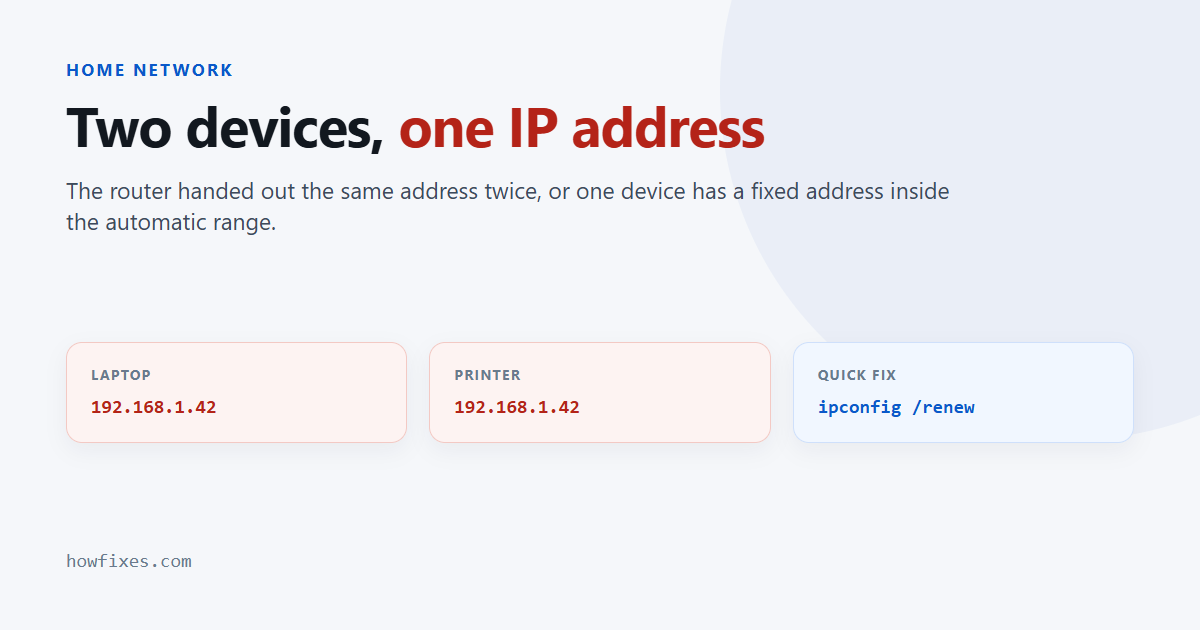
Windows has detected an IP address conflict — two devices on your network are claiming the same address, so the router no longer knows which one to send traffic to. One or both devices lose their connection, usually intermittently, which is what makes this so irritating to diagnose.
The good news is that the quick fix takes under a minute and works in most cases. The rest of this guide covers why it happens and how to stop it recurring.
Checked October 2026. Applies to Windows 11 and Windows 10 22H2. The router steps are generic — menu names differ by manufacturer.
The one-minute fix
Most of the time the address was handed out twice by mistake and simply asking for a new one resolves it. Open Command Prompt or Terminal as administrator and run these in order:
ipconfig /release
ipconfig /flushdns
ipconfig /renew
Your connection drops for a few seconds and comes back with a different address. Check what you ended up with:
ipconfig | findstr /i "IPv4"If the warning returns within minutes, the cause is structural rather than accidental — carry on below.
What causes an IP address conflict
Four things account for nearly all of them.
| Cause | What is happening | Fix |
|---|---|---|
| A static address inside the DHCP range | You set an address by hand that the router later handed to another device | Move it outside the range, or use a reservation |
| Two DHCP servers | A second router or a mesh node is also handing out addresses | Leave DHCP on one device only |
| A stale lease | The router re-issued an address before the old lease expired | Restart the router |
| A cloned MAC address | Two devices present the same hardware address, so the router treats them as one | Check virtual adapters and MAC spoofing settings |
The first is by far the most common on home networks, and it is usually self-inflicted: someone gives a printer or a NAS a fixed address such as 192.168.1.50 without checking that the router’s automatic pool starts at 192.168.1.2.
Check whether your address was set by hand
Run this in an elevated prompt:
ipconfig /allFind your adapter and read the line DHCP Enabled. If it says No, the address is static and is a prime suspect.
To hand control back to the router:
- Press Win + I to open Settings.
- Go to Network & internet, then select Wi-Fi or Ethernet.
- Select your connection, then Edit next to IP assignment.
- Choose Automatic (DHCP) and save.
Note that IP assignment and DNS assignment are separate settings. Switching the address back to automatic does not undo a custom resolver — see our guide to changing DNS servers in Windows if you set one.
The proper fix: a DHCP reservation
If a device genuinely needs a predictable address — a printer, a NAS, a camera — do not give it a static address on the device. Reserve one on the router instead. The router then always hands that device the same address and knows never to offer it to anything else.
- Find the device’s hardware address. On Windows, see how to find your MAC address; on a printer, print its network configuration page.
- Sign in to the router’s admin page.
- Look for DHCP reservation, Address reservation or Static DHCP under the LAN settings.
- Add the hardware address and the address you want it to keep.
- Restart the device so it requests a fresh lease.
This is the difference between telling a device what to claim and telling the network what to allocate. Only the second one is safe from collisions.
When a second router is the problem
Adding a second router to extend coverage causes this constantly, because both devices run a DHCP server by default and neither knows about the other’s allocations.
The fix is to turn the second device into an access point:
- Turn off DHCP on the second router.
- Give it a fixed address outside the first router’s pool.
- Connect it LAN port to LAN port, not WAN to LAN.
A proper mesh system handles this itself. Two separate routers cabled together do not.
If it is not Windows at all
Windows shows the warning because it is the device that noticed, not necessarily the device at fault. Before changing anything on your PC, check the obvious candidates: a printer with a hand-set address, a smart TV, an old games console, or a device somebody added recently.
Most router admin pages list connected clients with their addresses. Two entries with the same address, or a device that keeps disappearing and reappearing, points straight at the culprit.
Frequently asked questions
Does an IP address conflict mean someone is on my network?
Almost never. It is an allocation accident, not an intrusion. If you do not recognise a device in the router’s client list, that is worth investigating separately — but the conflict itself is not evidence of it.
Why does restarting the router fix it temporarily?
A restart clears the lease table and reallocates addresses from scratch. If the underlying cause is a hand-set address inside the automatic pool, the collision returns the next time the pool reaches that number.
Can two devices have the same address on purpose?
No. Within one network segment an address must be unique. The protocol has no way to deliver traffic to two destinations.
Should I use a static address or a reservation?
A reservation, in almost every case. It gives you the same predictability while leaving the router in charge of what is allocated, which is exactly what prevents the collision.
What address range should I keep free?
Check the router’s DHCP pool — commonly 192.168.1.100 to 192.168.1.200. Anything you set by hand should sit outside it, and Microsoft’s own DHCP documentation explains how the allocation works if you want the detail.
Work through it in that order — renew the lease first, then look for a hand-set address, then move anything that needs a fixed address onto a reservation — and an IP address conflict stops being something you fix repeatedly and becomes something that does not happen.