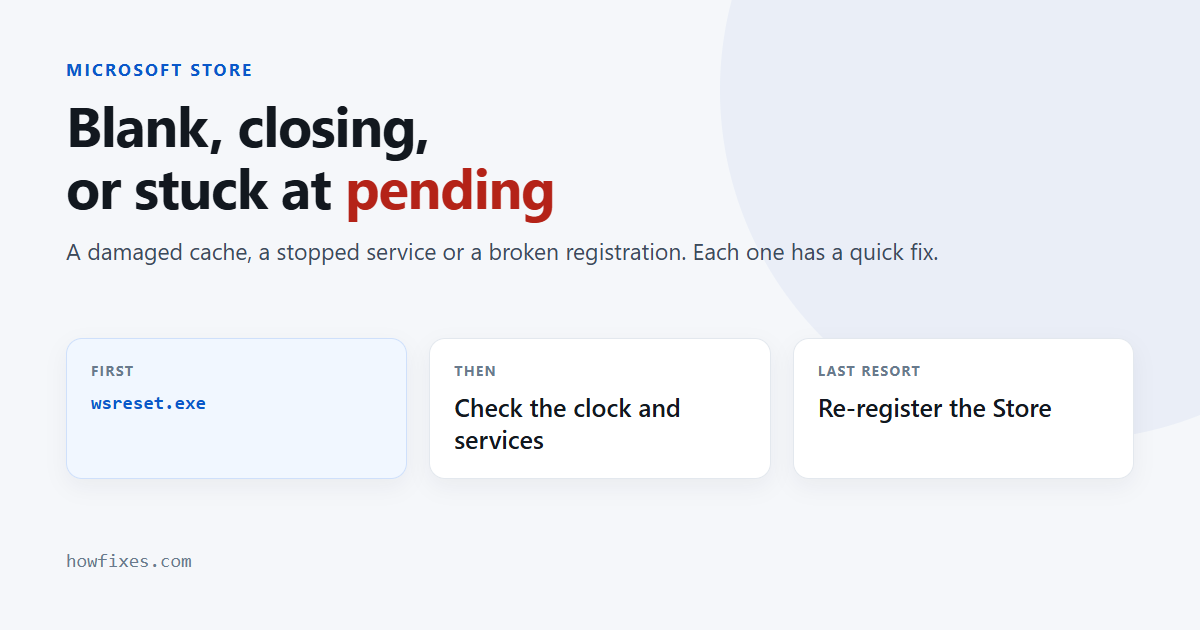
The Microsoft Store opens to a blank window, closes the moment it appears, or leaves every download sitting at “pending” indefinitely. It is a frustrating fault because so much now depends on it — app updates, some drivers, and parts of Windows itself install through it.
Almost every case comes down to a damaged cache, a dependency that has stopped, or the app’s registration breaking. Work down this page in order; the early steps are quick and fix most cases.
Checked October 2026. Applies to Windows 11 and Windows 10 22H2.
Match the symptom to the fix
| Symptom | Most likely cause | Start with |
|---|---|---|
| Opens blank, or closes immediately | Corrupted cache | wsreset.exe |
| Downloads stuck at pending | A stopped service or a queued update | Check the services |
| “Check your connection” while online | Clock, proxy or VPN | Fix the time and region |
| Will not open at all, no window | Broken app registration | Re-register it |
| One app fails, others install | That app’s package | Uninstall and reinstall it |
| Signed-in problems, licence errors | Account token | Sign out and back in |
Reset the cache
The first thing to try, and it fixes a surprising proportion of cases. Press Win + R, type wsreset.exe and press Enter.
A blank Command Prompt window appears and does nothing visible for anywhere between ten seconds and a couple of minutes. Leave it alone. When it finishes, the Store opens on its own. Nothing is uninstalled and no apps are affected — it clears only the cached data.
Check the time, date and region
The Store’s connections are encrypted, and encryption checks fail when the system clock is wrong. The Store then reports a connection problem while your browser works perfectly — a mismatch that confuses almost everyone.
- Settings → Time & language → Date & time.
- Turn on Set time automatically and Set time zone automatically, then select Sync now.
- Under Language & region, confirm the Country or region is where you actually are. Some apps are region-limited and will not appear or install otherwise.
The same clock fault breaks Windows Update with a TLS error — see error 0x80072F8F if you are seeing both.
Turn off any proxy or VPN
Some VPNs and manual proxy settings route the Store’s traffic somewhere it cannot authenticate. Check Settings → Network & internet → Proxy and switch off any manual proxy you did not set deliberately, disconnect the VPN, and try again.
Check the services it depends on
The Store hands its downloads to Windows services. When one of them is disabled — usually by a debloat script or a tweaking utility — downloads queue and never start.
Press Win + R, run services.msc, and confirm none of these is Disabled:
- Microsoft Store Install Service — Manual
- Windows Update — Manual (Trigger Start) or Automatic. The Store uses it to deliver apps, and disabling Windows Update quietly breaks the Microsoft Store as well.
- Background Intelligent Transfer Service — Manual
- Delivery Optimization — Manual or Automatic
If Windows Update itself is failing, sort that out first — see the common Windows Update error codes.
Repair or reset the app
Windows has a built-in repair for the Store itself.
- Settings → Apps → Installed apps.
- Find Microsoft Store, select the three-dot menu → Advanced options.
- Select Repair first. Test it.
- If that does not help, select Reset.
Reset signs you out of the Store and clears its settings. Your installed apps stay installed.
Re-register the Microsoft Store
When the Store will not open at all — no window, no error — its registration with Windows is usually broken. Open Terminal (Admin) or PowerShell as administrator and run:
Get-AppxPackage -AllUsers Microsoft.WindowsStore | Foreach {Add-AppxPackage -DisableDevelopmentMode -Register "$($_.InstallLocation)\AppXManifest.xml"}Red text about packages already in use is normal and can be ignored. Restart afterwards.
Re-register only the Store package, as above. Versions of this command circulate that re-register every app on the system at once; they take a long time, throw hundreds of errors, and occasionally leave built-in apps in a worse state than before.
Repair the system files
If the earlier steps failed, the Store’s dependencies may be damaged. From an elevated Command Prompt:
DISM /Online /Cleanup-Image /RestoreHealth
sfc /scannow
DISM first, then SFC, then restart. Making a restore point beforehand is sensible if the machine has had other problems.
If downloads stay at pending
- Open the Store’s Library and look for an update queued ahead of yours — often the Store’s own update. Let it finish, or cancel it and retry.
- Check free space. Apps need room for the download plus the installed copy, and the Store does not always say so.
- Sign out of the Store (select your profile picture → Sign out), restart, and sign back in. This refreshes the licence token.
- Run the dedicated troubleshooter: Settings → System → Troubleshoot → Other troubleshooters → Windows Store Apps.
Microsoft keeps its own current list of fixes on its Store support page, which is worth a look for any specific error code you see.
Frequently asked questions
Does wsreset delete my apps?
No. It clears only the Store’s cache. Your installed apps, their data and your purchases are all unaffected.
Can I reinstall the Store if I removed it?
Yes. If a debloat script uninstalled it, the re-register command will not find it. Run winget install 9WZDNCRFJBMP from an elevated terminal, which reinstalls it from Microsoft’s own source.
Why does it say I am offline when I am not?
Almost always the clock, a proxy, or a VPN. The Store’s encrypted connection fails while ordinary browsing does not, which is exactly why the message is so misleading.
Why do apps install but never update?
Automatic updates may be off. In the Store, select your profile picture → Settings and turn on App updates. If they are on and still stuck, a service is disabled — see the services list above.
What if nothing here works?
Create a new local administrator account and open the Store there. If it works, the problem is confined to your profile. If it fails on a fresh profile too, an in-place repair install from current Windows media fixes the Microsoft Store along with everything it depends on, without touching your files.