Windows reports that the compressed folder is invalid, and the archive you waited an hour to download will not open. Before you start looking for repair tools, it is worth knowing that a genuinely corrupt ZIP file often cannot be repaired at all — and that a good proportion of these archives are not damaged in the first place.
Telling those two apart takes about a minute, and it determines whether you are recovering data or wasting an afternoon.
Checked October 2026. Applies to Windows 11 and Windows 10 22H2. Work on a copy of the archive, not the original — some tools rewrite the file in place.
Telling a corrupt ZIP file from a working one
Windows Explorer’s built-in ZIP support is limited, and it reports anything it cannot handle as invalid. Several of those cases are perfectly good archives.
| Symptom | Likely cause | What to do |
|---|---|---|
| Size is much smaller than advertised | Truncated download | Download it again |
| Explorer says invalid, 7-Zip opens it | Not damaged — an unsupported format | Extract with 7-Zip |
| Asks for a password you were not given | Encrypted archive | Get the password; nothing is broken |
| Extracts partway, then stops | Genuinely damaged, or a long path | Recover what you can |
There are .z01, .part1 files |
Multi-part archive, parts missing | Collect every part first |
| Opens on another PC | Local disk or software fault | Check your drive |
The size check is the single most useful one. If the download page said 1.4 GB and your file is 212 MB, nothing can repair it — the rest of the data was never received.
Open it with 7-Zip instead
Do this before anything else. 7-Zip is free, open source, and considerably more tolerant than Explorer: it handles ZIP64 archives over 4 GB, modern compression methods, and files with unusual names that Explorer refuses outright.
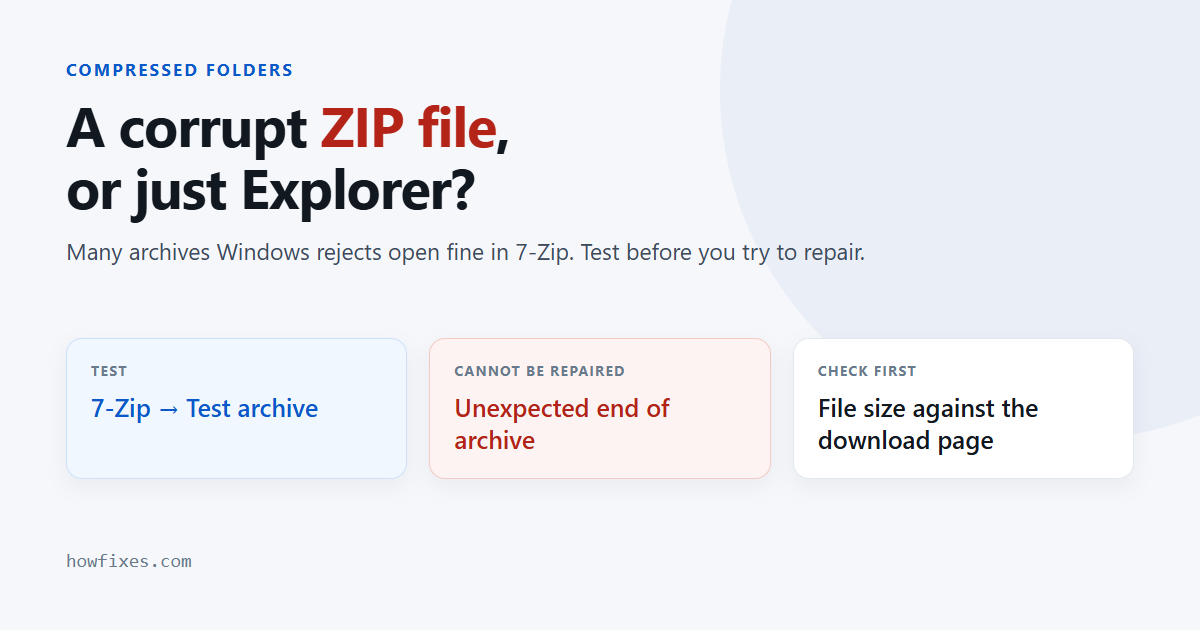
It also tells you what is really wrong. Right-click the archive → 7-Zip → Test archive. You get one of three answers:
- No errors — the archive is fine and Explorer was the problem. Extract it with 7-Zip.
- CRC failed on specific files — those files are damaged, the rest are intact.
- Unexpected end of archive — the file is truncated. This is the one that cannot be repaired.
Extract what survives
Even a damaged archive usually gives up most of its contents. ZIP compresses each file separately, so damage in one place does not destroy the others.
In the 7-Zip window, select the files that passed the test and extract those, leaving the failed ones behind. Or from a command prompt in the archive’s folder:
"C:\Program Files\7-Zip\7z.exe" x archive.zip -oout -yIt reports errors as it goes and carries on, leaving everything readable in the out folder. For a truncated archive this is the best available outcome — whatever arrived before the connection dropped.
Two things that masquerade as corruption
Extraction can fail on a perfectly good archive for reasons that have nothing to do with the data:
- Paths too long. Deeply nested archives exceed the classic path limit and extraction stops mid-way. Extract to a short path such as
C:\x— see the filename or extension is too long error. - Not enough free space. Compressed data expands, sometimes by a lot, and running out of room part-way looks exactly like corruption. See how to free up disk space.
Try an actual repair
Repair only works where the archive’s index is damaged but the data is present. WinRAR can rebuild that index for ZIP archives: open it, choose Tools → Repair archive, and it writes a new file alongside the original.
Be realistic about what this does. It cannot invent missing bytes. If 7-Zip’s test said “unexpected end of archive”, repair will produce a smaller, valid archive containing the part that arrived — which is useful, but it is recovery rather than repair.
Be wary of “ZIP repair” websites and downloads. Paid recovery utilities for this are a well-worn scam category: they show a convincing preview of your files and then ask for money, and the free ones are a common malware vector. 7-Zip and WinRAR do everything that is technically possible here. Uploading an archive to a repair website also hands your data to a stranger.
Check whether it is a ZIP at all
Sometimes the file is something else wearing the wrong extension — an HTML error page saved as .zip by a failed download, or a RAR renamed by hand.
Open it in Notepad and look at the first two characters. A real ZIP begins PK. If you see <!DOCTYPE or readable English, the download failed and returned a web page. If you see Rar!, it is a RAR archive — rename the extension and open it with 7-Zip.
Turning on file extensions makes this kind of thing visible in the first place: how to show file extensions in Windows.
If several archives are failing
One bad archive is bad luck. Several, from different sources, is a sign of something local:
- Test the drive — run
chkdsk C: /scan, and check SMART data with these SSD health checks. - Test the memory — faulty RAM corrupts data in transit, which produces CRC failures on files that downloaded correctly. Run
mdsched.exe, or MemTest86 for a real answer. - Check your antivirus — some products strip files out of archives on access, leaving the archive inconsistent. Look in the quarantine.
Frequently asked questions
Can a truncated ZIP ever be fully recovered?
No. The missing bytes do not exist anywhere on your machine. You can extract the files that arrived complete, and nothing more. Download it again, ideally with a download manager that can resume.
Why do large downloads fail so often?
Because any interruption in a browser download without resume support truncates the file silently — you get a complete-looking archive that is short. Comparing the file size against the one the page advertises catches it immediately.
Does a checksum help?
It is the definitive test. If the source publishes a SHA-256 hash, run certutil -hashfile archive.zip SHA256 and compare. A mismatch means the file differs from the original, whatever its size suggests.
Is Windows worse at ZIP files than 7-Zip?
Yes, measurably. Explorer’s support covers the basics, and it rejects large archives, newer compression methods and some character sets. Many “damaged” archives open without complaint in 7-Zip.
Can I prevent this?
Mostly. Download with a client that resumes, check sizes and hashes on anything large, and store archives on a healthy drive. A corrupt ZIP file is far more often a transfer problem than a storage one, so the download is where the attention belongs.