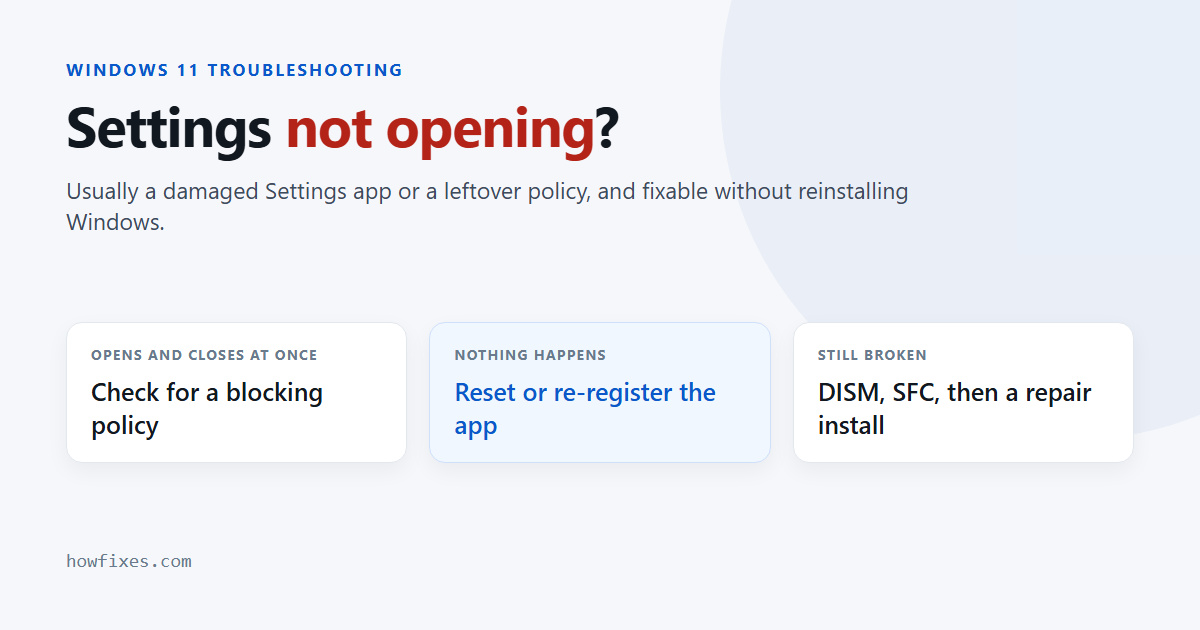
When Windows Settings not opening is the problem, it usually shows up one of three ways: nothing happens when you press Win + I, the window flashes open and closes again, or a link to a settings page fails with “This file does not have an app associated with it”. All three normally come down to a damaged Settings app, and all three can usually be fixed without reinstalling Windows.
The fixes below go from quickest to most thorough. Stop as soon as Settings opens.
Checked September 2026. Applies to Windows 11 and Windows 10 22H2. Where the two differ, both are given.
First, try another way in
Sometimes only one shortcut is broken. Try each of these:
- Right-click Start and choose Settings.
- Press Win + R, type
ms-settings:(with the colon) and press Enter. - Restart the PC — a real restart from the power menu, not shutting the lid.
If Settings still will not open, keep going. You can reach most options through Control Panel in the meantime: Win + R, then control.
1. Check for a policy that blocks Settings
If Settings opens and closes instantly, a policy may be blocking it. This is common on PCs that were once managed by an employer or school, or that had a “privacy” or “debloat” tool run on them.
- Press Win + R, type
regeditand press Enter. - Go to
HKEY_CURRENT_USER\Software\Microsoft\Windows\CurrentVersion\Policies\Explorer. - If there is a value named
NoControlPanelset to1, change it to0. - Check
HKEY_LOCAL_MACHINE\SOFTWARE\Microsoft\Windows\CurrentVersion\Policies\Explorerfor a value namedSettingsPageVisibility. It hides individual pages; if you did not set it deliberately, note its contents and delete it. - Restart and try again.
On Pro editions the same block can come from Group Policy: gpedit.msc → User Configuration → Administrative Templates → Control Panel → Prohibit access to Control Panel and PC settings should be Not configured.
2. Reset the Settings app
This clears the app’s data and returns it to its freshly installed state. Your Windows settings themselves are not changed.
- Right-click Start and choose Terminal (Admin) — on Windows 10, Windows PowerShell (Admin).
- Run:
Get-AppxPackage *windows.immersivecontrolpanel* | Reset-AppxPackageThere is no output when it succeeds. Try opening Settings again. Microsoft documents the command in its Reset-AppxPackage reference.
3. Re-register the Settings app
If the reset did not help, or if you get the “no app associated” message, re-register the app from the same administrator window:
Get-AppxPackage -AllUsers *windows.immersivecontrolpanel* | ForEach-Object {
    Add-AppxPackage -DisableDevelopmentMode -Register "$($_.InstallLocation)\AppxManifest.xml"
}
Red text about a package being in use is normal if Settings is partly running; restart and run it again.
4. Repair system files
Settings depends on Windows components beyond the app itself. In the administrator Terminal, run these one after the other:
DISM /Online /Cleanup-Image /RestoreHealth
sfc /scannow
DISM first, because it repairs the store SFC copies from. Each can take several minutes. Restart when both finish.
5. Remove the update that broke it
If Settings stopped working right after an update, removing that update is often the quickest fix. Without Settings, use Control Panel:
- Press Win + R, type
appwiz.cpland press Enter. - Select View installed updates.
- Sort by Installed On, select the most recent cumulative update and choose Uninstall.
On current Windows 11 builds this link may open the Settings page instead. In that case, hold Shift while you select Restart from the power menu, then choose Troubleshoot → Advanced options → Uninstall Updates → Uninstall latest quality update.
6. Test with a new user account
If Settings works for another user, your Settings not opening problem is in your profile rather than in Windows. From the administrator Terminal:
net user TestUser * /add
net localgroup administrators TestUser /add
You will be asked to type a password for the new account. Sign out, sign in as TestUser and try Settings. If it works there, the cleanest fix is to move your files to a new account; if it fails there too, carry on.
7. Use System Restore
If you have a restore point from before the problem started, go back to it. Press Win + R, type rstrui and follow the wizard. Your documents are not affected; programs and drivers installed since that point are removed.
8. Repair Windows while keeping your files
An in-place repair reinstalls Windows over itself and keeps your files, apps and most settings. It fixes nearly every case the steps above cannot.
- Download the ISO for your version — see how to download the Windows 11 ISO safely.
- Double-click the ISO to mount it and run
setup.exe. - When asked, choose Keep personal files and apps.
Allow an hour, and back up anything important first regardless.
Which fix matches your symptom?
| What you see | Start with |
|---|---|
| Settings opens and closes immediately | Step 1 (policy), then step 2 |
| Nothing happens at all | Steps 2 and 3 |
| “This file does not have an app associated with it” | Step 3 |
| Started after an update | Step 5 |
| Some pages missing, others work | Step 1 (SettingsPageVisibility) |
| Other built-in apps are broken too | Steps 4, then 8 |
Frequently asked questions
Does resetting the Settings app reset my Windows settings?
No. It clears only the app’s own cached data. Your display, network, account and privacy settings stay exactly as they were.
Why does Settings open and close straight away?
Most often a policy blocking it, left behind by a management tool or tweaking utility. A corrupted app package is the second most common cause.
Can I reinstall Settings from the Microsoft Store?
No. Settings is part of Windows and is not listed in the Store. Resetting or re-registering it, as above, is the equivalent.
Is it a virus?
Rarely. Some malware does block Settings and Task Manager to stop you removing it, so if other tools are blocked too, run a full scan with Microsoft Defender Offline: in Windows Security, go to Virus & threat protection → Scan options.
For most people, Settings not opening is fixed by the one-line reset in step 2 or the re-registration in step 3; the rest of the list is there for the stubborn cases.