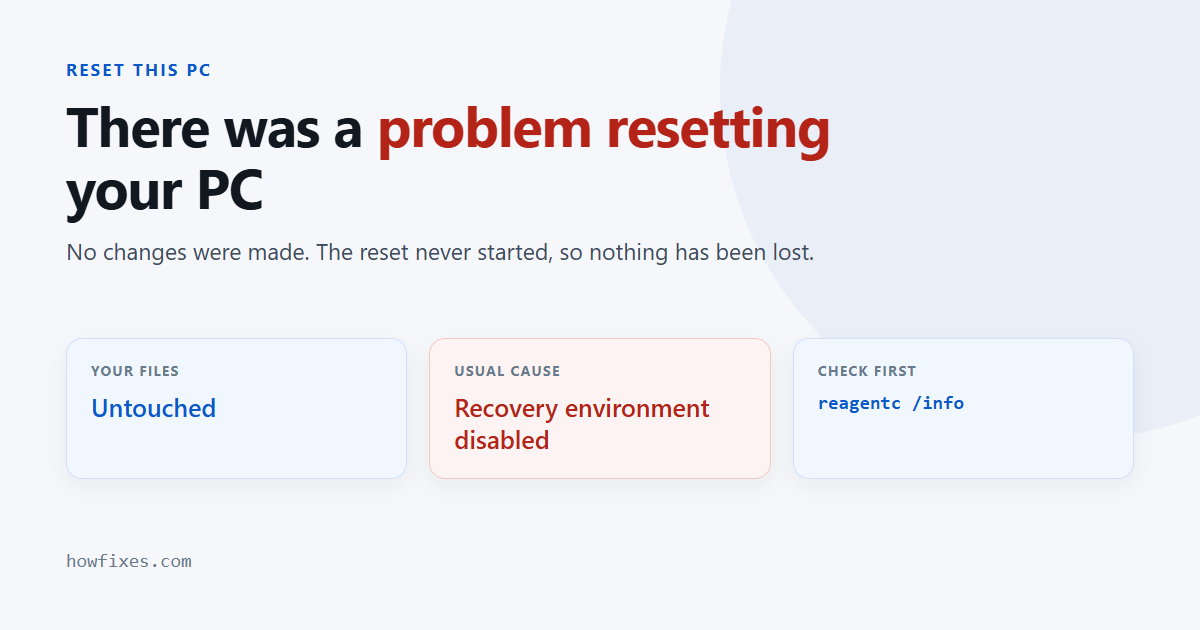
Windows reports a problem resetting your PC and adds that no changes were made. That second sentence is the important one: the reset did not start, so nothing has been damaged and you have not lost anything. You are exactly where you were before you tried.
The cause is almost always the recovery image rather than the machine. Here is what is actually going on and how to get the reset to run.
Checked October 2026. Applies to Windows 11 and Windows 10 22H2. Back up anything you cannot lose before any of this — a reset that does succeed will remove installed programs, and some options remove files too.
Why there is a problem resetting your PC
Reset This PC rebuilds Windows from a recovery image held on the machine. It fails when that image is missing, damaged, or out of step with the installed version. The common causes:
- The recovery environment is disabled or damaged — the most frequent cause by a wide margin.
- System files are corrupted, so the reset cannot read what it needs.
- The recovery partition was deleted or shrunk, often during a past disk-management exercise.
- Pending updates leave the machine in a state the reset refuses to work from.
- Drive encryption blocks access to the recovery data.
| Cause | How you can tell | Fix |
|---|---|---|
| Recovery environment disabled | reagentc /info reports Disabled |
reagentc /enable |
| Damaged system files | Other odd failures alongside it | DISM, then SFC |
| Recovery partition removed | reagentc /enable itself fails |
Install from USB media |
| Pending update | Started right after an update | Finish or remove the update |
| Failing drive | Repairs keep coming undone | Check the disk, then replace |
Check the recovery environment first
This one check explains most cases. Open Command Prompt or Terminal as administrator:
reagentc /infoRead the Windows RE status line. If it says Disabled, enable it:
reagentc /enableThen run reagentc /info again and confirm it now reports Enabled with a location listed. Try the reset again.
If enabling fails, the recovery image itself is missing — skip to the installation media route below, which does not depend on it.
Repair the system files
A damaged component store stops the reset reading its source. From an elevated prompt:
DISM /Online /Cleanup-Image /RestoreHealth
sfc /scannow
DISM before SFC — SFC repairs system files using the component store that DISM repairs, so doing it the other way round often achieves nothing. Reboot afterwards and retry.
Install pending updates, or remove the last one
Go to Settings → Windows Update and let everything finish, including a restart. A half-applied update is a common blocker.
If this started immediately after an update, do the opposite: Update history → Uninstall updates, remove the most recent one, restart, and try again. For update failures themselves, see our guide to Windows Update error codes.
Try it from the recovery environment
Running the reset from outside a booted Windows avoids whatever is blocking it inside:
- Settings → System → Recovery → Restart now under Advanced startup.
- Choose Troubleshoot → Reset this PC.
If Windows will not start at all, interrupt the boot three times with the power button to reach the same menu — the method covered in starting Windows in Safe Mode.
The route that always works
When the on-machine recovery image is the problem, stop trying to repair it and bring your own. A clean install from current media does not use the local image at all.
- On any working computer, download the media creation tool or the ISO from Microsoft’s download page. See how to download the Windows 11 ISO.
- Write it to a USB stick of 8 GB or more.
- Boot from the stick and choose Install now.
If Windows still starts, you have a gentler option: mount the ISO and run setup.exe from inside Windows, choosing to keep your files and apps. That performs an in-place repair install — it rebuilds Windows while leaving your data and programs alone, and it fixes a great deal that a reset would have.
Booting from the USB and choosing a custom install erases the drive. The in-place route from inside Windows does not. Read which one you are on before continuing, and have a backup either way.
Check the drive
If repairs keep failing and the machine is generally unstable, test the storage before spending more time on software:
chkdsk C: /scanAlso check the drive’s own health data — see how to check SSD health. A failing drive cannot hold a usable recovery image, and no amount of repairing will change that.
Frequently asked questions
Did the failed reset damage anything?
No. “No changes were made” is literal — the process stopped before touching your installation. Your files, programs and settings are untouched.
Why does it fail only with “Keep my files”?
That option has more work to do: it must preserve your profile while replacing the system. A corrupted profile or a full disk can block it when “Remove everything” would succeed. Free up space and try again before assuming the image is at fault.
Do I need a product key after reinstalling?
Usually not. A previously activated machine carries a digital licence tied to the hardware and reactivates on its own. If it does not, see activation error 0x803F7001.
Is a repair install as good as a reset?
For most purposes it is better. It rebuilds the system files while keeping your programs and data, so you avoid reinstalling everything afterwards.
What if even the USB install fails?
At that point suspect hardware: a failing drive or faulty memory. Run chkdsk and a memory test before buying anything. A problem resetting your PC that survives clean media is rarely a software fault at all.