“We couldn’t complete the updates. Undoing changes. Don’t turn off your computer.” This screen means Windows tried to install an update, hit an error part-way, and is now rolling the system back to how it was before. Most of the time undoing changes finishes by itself and the PC starts normally. The trouble starts when it loops: the PC restarts, tries the same update, fails, and undoes it again.
This guide covers how long to wait, how to break the loop, and how to stop the same update failing next time.
Checked September 2026. Applies to Windows 11 and Windows 10 22H2.
How long should you wait?
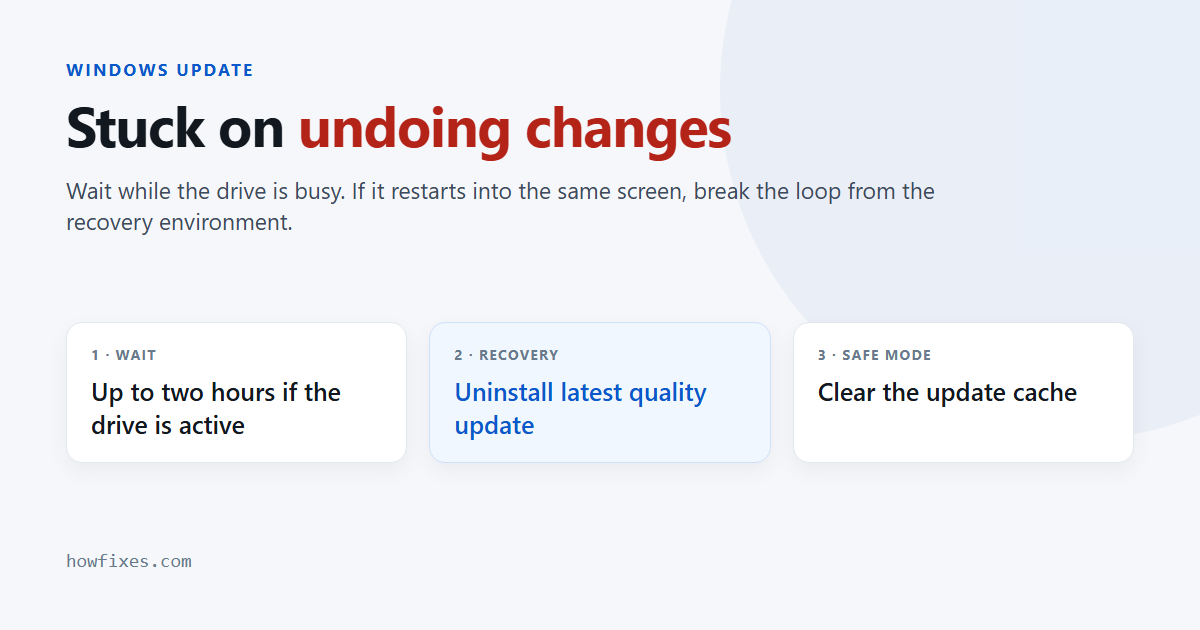
Longer than feels comfortable. A rollback on a slow hard drive can take well over an hour, and the percentage on screen does not move smoothly. Use the drive activity light, if your PC has one, as the guide:
| What you see | What to do |
|---|---|
| Screen unchanged, drive light flickering | It is working. Leave it, plugged in, for up to two hours. |
| Screen unchanged for two hours, no drive activity | It has stalled. Force a shutdown and continue below. |
| Restarts, then shows the same message again | It is looping. Go to the recovery steps below. |
| Starts normally afterwards | The rollback worked. Skip to “Stop it happening again”. |
A laptop should be on its charger throughout. Running out of battery mid-rollback is one of the few ways this can genuinely damage an installation.
Before you start: find your BitLocker key
Many Windows 11 PCs have device encryption turned on without their owners knowing. The recovery screens below may ask for a 48-digit BitLocker recovery key. If you use a Microsoft account, it is stored at aka.ms/myrecoverykey — open that on your phone before you begin, so you are not stuck at the prompt.
1. Get into the recovery environment
If the PC loops and never reaches the desktop:
- Turn it on, and as soon as the Windows logo appears, hold the power button until it switches off.
- Repeat twice more.
- On the third start, Windows shows Preparing Automatic Repair, then a screen with Advanced options. Select it.
If you can still reach the desktop, hold Shift while selecting Restart from the power menu instead — it goes to the same place without forcing anything.
2. Uninstall the update that keeps failing
- In the recovery environment, choose Troubleshoot → Advanced options → Uninstall Updates.
- Choose Uninstall latest quality update — the monthly update, which is what usually causes this.
- If that fails or does not help, go back and try Uninstall latest feature update.
This breaks most loops on its own.
3. Start in Safe Mode and clear the update cache
If the loop continues, a half-downloaded update in the cache may be the cause. Clearing it forces Windows to download fresh copies.
- In the recovery environment, choose Troubleshoot → Advanced options → Startup Settings → Restart.
- Press 4 for Safe Mode.
- Once signed in, right-click Start and open Terminal (Admin) or Command Prompt (Admin).
- Run:
net stop wuauserv
net stop bits
ren C:\Windows\SoftwareDistribution SoftwareDistribution.old
net start bits
net start wuauserv
Restart normally. Windows rebuilds the folder and downloads the update again when it next checks. Once the PC is working, you can delete SoftwareDistribution.old.
4. Make sure there is enough free space
Updates need working room, and a nearly full system drive is a common reason they fail at the last stage. Aim for at least 20 GB free on C: before retrying. Our guide to freeing up space for Windows updates covers the safe ways to get it.
5. Run Startup Repair or System Restore
Both are in Troubleshoot → Advanced options:
- Startup Repair fixes problems that stop Windows loading. Try it first; it changes nothing else.
- System Restore returns the system to an earlier restore point. Your files are kept; programs installed since then are removed.
Stop it happening again
Once the PC starts, find out which update failed before Windows tries it again:
- Go to Settings → Windows Update → Update history and note the KB number marked Failed to install, along with any error code.
- Select Pause updates on the main Windows Update page. This stops the retry while you fix the cause.
- Look up the error code. Codes such as 0x800704C7 and 0x80070103 have specific fixes.
- Repair system files from an administrator Terminal:
DISM /Online /Cleanup-Image /RestoreHealth, thensfc /scannow. - Temporarily turn off any third-party antivirus, then resume updates.
- If the same update still fails, download it by KB number from the Microsoft Update Catalog and install it by hand.
If nothing works
Two options remain, both of which keep your files:
- Reset this PC with Keep my files, from Troubleshoot in the recovery environment. It reinstalls Windows and removes your apps.
- An in-place repair from a Windows ISO, which also keeps your apps — but it needs a working desktop to start from. See how to download the Windows 11 ISO.
Back up anything irreplaceable first. If the PC will not start, the recovery environment’s Command Prompt can copy files to a USB drive.
Frequently asked questions
Is it safe to turn off the PC while it says “undoing changes”?
Not while it is still working. If the drive is active, wait. Forcing a shutdown is only reasonable once it has clearly stalled for a couple of hours, or when it is looping.
Will I lose my files?
No. Undoing changes rolls back system files from the update, not your documents. None of the steps above delete personal files, although Reset this PC removes installed apps.
Why does the same update keep failing?
Usually a damaged update cache, low disk space, security software interfering, or corrupted system files — the same causes behind most update errors. Clearing the cache and repairing system files deals with the majority.
What is the difference between this and “Failure configuring Windows updates”?
Nothing that matters: that is the older wording from Windows 7 and 8 for the same rollback. The fixes are the same.
In most cases undoing changes finishes on its own; when it loops, uninstalling the latest quality update from the recovery environment is the step that usually ends it.