The AppData folder is where Windows programs keep their settings, caches and saved data for your account. It lives inside your user profile at C:\Users\your-name\AppData, but you will not see it in File Explorer by default because it is a hidden folder.
You do not need to unhide anything to get there. Here are four ways to open it, what the three folders inside it are for, and what you can and cannot safely delete.
1. Use the Run box (fastest)
- Press Win + R.
- Type
%appdata%and press Enter.
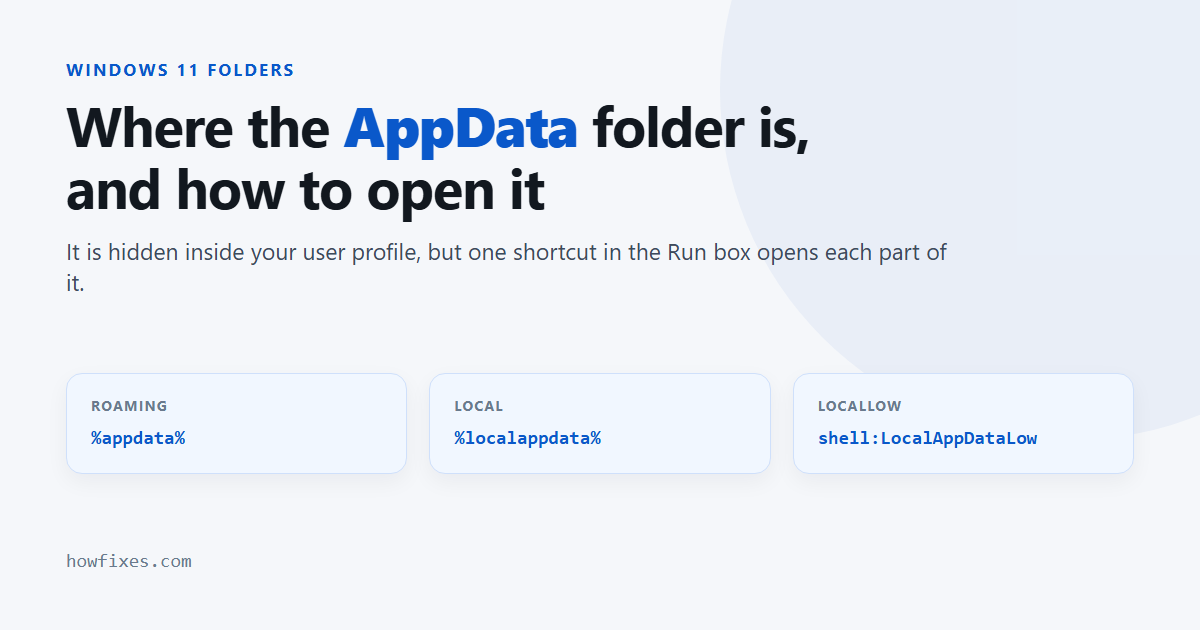
File Explorer opens straight into AppData\Roaming. To reach the other two folders, use these instead:
| Type this in Run | Opens |
|---|---|
%appdata% |
C:\Users\name\AppData\Roaming |
%localappdata% |
C:\Users\name\AppData\Local |
shell:LocalAppDataLow |
C:\Users\name\AppData\LocalLow |
%userprofile%\AppData |
The AppData folder itself, showing all three |
There is no % variable for LocalLow, which is why it needs the shell: form.
2. Type it into the File Explorer address bar
The same shortcuts work in File Explorer. Click the address bar (or press Alt + D), type %appdata% or %localappdata%, and press Enter. This is handy when you are already browsing and want to jump across.
3. Show hidden folders
If you want AppData to appear in your user folder permanently:
- Open File Explorer.
- Select View → Show → Hidden items.
- Open
C:\Users\your-name. AppData now appears, slightly faded to show it is hidden.
On Windows 10 the option is a Hidden items checkbox on the View tab. While you are in that menu, turning on file name extensions is worth doing too — see why you should show file extensions.
4. From Command Prompt or PowerShell
In Command Prompt, cd %appdata% or cd %localappdata% moves you there. In PowerShell the same paths are environment variables:
cd $env:APPDATA
cd $env:LOCALAPPDATA
explorer $env:LOCALAPPDATA
The last line opens the folder in File Explorer from the command line.
What are Roaming, Local and LocalLow?
Programs choose which of the three to use, and the choice tells you something about the data:
- Roaming is for settings that should follow you. On a company network with roaming profiles, this folder is copied to whichever PC you sign in to. At home it behaves like any other folder. Firefox profiles, Discord settings and Minecraft’s
.minecraftfolder live here. - Local is for data tied to this machine: caches, temporary files, and anything too large to copy around. Chrome and Edge profiles, Microsoft Store app data (in
Local\Packages) and your personalTempfolder are here. It is usually the biggest of the three. - LocalLow is for programs running with reduced permissions, such as sandboxed browser components. Many games built on the Unity engine also keep their saves and settings here.
Microsoft’s documentation on known folders lists the official definitions if you need them.
Is it safe to delete things in AppData?
Some of it. The rule is: delete caches and temporary files, not settings.
| Location | Safe to clear? | What happens |
|---|---|---|
%localappdata%\Temp |
Yes | Files in use are skipped. Close programs first for the best result. |
A program’s Cache folder |
Usually | The program rebuilds it; the first launch may be slower. |
| Folders of programs you have uninstalled | Yes | Removes leftovers. Check the name carefully first. |
| Folders of programs you still use | No | You lose settings, sign-ins and sometimes saved data. |
| The whole AppData folder | Never | Breaks most apps for your account and can break sign-in. |
For routine clean-ups, let Windows do it: Settings → System → Storage → Temporary files removes the safe categories without guesswork, and Storage Sense can do it automatically. If space is the real problem, our guide to freeing up disk space goes further.
App-specific caches often have their own clean-up routes, such as clearing the Teams cache.
Can I move AppData to another drive?
Not safely. Windows does not offer a supported way to move AppData, and the tricks that do it — registry edits or folder links — tend to break app updates, Microsoft Store apps and sometimes Windows upgrades. If your system drive is full, move Documents, Pictures, Videos and Downloads instead: right-click the folder, choose Properties → Location, and point it at the other drive.
Frequently asked questions
Why can’t I find the AppData folder?
Because it is hidden. Either type %appdata% into the Run box, which ignores the hidden setting, or turn on View → Show → Hidden items in File Explorer.
Why is my AppData folder so large?
Mostly caches: browsers, chat apps, game launchers and the Temp folder. Look inside %localappdata% first, as it is normally the largest. The Storage page in Settings shows which categories are using the space.
Is there one AppData for all users?
No, each account has its own. Settings shared by all users live in C:\ProgramData, which is also hidden. To open another user’s AppData you need administrator rights.
Where do games save in AppData?
It varies by game. Check LocalLow for Unity games, Roaming and Local under the developer’s name for others, and also Documents\My Games and Saved Games in your user folder.
Whichever route you use, the AppData folder is always three shortcuts away: %appdata%, %localappdata% and shell:LocalAppDataLow.