Incognito mode does one thing: it stops Chrome saving your browsing to this device. It does not make you anonymous, and the gap between what people assume and what it actually does is where the trouble starts.
This guide covers what incognito really protects, what it does not, and the Chrome settings that matter more for privacy than incognito does.
Checked August 2026 against current Chrome on Windows, macOS and Linux.
What incognito actually does
| Not saved on your device | Still visible to others |
|---|---|
| Browsing history | Your employer or school, on their network |
| Cookies and site data | Your internet provider |
| Information entered in forms | Every website you visit |
| Permissions granted to sites | Anyone you are signed in to, such as Google |
Two things are commonly misunderstood:
- Downloads are kept. The file stays on your computer. Only the entry in the download list is discarded.
- Bookmarks are kept. Anything you save in incognito is still there afterwards.
Chrome states this on its own new-tab page, and it is worth reading rather than clicking past.
What incognito is genuinely good for
- Using a shared or borrowed computer
- Signing in to a second account without logging out of the first
- Testing how a site behaves for a signed-out visitor
- Keeping a one-off search out of your suggestions
- Comparing prices without your existing cookies affecting what you see
It is a local privacy tool. For network-level privacy you need something else entirely.
Opening it
- Windows and Linux: Ctrl + Shift + N
- macOS: Cmd + Shift + N
- Or the three-dot menu → New Incognito window
Each incognito window is a separate session from your normal browsing, but incognito windows share state with each other. Closing all of them is what discards the session.
Extensions in incognito
Extensions are disabled in incognito by default, which is why an ad blocker or password manager appears to vanish. They can be allowed individually — see enabling Chrome extensions in incognito mode, which also covers why the default exists.
The settings that matter more than incognito
Clear browsing data on exit
Closer to what people want from incognito than incognito is: browse normally, keep nothing afterwards. See clearing browsing history automatically on exit.
Ad privacy settings
Settings → Privacy and security → Ad privacy. Chrome can build an interest profile from your browsing to serve advertising. Turning those toggles off applies to all your browsing, not just incognito sessions.
Third-party cookies
Settings → Privacy and security → Third-party cookies. Blocking them is the single most effective built-in control against cross-site tracking. Some sites break; most do not.
Safe Browsing
Settings → Privacy and security → Security. Standard protection is the sensible default. Enhanced catches more but sends more browsing data to Google — a real trade rather than a free upgrade.
Sync
If you are signed in with sync on, your history goes to your Google account across devices. Settings → You and Google → Sync and Google services to control what is synced.
Genuinely useful Chrome features
Built-in screenshot tool
To capture an entire page, including what is below the fold:
- Press F12 to open developer tools.
- Press Ctrl + Shift + P.
- Type screenshot and choose Capture full size screenshot.
No extension, and nothing leaves your machine. See taking screenshots on Windows and Mac for the rest.
Tab search and tab groups
Press Ctrl + Shift + A to search every open tab, including recently closed ones. Right-click a tab and choose Add tab to new group to organise them; groups can be collapsed and named.
Memory and Energy Saver
Settings → Performance. Memory Saver frees resources from tabs you have not used recently — genuinely useful on a machine with 8 GB of RAM. See how to speed up Chrome.
A word on chrome://flags
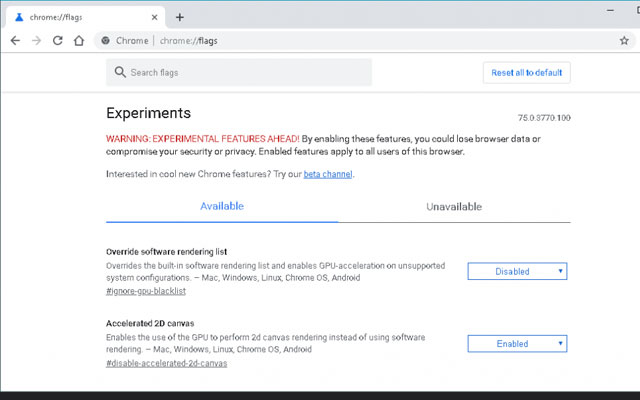
chrome://flags holds unfinished features. Chrome’s own warning that they may “break your browser” is accurate — flags can corrupt your profile, and they are removed without notice between versions, so a guide recommending one is often already wrong. If something breaks after changing flags, Reset all at the top of that page is the first thing to try.
If you actually want privacy
Incognito is one small layer. In rough order of effectiveness:
- Block third-party cookies — the biggest built-in win.
- Use a content blocker — trackers stop loading at all.
- Clear data on exit — nothing persists between sessions.
- A VPN hides your traffic from your provider and the local network. It does not hide you from sites you sign in to.
- Tor Browser is the serious option, and slower for it.
No combination makes you anonymous to a site you have signed in to. That is worth stating plainly, because it is the assumption behind most incognito misunderstandings.
Frequently asked questions
Can my employer see incognito browsing?
Yes. Traffic still passes through the network. Incognito hides it from other people using the same computer, not from whoever runs the network.
Does incognito hide my IP address?
No. Every site sees the same IP address as normal browsing.
Are incognito downloads deleted?
No. The file stays; only the download-list entry is discarded.
Does incognito stop websites tracking me?
Partly. You start without existing cookies, so you look like a new visitor. Within the session you can still be tracked, and browser fingerprinting works regardless.
Is there a history of incognito sessions anywhere?
Not in Chrome. Note that DNS lookups may still be cached by the system, and your network and provider have their own logs.


