Microsoft Copilot is the AI assistant built into Windows 11. It has changed shape several times since it arrived — it began as a docked side panel, and is now an app you open like any other, with a taskbar button and a keyboard shortcut.
This guide covers what it can actually do on Windows, what it cannot, and how the various things called “Copilot” relate to each other, which is the part that confuses everyone.
Checked August 2026. Copilot changes frequently — features arrive, move and are renamed between Windows updates. Where something described here is not on your machine, check for Windows and Store updates first.
The naming, untangled
Microsoft has attached “Copilot” to several different products. They are not the same thing and they are not priced the same way.
| Name | What it is | Cost |
|---|---|---|
| Copilot (Windows / web / app) | The consumer assistant | Free, with a paid tier for higher limits |
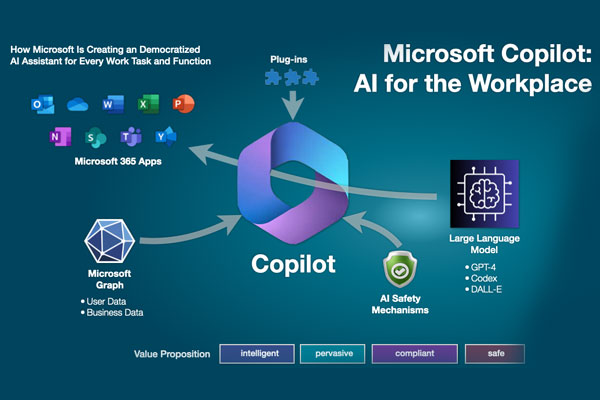
| Microsoft 365 Copilot | Built into Word, Excel, Outlook, Teams; can see your own files and email | Paid add-on to a Microsoft 365 subscription |
| GitHub Copilot | Code completion in editors | Separate subscription |
| Copilot+ PC | A hardware label for machines with a fast NPU | A class of device, not software |
The distinction that matters most: only Microsoft 365 Copilot can see your own documents and email. The consumer Copilot on Windows cannot, and that is the source of most disappointment — people expect it to answer questions about their files and it has no access to them.
Underneath, Copilot runs on OpenAI models. As of 2026 the preferred model in Microsoft 365 Copilot is GPT-5.6.
Opening it
- Select the Copilot button on the taskbar.
- Or press Win + C, where that shortcut is configured.
- Or search for Copilot in the Start menu.
If the button is missing: Settings → Personalisation → Taskbar → turn Copilot on. If it is not there either, the app may not be installed — check the Microsoft Store.
What it is good for
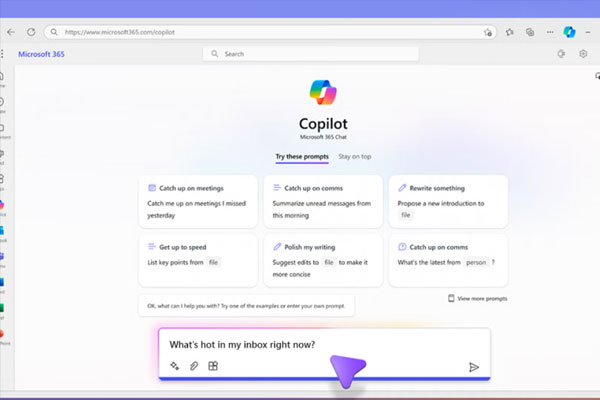
- Questions with sources. Copilot searches the web and cites what it used, which makes checking an answer practical.
- Drafting. Emails, outlines, summaries — the same strengths as any assistant of this kind.
- Explaining an error message. Paste it in. This is genuinely one of the better uses on a Windows machine.
- Image generation, included at no cost with limits.
- Working with what you paste — a document’s text, a block of code, a table.
What it cannot do
Expectations here are usually set too high by the marketing.
- It cannot read your files unless you attach or paste them. The consumer version has no access to your drive.
- It cannot reliably change Windows settings for you. Some settings integration exists and it varies by build; treat it as unreliable and use Settings.
- It cannot fix your PC. It can suggest steps — which you should sanity-check, as with any assistant.
- It invents facts, like every model of this kind. Follow the citations for anything that matters.
Be particularly careful with commands. An assistant will confidently produce a registry edit or a PowerShell one-liner that does something other than what you asked. Read anything before you run it, and take a restore point first.
Turning it off
Reasonable if you do not use it.
- Hide the button: Settings → Personalisation → Taskbar → turn Copilot off.
- Uninstall the app: Settings → Apps → Installed apps → Copilot → Uninstall. Now that it is a normal app rather than a system component, this works properly.
- On Pro and Enterprise, Group Policy can disable it under User Configuration → Administrative Templates → Windows Components.
Note that Windows feature updates sometimes restore or re-pin it.
When it will not work
- Update Windows, then update the app from the Microsoft Store: Library → Get updates.
- Repair or reset it: Settings → Apps → Installed apps → Copilot → Advanced options → Repair, then Reset if needed.
- Check your region. Copilot is not available everywhere: Settings → Time & language → Language & region.
- Sign in. Some features need a Microsoft account.
- On a work device it may be disabled by policy, which nothing local will override.
For a stubborn case, re-register the app from an elevated PowerShell:
Get-AppxPackage -AllUsers *Copilot* | Foreach {Add-AppxPackage -DisableDevelopmentMode -Register "$($_.InstallLocation)\AppXManifest.xml"}See also Copilot issues and Windows updates.
Privacy
What you type goes to Microsoft’s servers — there is no on-device mode for the assistant. Practical guidance:
- Do not paste passwords, keys, customer data, or anything under an NDA.
- Review your history and controls at account.microsoft.com/privacy.
- Work accounts using Microsoft 365 Copilot have different data commitments from consumer accounts — worth knowing which you are signed in with.
Copilot, ChatGPT or Gemini?
They are close enough in capability that the practical differences decide it:
- Copilot — best if you are in the Microsoft ecosystem, and the only one that integrates with Office and your work files (on the paid tier).
- ChatGPT — the broadest tooling and the largest ecosystem. See what ChatGPT is and how to use it.
- Gemini — best if you live in Google Workspace.
Frequently asked questions
Is Copilot free?
The consumer Copilot on Windows is free, with a paid tier for higher limits and priority access. Microsoft 365 Copilot — the one inside Office — is a paid add-on.
Can Copilot read my documents?
Not the consumer version. Only Microsoft 365 Copilot, on a work or paid account, can reach your files through Microsoft Graph. See AI writing help in Microsoft Word.
Does it work offline?
No. Processing happens on Microsoft’s servers.
Do I need a Copilot+ PC?
No. Copilot+ is a hardware label for machines with a fast NPU, which unlocks some on-device features. The assistant itself runs on any Windows 11 PC.
Why does Copilot look different from screenshots I have seen?
Because it has been redesigned repeatedly — from a docked side panel to a standalone app. Guides more than a few months old often describe an interface that no longer exists.


