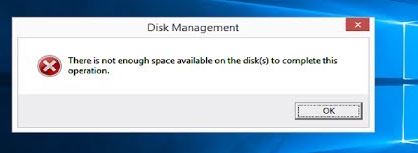
“There isn’t enough space available on the disk” during a Windows update is usually accurate, and usually easier to fix than it looks. Windows needs working room to unpack an update, install it, and keep enough of the old version to roll back if something goes wrong.
The fastest single fix is Settings → System → Storage → Cleanup recommendations, which finds several gigabytes on almost any machine that has been updated a few times.
Checked August 2026. Applies to Windows 11 and Windows 10 22H2. Note that Windows 10 left support on 14 October 2025.
How much space you actually need
| Operation | Free space to have |
|---|---|
| Monthly cumulative update | 8–10 GB |
| Feature update (version upgrade) | 20–30 GB |
| Windows 10 → Windows 11 upgrade | 25–30 GB |
The update file itself may be a few hundred megabytes. The rest is extraction, staging, and the recovery copy that lets Windows undo the update within the rollback window.
1. Cleanup recommendations — start here
Modern Windows has this built in and it is much better than the old Disk Cleanup:
- Settings → System → Storage.
- Select Cleanup recommendations.
- Work through the categories.
What it typically finds:
- Windows Update Cleanup — superseded update files. Frequently several gigabytes.
- Previous Windows installation(s) — the
Windows.oldfolder from your last feature update. Often 15–25 GB. - Delivery Optimisation files — cached update data shared with other PCs.
- Recycle Bin and temporary files.
Deleting Previous Windows installation(s) removes your ability to roll back to the earlier Windows version. If you upgraded in the last ten days and are still deciding, leave it. After that Windows deletes it automatically anyway.
2. Empty the update cache
If SoftwareDistribution has accumulated failed downloads, clearing it recovers space and often fixes the update at the same time. From an elevated Command Prompt:
net stop wuauserv
net stop bits

ren C:\Windows\SoftwareDistribution SoftwareDistribution.old

net start wuauserv
net start bits
Once updates work again, delete C:\Windows\SoftwareDistribution.old.
Start both services again. Leaving wuauserv stopped means Windows Update silently never runs.
3. Component store cleanup
WinSxS holds every component version Windows has ever installed. It cannot simply be deleted, but it can be compacted:
DISM /Online /Cleanup-Image /StartComponentCleanup /ResetBaseThis can take twenty minutes and typically recovers 3–6 GB.
/ResetBase makes all currently installed updates permanent — you can no longer uninstall individual ones. That is normally fine, but skip that switch if you may need to remove a specific update.
4. Find what is actually using the space
Settings → System → Storage breaks usage down by category. Two things commonly turn out to be larger than expected:
hiberfil.sys— roughly 40% of your installed RAM. See how to shrink or remove it.- System Restore —
sysdm.cpl→ System Protection → Configure. Reduce Max Usage rather than turning protection off, which deletes every restore point you have.
For a proper picture of where space has gone, a disk usage analyser such as WizTree or WinDirStat shows it as a treemap in seconds.
5. Use an external drive for a feature update
Windows can borrow space from a USB drive for a feature update. On a small tablet or a machine with a 64 GB drive this is often the only way:
- Plug in a USB drive with 10 GB or more free.
- Run the update. When it reports insufficient space, choose the option to use external storage.
6. Move things off the system drive
- Move large folders — right-click Documents, Pictures or Downloads → Properties → Location → Move.
- Change where new content is saved: Settings → System → Storage → Advanced storage settings → Where new content is saved.
- Uninstall what you do not use: Settings → Apps → Installed apps, sorted by size. Games are usually the largest single item by a wide margin.
7. Turn on Storage Sense
So the problem does not come back:
Settings → System → Storage → Storage Sense → on.
Configure it to empty the Recycle Bin after 30 days and clear old files from Downloads — check that second setting matches what you keep there.
Frequently asked questions
Why does a 500 MB update need 10 GB?
The download is compressed. Windows extracts it, stages the new files, and keeps enough of the old version to roll back if the update fails. All three need room simultaneously.
Is it safe to delete Windows.old?
Yes, once you are confident you do not want to roll back to the previous Windows version. Your personal files are not in it — they are already in your user folder on the new installation. Windows removes it automatically after about ten days.
Can I delete the WinSxS folder?
No. Deleting it will break Windows, and it is not as large as File Explorer suggests — much of what it appears to contain is hard links to files that exist elsewhere. Use the DISM cleanup command instead.
Should I disable the page file to save space?
No. It causes out-of-memory failures in applications that depend on it. Reclaim space from hibernation, restore points and Windows Update leftovers instead.
My drive is 128 GB and always full.
Windows plus applications realistically wants 60–80 GB before your own files. On a 128 GB drive, keep user folders on a second drive or in the cloud, use Storage Sense, and expect to manage it actively. It is a hardware constraint, not a configuration problem.


