Extensions are switched off in incognito by default. Turning one on takes three clicks — and the default exists for a reason worth understanding before you override it.
Checked August 2026 against current Chrome. The same setting exists in Edge, Brave and other Chromium browsers, in the same place.
Enable an extension in incognito
- Type
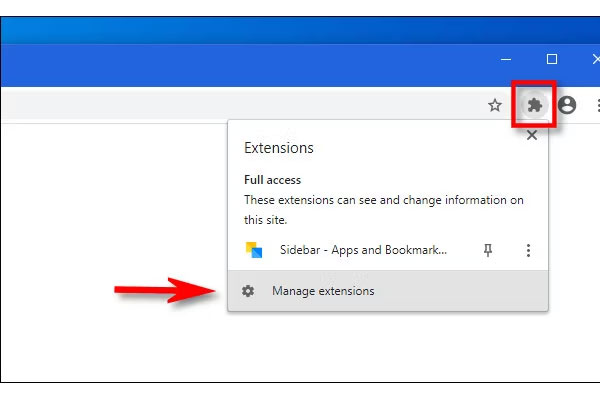
chrome://extensionsin the address bar and press Enter. (Or three-dot menu → Extensions → Manage extensions.) - Find the extension and select Details.
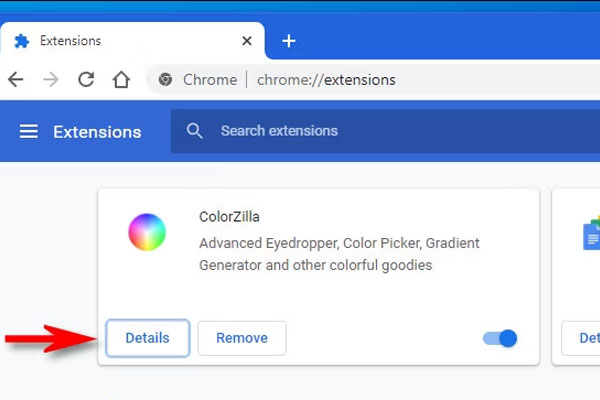
- Scroll to Allow in Incognito and turn it on.
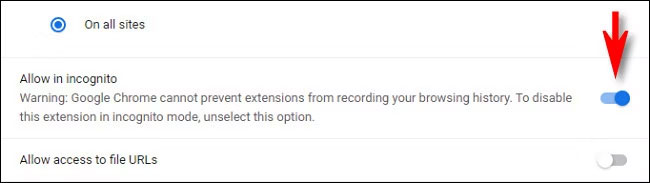
- Close and reopen any incognito windows for the change to take effect.
The setting is per extension. There is no “allow all”, deliberately.
Why Chrome blocks them by default
The point of incognito is that nothing about the session is recorded. An extension runs inside that session with whatever permissions it holds — and an extension that can read page contents can record them, regardless of what Chrome is or is not saving.
So the default is not caution for its own sake. Allowing an extension into incognito genuinely does weaken the guarantee, and it is a per-extension decision because it depends entirely on which extension.
How to judge one
Look at what it can access. On the same Details page, check Site access:
| Site access | What it means |
|---|---|
| On all sites | Can read and change everything you look at. Allow in incognito only if you trust the publisher. |
| On specific sites | Limited to those. Much lower risk. |
| On click | Only acts when you invoke it. Lowest risk. |
You can change this yourself — setting a broad extension to On click is a good habit for anything you do not use constantly.
Which ones are worth allowing
Usually yes:
- Content and ad blockers. Without one, incognito is arguably worse for privacy — you browse with no blocking at all.
- Password managers, if you use incognito to sign in to a second account. This is the main reason people look for this setting.
Usually no:
- Anything that syncs your browsing to a server — reading lists, note tools, session managers
- Coupon and shopping extensions, which report the pages you visit by design
- Anything with vague permissions from a publisher you cannot identify
- Screen recorders and analytics tools
If the toggle is missing or greyed out
- Managed by policy. On a work machine, check
chrome://policy—IncognitoModeAvailabilityor extension policies may control it. IT owns that decision. - Incognito is disabled entirely, in which case there is nothing to allow into.
- The extension declares itself unsupported in split incognito mode. Rare, but some do.
- Chrome needs restarting after an update.
The extension works but behaves oddly
Expected, and worth knowing about. Chrome runs extensions in incognito under split mode: the extension gets a separate instance with its own storage, which cannot see the normal-session instance.
Consequences you will notice:
- Settings configured in a normal window may not apply in incognito
- A password manager may need unlocking separately
- Counters and statistics start from zero
- Signing in to the extension may be required again
None of this is a fault. It is what keeps the two sessions genuinely separate.
Turning it back off
Same place: chrome://extensions → Details → turn Allow in Incognito off. Worth reviewing occasionally, since an extension you allowed a year ago may have changed hands or added permissions.
Frequently asked questions
Can I allow all extensions at once?
No. Chrome deliberately requires a per-extension decision, because the risk depends entirely on the extension.
Does allowing one break incognito’s privacy?
It can. The extension can see what you browse; Chrome’s promise is only that Chrome will not record it. Allow ones that protect you, not ones that observe you.
Why does my ad blocker not work in incognito?
Because it has not been allowed. Follow the steps above — and this is one of the clearer cases for doing so.
Do extensions in incognito keep their settings?
Not necessarily. Split incognito mode gives the extension separate storage, so some configuration and any sign-in may need repeating.
Is this the same in Edge?
Yes, with different wording: edge://extensions → Details → Allow in InPrivate.
Does incognito make me anonymous if I use a privacy extension?
No. Incognito stops local recording; an extension can block trackers. Neither hides you from your network, your provider, or any site you sign in to. See what incognito mode actually does.


