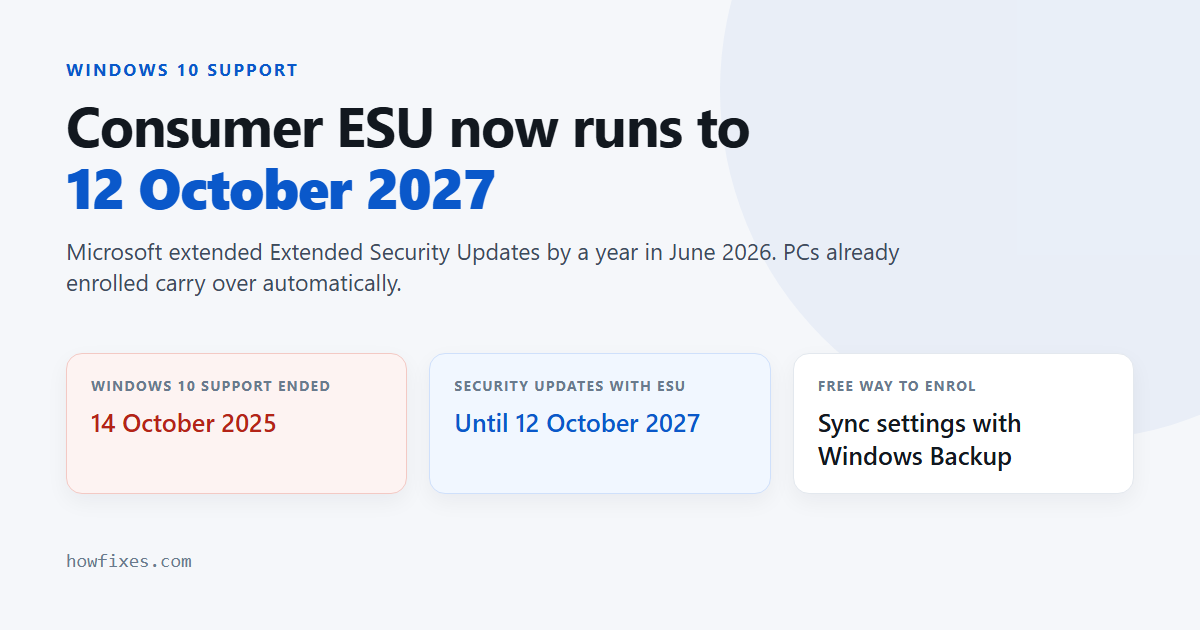
If you enrolled a Windows 10 PC in Extended Security Updates last year, you were told the coverage would stop on 13 October 2026. That is no longer true. In June 2026 Microsoft extended the consumer Windows 10 ESU programme by a full year, to 12 October 2027, and devices that are already enrolled carry over automatically.
This guide covers what changed, who can still enrol, the three ways to do it, how to confirm a PC is covered, and what to do when the enrolment option does not appear.
Checked September 2026 against Microsoft’s own Windows 10 ESU page. Applies to Windows 10 version 22H2 Home, Pro, Pro Education and Pro for Workstations.
What changed in June 2026
Windows 10 reached end of support on 14 October 2025. Since then, the only way for a home PC to keep getting security fixes has been the consumer Extended Security Updates programme. It was sold as a one-year bridge. The extension turns it into two.
| Before the extension | Now | |
|---|---|---|
| Last day of coverage | 13 October 2026 | 12 October 2027 |
| Already enrolled PCs | — | Continue automatically, nothing to do |
| Last day to enrol | 13 October 2026 | Any time until 12 October 2027 |
| Enrolment options | Free, Rewards points or $30 | Unchanged |
Enrolling late does not cost you anything: a PC that joins later still receives all of the updates released so far.
Who can enrol
Every one of these has to be true:
- The PC runs Windows 10 version 22H2 in the Home, Pro, Pro Education or Pro for Workstations edition. Older versions such as 21H2 have to update to 22H2 first.
- The latest cumulative update is installed. The enrolment wizard arrives through Windows Update, so a machine that has not updated for months will not show it.
- You sign in with a Microsoft account that is an administrator on the PC. A local account can enrol, but has to sign in with a Microsoft account for the process.
- The Microsoft account is not a child account.
- The PC is not joined to an Active Directory domain or Microsoft Entra ID, not enrolled in a mobile device management (MDM) system, and not in kiosk mode. Devices that are only Microsoft Entra registered are allowed.
That last rule catches more people than any other: a laptop you still have from a former employer, or one enrolled in your school’s management, will not see the consumer offer at all. Organisations buy ESU separately through volume licensing.
The three ways to enrol
| Option | Cost | The catch |
|---|---|---|
| Sync your settings with Windows Backup | Free | Your PC settings are backed up to your Microsoft account. In the European Economic Area this requirement does not apply — signing in with a Microsoft account is enough. |
| Redeem Microsoft Rewards points | 1,000 points | You need that many points in the account already. |
| One-time purchase | $30 plus tax, or local equivalent | None beyond the price. The licence covers up to 10 PCs signed in to the same Microsoft account. |
For most people the free route is the obvious choice. Windows Backup stores settings and preferences, not your documents, unless you separately turn on folder backup to OneDrive.
How to enrol, step by step
- Press Win + I to open Settings.
- Go to Update & Security → Windows Update.
- Install anything waiting there first and restart if asked.
- Look for the Extended Security Updates message and select Enroll now.
- Sign in with your Microsoft account if prompted.
- Choose one of the three options and follow the prompts to the confirmation screen.
How to check a PC is covered
Go back to Settings → Update & Security → Windows Update. An enrolled PC shows “Your PC is enrolled to get Extended Security Updates” at the top of the page. If you enrolled before the extension, that message is all you need — the new end date applies without any action.
If you see the Enroll now link again on a PC you thought was enrolled, the enrolment has lapsed. The usual reason is the 60-day rule below.
The 60-day sign-in rule
On the free and Rewards routes, the Microsoft account used to enrol must sign in to that PC at least once every 60 days. A PC that goes unused for longer — a spare laptop in a drawer, a parent’s machine you set up once — drops out of the programme. Signing back in with the same account and selecting Enroll now again restores it.
When “Enroll now” is missing or enrolment fails
Work through these in order:
- Check the version. Press Win + R, type
winverand press Enter. Anything other than 22H2 has to be updated first. - Install every pending update, restart, and check Windows Update again. The link can take a day or two to appear after the last update lands.
- Remove old work or school accounts. Go to Settings → Accounts → Access work or school. A leftover connection can make Windows treat the PC as managed.
- Sign in with a Microsoft account that is an administrator, not a child account and not a standard user.
- Check three services are running. Open
services.mscand make sure Microsoft Account Sign-in Assistant, Credential Manager and Windows License Manager Service are not disabled. - Repair system files. From an elevated Command Prompt, run
DISM /Online /Cleanup-Image /RestoreHealthfollowed bysfc /scannow, then restart.
Some forum answers suggest deleting whole policy branches of the registry with a list of reg delete commands. Do not do this on a working PC. It removes settings you may depend on, and it is not needed for the causes above. If you get this far without success, make a system restore point before trying anything drastic.
What ESU does and does not cover
ESU delivers security updates rated critical and important, through Windows Update, the same way monthly updates always arrived. It does not bring new features, non-security fixes or technical support.
Two other things keep going on Windows 10 regardless of ESU: Microsoft 365 apps get security updates until 10 October 2028, and Microsoft Defender Antivirus keeps receiving malware definitions until October 2028. Neither replaces operating system patches — a fully updated antivirus cannot fix a vulnerability in Windows itself.
Enrol, or move to Windows 11?
If your PC meets the Windows 11 requirements, the upgrade is free and removes the deadline entirely. Run PC Health Check from Microsoft to find out. If it says the PC cannot run Windows 11, our guide to fixing “This PC can’t run Windows 11” covers the settings that are often simply switched off, such as TPM and Secure Boot.
If the hardware genuinely does not qualify, enrolling now buys you until October 2027 to plan a replacement without running an unpatched machine in the meantime.
Frequently asked questions
Do I need to enrol again because of the extension?
No. PCs already enrolled continue automatically to 12 October 2027. Check that Windows Update still shows the enrolled message, especially on a PC that has not been used for a while.
Is Windows 10 ESU really free?
Yes, if you use the Windows Backup route and keep signing in with the same Microsoft account. The $30 option exists for people who prefer not to sync settings, and it covers up to 10 PCs on one account.
Can I enrol a PC that uses a local account?
Yes, but you have to sign in with a Microsoft account during enrolment, and on the free routes that account has to keep signing in at least every 60 days.
What happens after 12 October 2027?
Security updates stop for consumer Windows 10. The PC keeps working, but every vulnerability found after that date stays open. Microsoft has not announced a further extension.
Does this cover Windows 10 LTSB or enterprise editions?
No. Windows 10 Enterprise LTSB 2016 ends on 13 October 2026 and has its own paid ESU for organisations. See our note on Windows 10 version 1607 and LTSB 2016.
In short: if you already have Windows 10 ESU, you are covered to October 2027 with nothing to do; if you do not, enrolling takes five minutes and costs nothing on the free route.