Chrome being slow is usually one of four things: too many extensions, not enough memory, hardware acceleration in the wrong state, or an out-of-date version. Work through them in that order and you will find it.
Checked August 2026 against current Chrome.
1. Find out what is actually slow
Chrome has its own task manager, and almost nobody uses it. It ends the guessing immediately.
Press Shift + Esc, or three-dot menu → More tools → Task manager.
Sort by Memory footprint and by CPU. You will usually find one extension or one tab responsible for far more than its share. That single check saves an hour of general “speed up Chrome” advice.
2. Audit your extensions
The most common cause by a wide margin. Extensions run on every page you load, and their cost compounds.
- Go to
chrome://extensions. - Remove anything you do not actively use. Not disable — remove.
- For those you keep, select Details and set Site access to On click wherever you can.
Setting an extension to run only on click means it does nothing on the other 99% of pages. For anything you use occasionally, it is the single best change available.
To confirm extensions are the problem, open an incognito window — extensions are off there by default — and compare. If incognito is noticeably quicker, you have your answer. See extensions in incognito mode.
3. Update Chrome
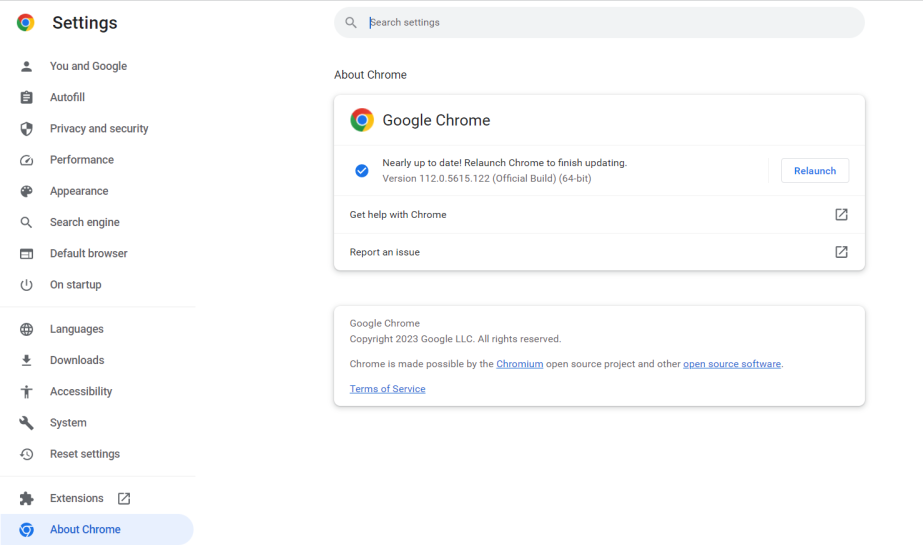
Go to chrome://settings/help. Chrome checks and downloads automatically, but the update only applies when you relaunch — and a browser that is never fully closed can sit several versions behind for weeks.
Relaunch it. Chrome restores your tabs.
4. Turn Memory Saver on
Settings → Performance → Memory Saver.
It frees resources from tabs you have not touched recently; they reload when you return. On a machine with 8 GB of RAM and a habit of forty open tabs, this is a genuine and immediate improvement.
Add sites you always want kept active — a music player, a chat app — to the exceptions list.
5. Get hardware acceleration right
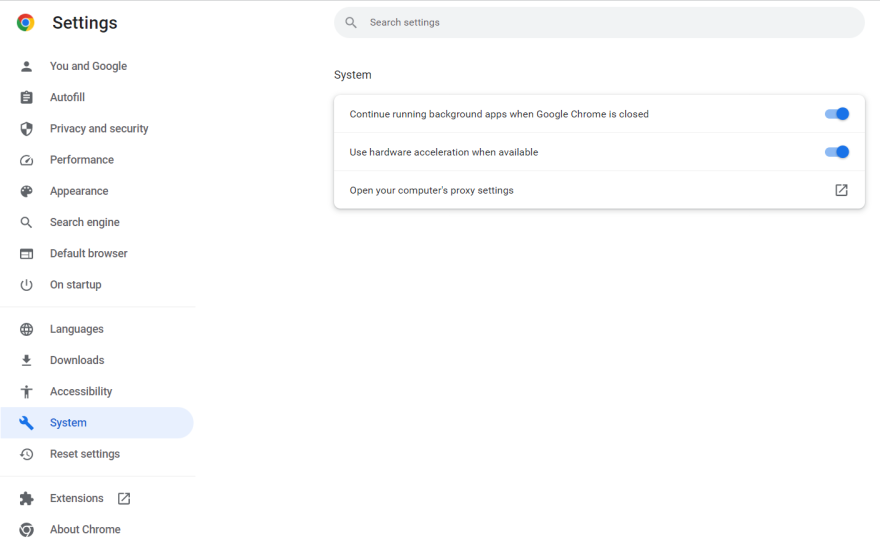
Note that generic advice goes in both directions here, because the right answer depends on your machine.
On: the correct default. Video decoding and page rendering move to the GPU, which is faster and uses less battery.
Off: worth trying if you see flickering, black rectangles, video artefacts, or crashes — all signs of a graphics driver problem.
If turning it off fixes visual problems, update your graphics driver from the vendor and turn it back on. Leaving acceleration off permanently is a workaround, not a fix.
Check what is actually accelerated at chrome://gpu.
6. Clear the cache — properly
A cache that has grown very large, or become corrupted, does slow Chrome down. But clearing it means re-downloading everything, so pages are slower for a while afterwards.
- Press Ctrl + Shift + Delete.
- Choose All time.
- Tick Cached images and files.
- Leave Passwords and Autofill unticked.
Do it occasionally when there is a problem, not as routine maintenance.
7. Check the machine, not the browser
Chrome is often blamed for the machine’s limits:
- Memory. Open Task Manager (Ctrl + Shift + Esc) → Performance → Memory. Consistently above 80% means the system is paging to disk, and everything is slow, not just Chrome.
- Storage. A mechanical hard disk makes Chrome feel sluggish in a way no setting fixes. See how to check drive speed and health.
- Startup load. See disabling startup programs.
8. Reset Chrome
If nothing else works, before reinstalling:
Settings → Reset settings → Restore settings to their original defaults.
This resets the start page, new tab page, search engine and pinned tabs, and disables extensions. Bookmarks, history and saved passwords are kept.
Check for unwanted software
If Chrome opens pages you did not ask for, or the search engine keeps changing, that is not a performance problem — something is installed that should not be. Check chrome://extensions for anything you did not add, then run a full scan with Windows Security, including the offline scan.
What not to do
Skip “browser cleaner” and “PC booster” tools. They do what the steps above do, wrapped in advertising, and the category has a long history of installing exactly the kind of thing it claims to remove.
Be sceptical of chrome://flags tweaks. Flags are unfinished features. They change or disappear between versions — so a guide recommending one is often already wrong — and they can corrupt your profile. If you have changed some and Chrome is misbehaving, use Reset all at the top of that page.
Frequently asked questions
Why does Chrome use so much memory?
By design: each tab and extension runs in its own process, so one crashing does not take the browser with it. It also uses free memory as cache and releases it under pressure. High usage is not automatically a problem — high usage on a machine that is short of memory is.
Should hardware acceleration be on or off?
On, unless you have visual glitches or crashes. Then turn it off to confirm, update your graphics driver, and turn it back on.
Is another browser faster?
Chrome, Edge, Brave, Opera and Vivaldi all use the same engine, so raw performance is close. Edge and Brave are somewhat lighter by default. Firefox uses a different engine and is often kinder to memory. None of them will rescue a machine that is out of RAM.
How many extensions is too many?
There is no number — it depends what they do. One extension running on every page can cost more than five that run on click. Use Chrome’s task manager to see which are actually expensive.
Does clearing the cache speed Chrome up?
Only if it was corrupted or extremely large. Immediately afterwards Chrome is slower, because it has to fetch everything again. It is a troubleshooting step, not maintenance.


